Connecting a knowledge base to your agent
Knowledge Hub lets you organize and manage enterprise knowledge (documents, wikis, application data, and support content) into searchable, AI-ready knowledge bases. Custom agents built in Agentstudio can attach one or more knowledge bases to a task so the agent can ground its responses in your organization's real data instead of general-purpose model knowledge.
Agentstudio agents ground their responses using retrieval-augmented generation (RAG), a pattern where the agent retrieves relevant content and uses it to inform what it generates. At runtime, this pattern works as follows: the agent queries the attached knowledge base, retrieves relevant chunks of content, and uses them to generate a response with citations back to the source.
Benefits
Attaching a knowledge base to your agent:
- Grounds responses in real data — Agents retrieve chunks from your organization's actual documents and systems instead of relying on general-purpose model knowledge, reducing hallucinations.
- Requires no machine learning expertise — Attach a knowledge base to an agent without building or managing retrieval infrastructure yourself.
- Breaks down knowledge silos — Knowledge bases combine structured and unstructured data from multiple sources into a single, queryable asset.
- Keeps knowledge governed — Knowledge Hub applies Boomi's existing access and compliance controls to every retrieval request.
Knowledge base data storage
Knowledge base storage depends on the location of your Boomi Platform. Although your agent deploys to a specific runtime region and processes knowledge base data in the region, your knowledge base data stays in the location of your platform (currently North America only).
Key concepts
Repositories and knowledge bases
Knowledge Hub organizes knowledge bases into repositories. When you attach a knowledge base to a task, you first select a repository, then choose from the knowledge bases within it.
Retrieval modes
Each knowledge base retrieves data using one of the following modes:
- Lexical — matches on keywords.
- Semantic — matches based on the meaning and reasoning closeness of the content.
- Hybrid — combines lexical and semantic matching.
Agent Designer displays details about the retrieval mode to help you choose a knowledge base to attach to your agent. Refer to Knowledge Hub for details on how each retrieval mode ranks and returns results.
Select Configuration to edit the default retrieval mode when attaching the knowledge base.
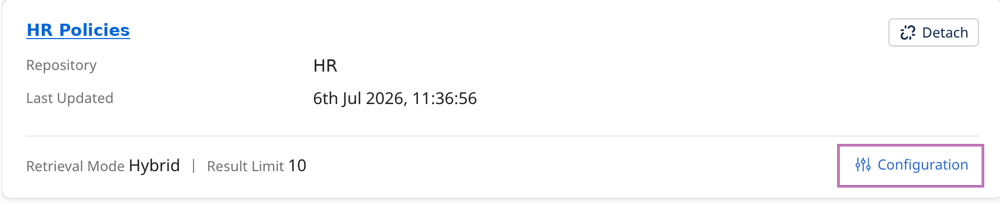
Result limit
The result limit (also called top-k) controls how many chunks of content the knowledge base returns to the agent per query. This is separate from the total number of matches a search might find. The default result limit is 10 chunks.
Metadata filters
You can narrow retrieval results using filters based on the knowledge base's schema. Adding filters improves performance and reduces token usage by limiting the amount of data the LLM needs to process.
Agent Designer populates each filter's drop-down list with fields already defined in the knowledge base. Filter values are case-sensitive and can be a string, boolean, or integer data type.
Prerequisites
Before attaching a knowledge base, ensure:
- You have access to Agent Designer and permission to build or edit agents. Refer to Accessing Agentstudio and setting up permissions for privilege details.
- You have access to Knowledge Hub.
- You have a repository and at least one knowledge base in Knowledge Hub.
- You have an agent created in Agent Designer, or you're in the process of building one.
Important considerations
- The knowledge base attachment feature is only available in the North American Platform.
- You can only attach enabled knowledge bases that you have permission to access.
- You can attach more than one knowledge base to a task.
- Metadata filters are case-sensitive.
- An agent can only query knowledge bases that are available in the same Environment where you deploy the agent. Refer to Agent runtime clouds and environments to learn more.
- Authentication to attach or query a knowledge base happens automatically.
- If a knowledge base belongs to a different region than the agent's deployment runtime (for example, a US knowledge base and a UK or Australia runtime), Agentstudio displays a warning.
- The agent's YAML export excludes knowledge base attachments, but the PDF export includes them. After importing an agent that used a knowledge base, re-attach it manually.
- Before deleting a knowledge base in Knowledge Hub, detach it from any agents that use it.
- Agent Designer checks to ensure a knowledge base attached to an agent still exists. If it finds a deleted knowledge base, Agent Designer blocks you from packaging and deploying the agent. Remove the deleted knowledge base to continue.
Knowledge base metadata
Agent Designer displays details about knowledge bases that are available to attach to agents to help you choose. Select the knowledge base name to view details.
| Field | Description |
|---|---|
| Repository | The Knowledge Hub repository the knowledge base belongs to. Selecting a repository narrows the list of available knowledge bases. |
| Retrieval mode | How the agent searches the knowledge base: lexical (keyword matching), semantic (meaning-based), or hybrid (both). |
| Result limit (top-k) | The number of chunks retrieved from the knowledge base per query and passed to the agent's context. Default is 10. |
| Filters | Optional metadata filters, populated from the knowledge base's schema as drop-down values. Conditions within the same filter use OR logic; multiple filters use AND logic. Input is validated against the field's data type (string, integer, or boolean) and is case-sensitive. |
| Status | Whether the knowledge base is enabled or disabled. You can only attach enabled knowledge bases. You cannot package and deploy an agent if an attached knowledge base becomes disabled. |
Attaching a knowledge base to an agent task
- Navigate to Agent Garden > Agent Designer and open the agent you want to configure.
- Select the Tasks tab.
- Find the task you want to attach a knowledge base to, then select Knowledge Bases.
- Select Attach Knowledge Base.
- Select a repository to narrow the list of available knowledge bases.
- Select one or more knowledge bases from the list. Each entry shows the name, description, retrieval mode, result limit, and last updated date.
- Optional: Select Configuration to change the retrieval mode and result limit for each knowledge base you attach. Select Save.
- Optional: Add metadata filters using the dropdowns populated from the knowledge base's schema. Select Save.
- Close the panel and select Save and Continue.
Testing a knowledge base attachment
After attaching a knowledge base, test the agent in the conversational testing panel. Queries you send trigger real retrieval against the attached knowledge base, so you can confirm the knowledge base is reachable, the query returns relevant chunks, and the agent incorporates the retrieved context into its response. Refer to Testing and troubleshooting an agent to learn how to interpret the agent trace.
Managing attached knowledge bases
Select View All Assets in the Tasks tab to view every knowledge base attached to an agent, along with the tasks that use each one. From this tab, you can detach a knowledge base directly. Return to a knowledge base at any time to review its schema, update filters, or detach it.
Deleted knowledge base behavior
If you delete a knowledge base in Knowledge Hub while it's still attached to a production agent, the agent reports an error. Detach the knowledge base in Agent Designer and re-deploy the agent to production.
Package creation for agent deployment also validates that every attached knowledge base is enabled. If an attached knowledge base is disabled, Agent Designer blocks agent packaging. Refer to Deploying agents for more information.
Does attaching a knowledge base affect the agent's context window?
Retrieved chunks count toward the agent's context window. When the limit is reached (200k tokens), Agentstudio automatically compresses the retrieved data before adding it to context. The agent may not retrieve all the chunks it can per the result limit (top k). The agent still responds, but response quality may be reduced. With Extended Thinking enabled, the agent also retains retrieved knowledge base content for the rest of the session, so follow-up questions about the same content don't require a new retrieval. Refer to Agentstudio token limits for more information.
When does an agent retrieve from a knowledge base?
Agentstudio uses progressive retrieval: the agent queries a knowledge base only when the task requires it, rather than retrieving all available content up front. If an initial query doesn't return useful results, the agent may make another retrieval attempt within the same response. If the agent already retrieved relevant content earlier in the session and Extended Thinking is on, it can reuse that content from session memory instead of querying the knowledge base again.
Can I review how the agent uses a knowledge base?
Yes. The agent trace includes a Retrieval step, alongside the existing Thinking and Actions steps. Refer to Agent trace field reference for details. The Retrieval step shows which knowledge base the agent queried, the query it submitted, the retrieval mode and result limit it used, the number of chunks it returned, latency, and any errors.
Monitoring knowledge base usage in Agent Control Tower
The agent trace shows retrieval while you build and test an agent. After you deploy, use Agent Control Tower to monitor how your agent uses its attached knowledge bases in production. Knowledge base activity appears in three places:
-
Agent details: In Viewing and managing your agents,, the agent's Tasks section shows a knowledge base card for each task. Select one to jump straight to the full Knowledge Base tab and review every knowledge base the agent uses. A dedicated Knowledge Base details view and the agent side drawer show each knowledge base's details, with tooltips for truncated descriptions.
-
Monitoring and compliance: In Monitoring your agents, the Knowledge Base tab shows knowledge base logs for your agents. These logs stay in sync with the filters you apply in the Monitoring toolbar, so you can scope activity by agent, time range, and other dimensions.
-
Session logs: In Tracing sessions, knowledge base usage is captured through Session Metrics showing the knowledge base query count for the session, the Chain of Thoughts reasoning trace includes knowledge base retrieval steps with their counts and any errors, and the Invocation summary shows knowledge base query counts per invocation.
Next steps
After attaching a knowledge base, test your agent to confirm it retrieves and applies your organization's knowledge correctly.
- Refer to Testing and troubleshooting an agent to learn how to interpret the agent trace and confirm retrieval.
- Refer to Deploying agents when you're ready to deploy your agent.
- Refer to Building an agent if you haven't completed your agent setup.
- Refer to Monitoring your agents to track knowledge base usage in Agent Control Tower after deployment.
- Refer to to learn how knowledge bases are created and populated in Knowledge Hub.
