Event Notifications
Use the Event Notifications feature to manage event subscriptions for an account. These subscriptions will route selected events to an Event Streams topic of your choice.
You must have Event Streams enabled to use the Event Notifications feature. Refer to Getting Started with Event Streams to learn more.
Once you have Event Streams enabled, navigate to Settings > Account > Event Notifications and select Add Notification.
On the Add Notification tab, configure the following settings as desired:
Event Type - Select ATOM.STATUS, PROCESS.EXECUTION, or USER.NOTIFICATION. Learn more about each Event Type below:
ATOM.STATUS The ATOM.STATUS alert identifies a recorded time when a runtime in the account is online or offline. Online — This status is sent for the INFO log level when runtimes are down and then started. Offline — This status is sent for the INFO through ERROR log levels when runtimes go down or are disabled. The Boomi Enterprise Platform detects that a runtime is offline when it does not receive communication from the runtime for more than a minute (typically, a down runtime can be detected as early as 45 seconds and as late as four minutes). The runtime status alert system monitors for status changes in 15 minute intervals, and then issues an notification if a runtime status change was detected. Runtime alerts that occur sooner than a minute may indicate a temporary network interruption, rather than a true outage. To determine if a runtime outage has occurred or is occurring, visit the Runtime Information tab of the Runtime Management page to confirm the runtime's status and the Startup Properties tab to view the runtime's last restart time to verify whether an outage occurred and recovered. For example, an alert schedule runs at the top of every hour starting at 12:00 A.M., and monitors for status changes at 12:15, 12:30, 12:45, and so on. If the platform recognizes that a runtime is offline at 12:01, the status isn't sent until 12:15 per the schedule, about 14 minutes later. In the same scenario, the runtime is offline at 12:14 A.M. and the alert is issued only a minute later at 12:15. The cadence in which this schedule runs explains why runtime status notifications are received at varying times in relation to when a runtime is offline.Details
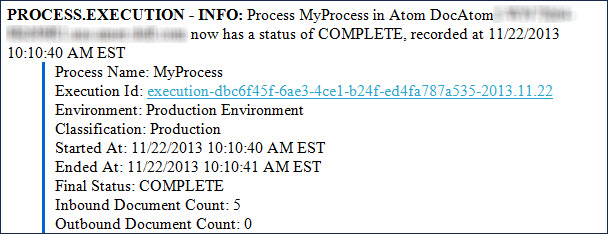
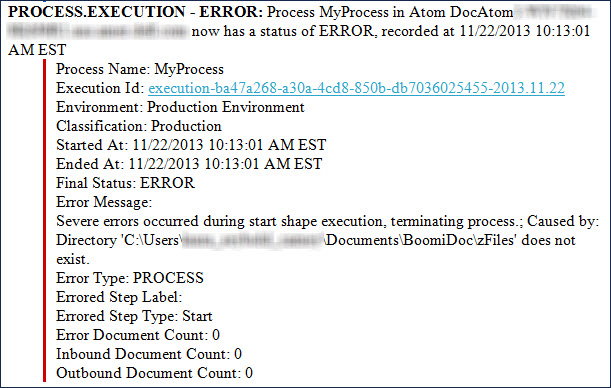
PROCESS.EXECUTION The PROCESS.EXECUTION alert identifies the start and end time for the execution of a runtime's process. The number of inbound and outbound documents are recorded, along with any documents that may have encountered errors during the process execution. The alert includes the process’ execution ID and a link to the execution. Clicking the link takes you to the process on the Process Reporting page. INFO log level alerts always send an execution status if the process runs to completion. Accompanying warning and error alerts can also be logged, depending on your process flow. This INFO log level alert indicates that the process has completed: This ERROR log level alert indicates that the process has an error: You can use the Exception step in your process flow to trigger PROCESS.EXECUTION alerts. You can also use the Exception step to send a customized message for the first document that encounters an error and to stop all or any documents that reach this step.Details
USER.NOTIFICATION The USER.NOTIFICATION alert identifies a Notify step having the Enable Events option that was included in a process execution. The message level (Info, Warning, or Error) set in the Notify step affects the type of notification alert that is sent, but it does not stop a document or set of documents from processing to completion. The Title and Message fields in the USER.NOTIFICATION alert display the results of those configurable fields in the Notify step:Details

Log Level - Select INFO, WARNING, or ERROR. Log levels are tiered (INFO < WARNING < ERROR). A subscription set to a given level will also receive high-severity alerts; INFO-level subscriptions include WARNING and ERROR, and WARNING-level subscriptions include ERROR. For example, you may want to receive INFO logging-level notifications about runtime status, and ERROR logging-level notifications about process executions. Or, perhaps one person in your company only wants to receive notifications about runtime status, while another only want sot receive notifications about user notifications.
Environment - Select the Event Streams environment you want notifications delivered to. This is the destination where a subscription will match event from any environment in your account, provided the following conditions are met:
-
the triggering event's environment is classified as Production (events from Test-classified environments are never delivered, regardless of subscription configuration or which environment you select).
-
the event type matches.
-
the event's log level meets or exceeds the subscription's threshold.
The matched event is then delivered to the Event Streams topic in whichever environment you selected above — for example, selecting a Test environment here means matching Production-originated events will still be delivered into that Test environment's topic, not a Production one.
Event Streams Topic - Select the Event Streams topic you want to send events to. As a best practice, we recommended creating a separate Event Streams topic with the prefix "Notif_" for platform notifications. Refer to Creating a topic to learn more.
You can also set up event notifications programmatically using the Event Notifications API.
