Packaging and deploying an agent
Packaging an agent creates a fixed, versioned snapshot of your agent configuration. Deploying the package sends it to a specific production environment and runtime cloud, where it handles live agent traffic. Refer to Agent runtime clouds and environments to learn more about environments and runtime clouds.
Each time you deploy, you choose which package version to deploy to an environment. This means you can run version 1.0 in USA East runtime cloud while deploying version 2.0 to the UK cloud. Package versions increment automatically starting at 1.0, so you never need to name or number them manually.
Each environment can only run one package version at a time, so deploying a new version to an environment replaces the one currently running there.
Agent development lifecycle
In Boomi Agentstudio, building an agent and running it in production are separate steps. Refer to Deploying agents for details on the four components (Build, Test, Package, and Deploy).
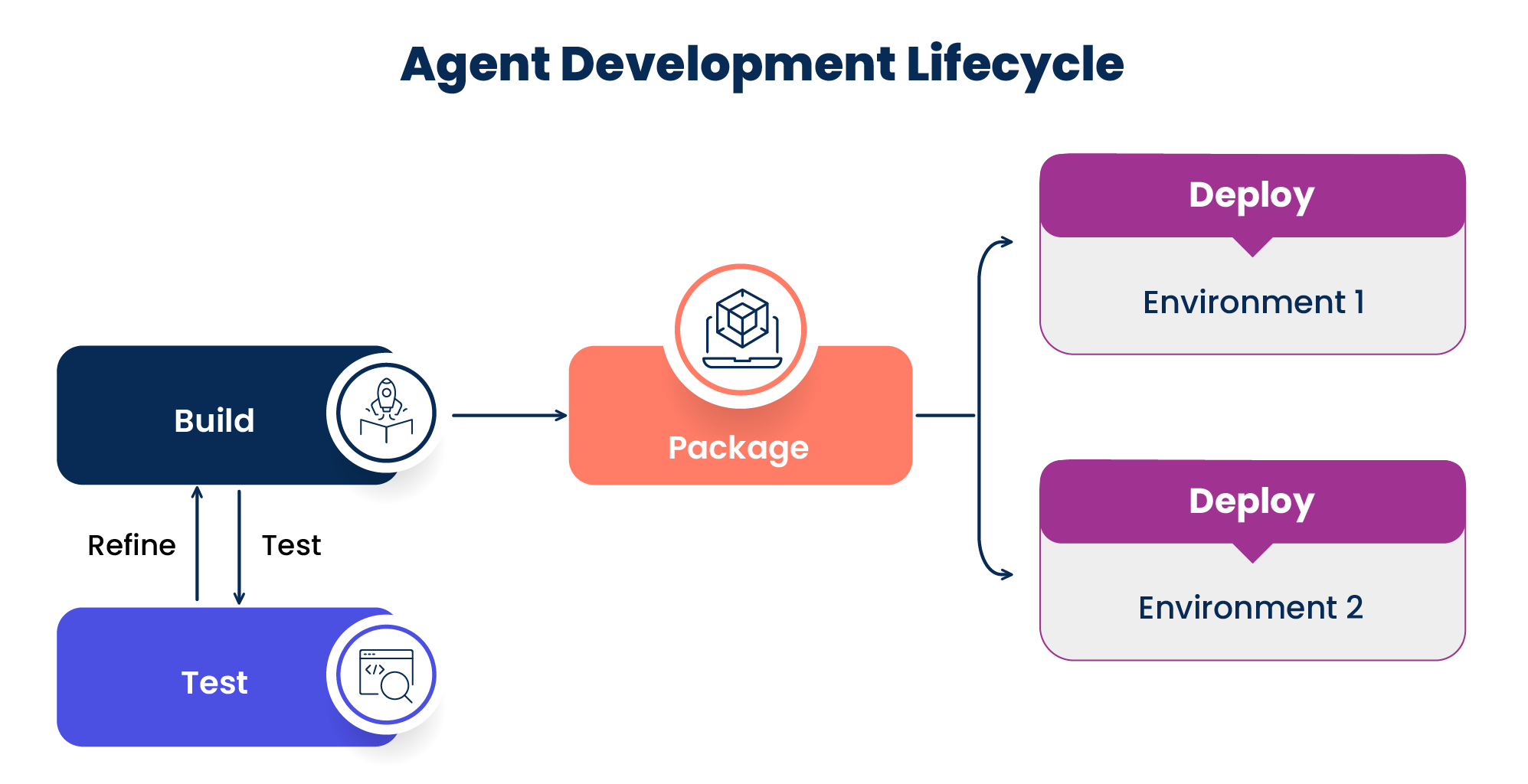
Testing an agent before deployment
Before packaging, test your agent directly in the Agent Designer by selecting a runtime cloud in the Test Agent window. No packaging is required for testing agents. After testing, create a package to capture that version for production deployment.
Editing agents after deployment
You can edit your agent at any time without affecting your active deployments. Edits only go live when you create and deploy a new package.
Packaging and deploying an agent to an environment
Following these steps anytime you edit an agent and want to deploy a new version.
- Navigate to Agents and select Edit to open the agent.
- In Review, select Create.
- Select one of the following:
- Select Package & Deploy to create a package version and deploy it to a runtime cloud.
- If you selected Package & Deploy, select the Environment that contains the runtime cloud where your agent will run.
- Select Create Package and Deploy.
- Select Package to create a package version but deploy it at a later time. All packaged agents display in the Packages and Deployments > Packages page.
- Select Package & Deploy to create a package version and deploy it to a runtime cloud.
Deploying an active agent package to a different environment
After deploying an agent package, you can deploy the same package version to additional environments. Each environment runs a single package version at a time, but multiple environments can run the same or different versions simultaneously. For example, version 1.0 in USA East and version 2.0 in the UK.
- Navigate to Packages and Deployments.
- Select the agent package version.
- Select Deploy.
- Select the Production Environment.
- Select Deploy.
Rolling back to a previous agent package
You can also roll back by selecting an older package version and deploying it to the same environment.
- Navigate to Packages and Deployments.
- Select the previous agent package version.
- Select Deploy.
- Select the Production Environment.
- Select Deploy.
