Using Application tools
Application tools allow you to instantly connect your AI agents to enterprise applications without the need for tool setup or configuration. These tools enable you to deliver powerful, agentic workflows across the business. Each software application or source supported by Agentstudio, such as Slack, Jira, and Google, has several tools. Each tool represents a specific action the agent can perform, such as creating a document, creating a spreadsheet, or setting a calendar event.
The tools use delegated authentication through OAuth 2.0 and 2.1, ensuring that agent access is user-specific and secure. You do not need to set OAuth permissions or configure your application for the agent. Simply connect the tool, converse with the agent, and sign in to your application when prompted. You don't need to sign in again for the same agent until your authentication token expires.
To connect an agent to an application in Agent Designer, click Add Tool in the agent task, browse available tools and applications, and attach it to an agent task.
Supported applications and tools
Boomi maintains tools and continually adds new applications and tools. Supported applications include Slack, Google, Jira, Microsoft Outlook, and more. Refer to Supported Application tools for a complete list.
Benefits
Application tools benefit your business by:
- Accelerating agent deployment with out-of-the-box operations that instantly connect to enterprise applications
- Enabling personal productivity automation using secure, user-specific authentication
Use case: Incident Broadcasting agent
Explore this use case to understand how to leverage Application tools for building agents.
Whenever a critical system goes down, the on-call engineer acts fast and focuses on diagnosing the outage. Still, company protocol requires them to open an incident ticket in Jira, alert employees on Slack, and send a formal notification to leadership. In practice, communication delays often occur because the engineer doesn’t have time to log into multiple systems while fighting the fire.
The IT team builds an AI agent that automates incident broadcasting using Agentstudio's Application tools. Since Application tools contain pre-built operations, time spent in agent development is significantly reduced.
The AI agent uses pre-configured, delegated authentication on behalf of the engineer to create a high-priority Jira issue, post an alert message to Slack, and send a formal incident email to the executive distribution list.
Incident communication happens automatically while engineers remain focused on incident resolution. The business achieves faster incident awareness, smooth coordination, and reduced operational risk.
Prerequisites
- Agent Garden Developer privileges. Refer to Access and privileges to learn more.
- To accept requests from the Agent Garden, allow incoming traffic from the following IP addresses:
- 3.214.191.234
- 54.210.113.194
Important considerations
- Application tools do not support Structured agent mode, Decision Engine mode, and Agent Step.
- Agentstudio truncates tool responses greater than 100K tokens.
- Context window limitations: User prompt, agent goals, tasks, and instructions combined cannot exceed 200K input tokens.
- Contact your IT admin if you experience authentication errors when testing your agent. Your admin may need to allow application access.
- The agent uses an authentication token to reduce how often you must sign in. After signing in, if you want to use a different account, you must wait for the token to expire or revoke the token before switching. Authentication links to individual users, but each agent supports only one account per user at a time.
Browsing available applications and tools
Discover all the applications and operations Agentstudio supports.
- Navigate to Agent Garden > Sources.
- Select Applications.
- Select Tools next to an application to browse the available tools.
Attaching an Application tool to an agent
You can attach tools instantly while building your agent.
- Navigate to Agent Garden > Agents.
- Select the Agent.
- In Tasks, select Manage Tools in the task to which you want to add the tool.
- Select Add New Tool.
- Open the Application filter to view all the applications you can connect to. Select View All Applications to review a complete list of options.
- Select one or more applications to view the operations available. Each tool represents a specific operation.
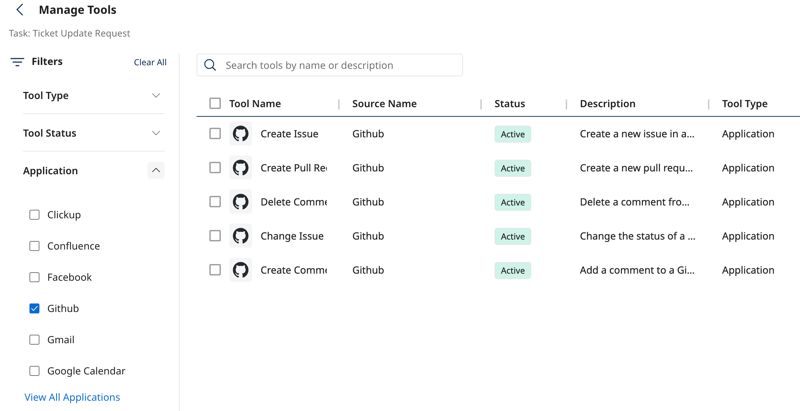
- Select one or more tools to attach to the task.
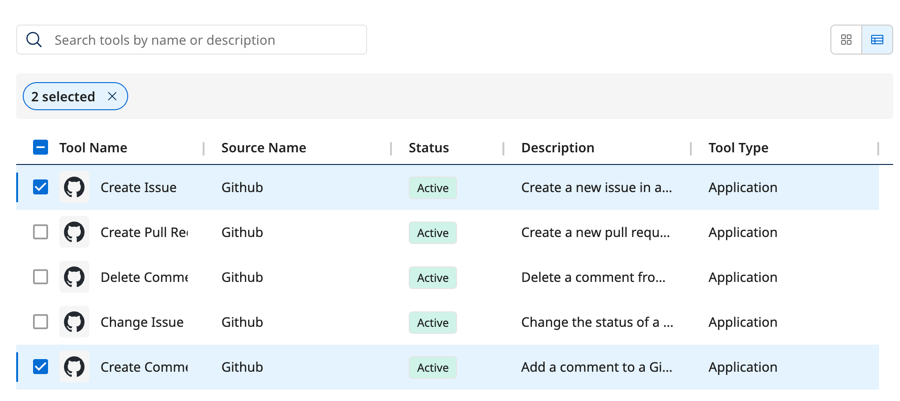
- Select Add Tools.
- Optional: Select Requires Approval to require that the agent ask permission to act.
- Optional: Select Data Passthrough to bypass LLM processing for system data in responses. Agent responses will appear in raw data format instead of natural language text.
- Click Save.
- Test the agent in the Test agent window. The agent will prompt you to sign into your applications so it can proceed with its tasks.
Deactivating tools
You can deactivate a tool to prevent agent access if no agents are currently deployed and using it.
- Navigate to Agent Garden > Sources > Applications.
- To deactivate an entire source, select Actions > Disable.
- To deactivate an individual tool, select the Tools link next to the source.
- Select the Actions icon next to the tool.
- Select Disable.
