Building an agent in Decision Engine mode
Decision Engine mode is an Early access feature. Refer to the Early Access disclaimer for details.
This topic covers how to create, configure, test, and troubleshoot a Decision Engine mode agent. For an overview of Decision Engine mode, including benefits, use cases, and how it compares to other agent modes, refer to Using Decision Engine mode. For schema design requirements and best practices, refer to Decision Engine agent design guidance.
Prerequisites
- You must have a TypeSafe AI account and API key.
Important considerations
- Decision Engine mode is available for agents deployed in Flex runtimes and Boomi-managed runtime clouds. Refer to Deploying agents for more information.
- You must use Decision Engine mode agents in agentic workflows. Call your agent through the Agent step in Integration. Refer to Agent step overview for tutorials.
- JSON format must be in draft 04 schema. Refer to JSON Schema Draft 4 for more information.
- File uploads are not supported.
- The TypeSafe API key is not validated when you save the agent. If the key is invalid or missing, the agent may fall back to an LLM instead of returning an error. Verify that your API key is correct during testing by inspecting the agent trace.
Build a Decision Engine agent
-
Navigate to Agentstudio > Agent Garden > Agents, and create or edit an agent.
-
In Profile > Agent Mode, select Decision Engine.
-
Enter your TypeSafe API key. The API key is available in the TypeSafe AI console. The key is not validated at save time. If the key is invalid or missing, the agent falls back to an LLM instead of returning an error.
-
Define the JSON input and output schema that the agent returns, including the fields, types, and validation rules. Refer to Decision Engine agent design guidance for schema requirements and examples.
-
Select Save and Continue.
-
Optional: In Tasks, add tools, glossaries, and knowledge bases that the agent can use for lookups during the decision, such as PO data, entitlements, and enrichment data.
-
Test and deploy the agent. The agent accepts JSON input and returns validated decisions. For details, refer to Testing and troubleshooting an agent and Deploying agents.
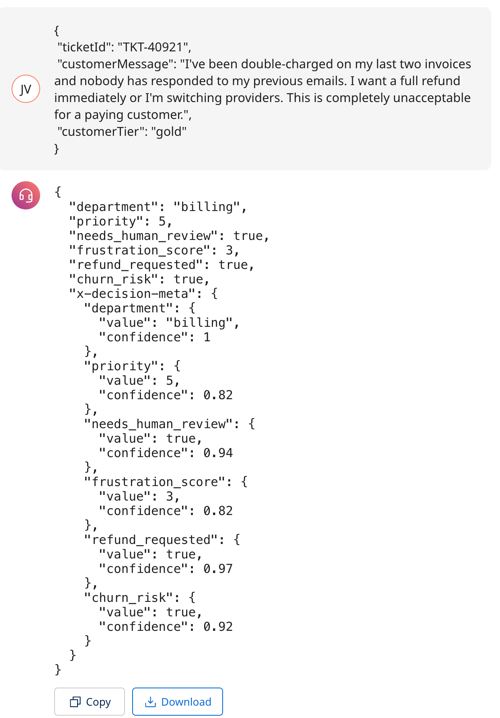
Troubleshooting Decision Engine agents
Reading traces
Decision Engine traces look different from Conversational and Structured mode traces. Instead of LLM reasoning text, the trace shows:
- A thinking step where the agent confirms it has enough information to produce an answer.
- A decision step where each output field is translated into one of Decision Engine's three primitives (choice, yes/no, or score) and displayed in a tabular format with the selected value.
This tabular format is expected behavior. It reflects how Decision Engine mode evaluates each field as an independent decision rather than generating a single block of reasoning text.
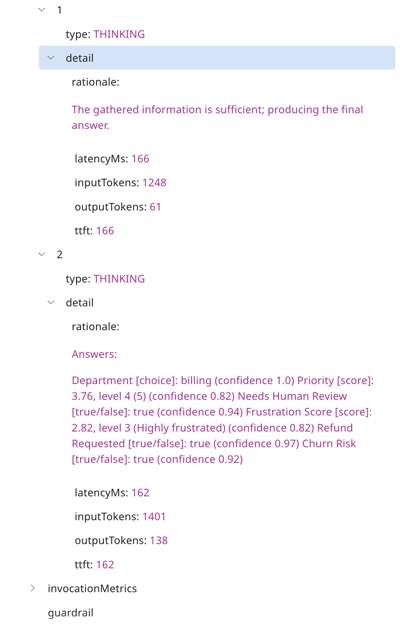
Unexpected or incorrect decisions
If the agent returns decisions that don't match your expectations, check the following:
- Task instructions. Instructions are the primary way you guide the decision model. Verify that your instructions clearly define what each choice, score level, or boolean threshold means in business terms. Vague or missing instructions are the most common cause of unexpected decisions.
- Field descriptions. Confirm that each output field has a concise description that explains its business meaning. Descriptions steer the model toward the correct interpretation.
- API key. Verify that a valid TypeSafe API key is entered. Without one, the agent may silently fall back to an LLM, which produces different output behavior. An incorrectly entered key causes an error message.
- Schema field types. Confirm that each field uses the correct type for the decision you need. For example, a string field without an enum cannot produce a value unless a candidate exists in the input or tool results.
For general testing guidance, refer to Testing and troubleshooting an agent.
