Enabling metrics for Claude Code
The Monitoring Spec feature is currently not available in the UK/EU Platform. (Beta) Monitoring signals for Claude Code are still maturing. Some metrics are aggregated at the session level rather than per interaction, and interaction-level data may appear with a short delay. Available fields, granularity, and update behavior are subject to change.
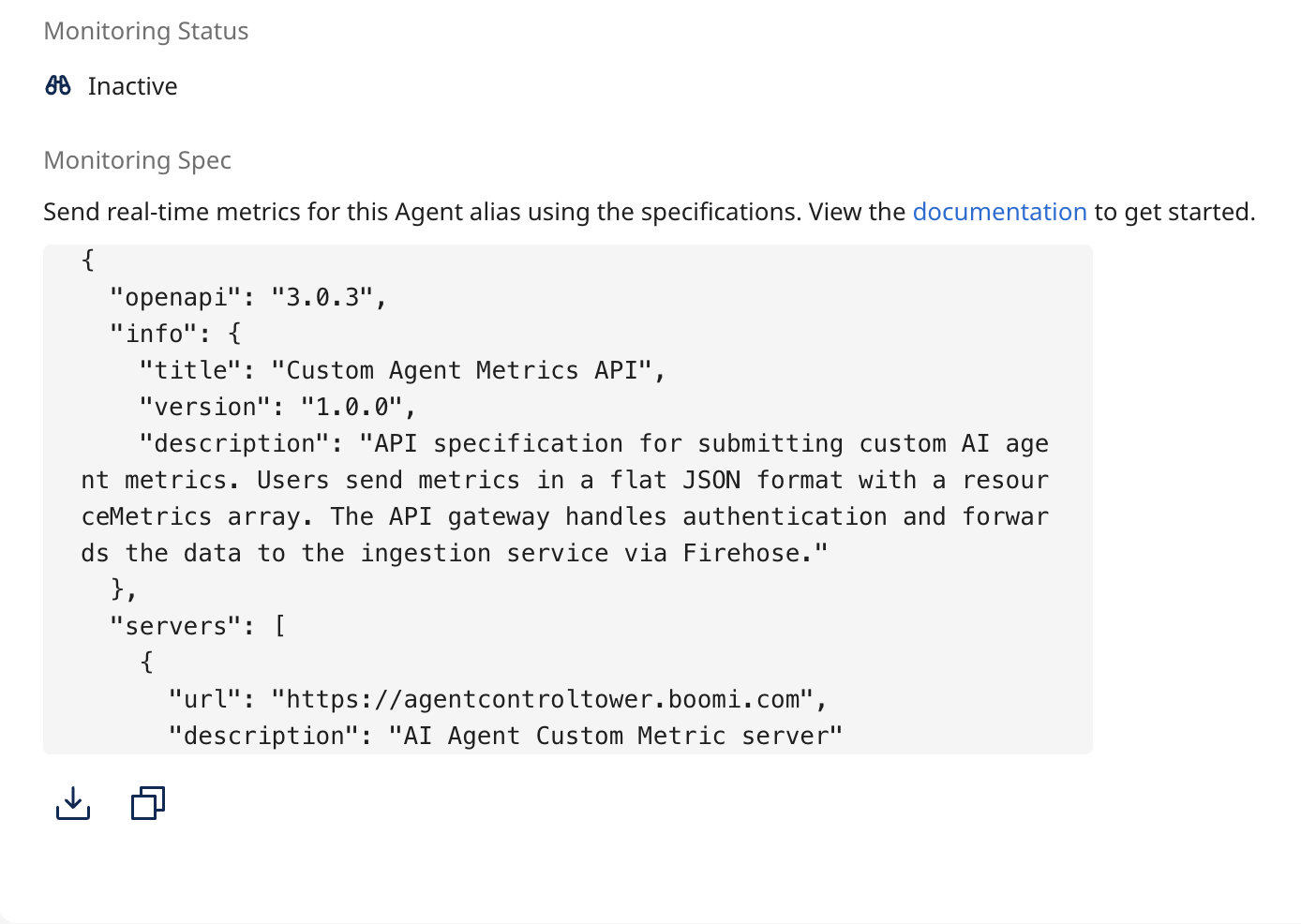
To enable Claude code agent metrics on the Agent Control Tower, you need the Monitoring Spec available in the overview section of your agent ALIAS.
Prerequisites
- You need to have a published Agent Alias of your agent created.
- You must use the
extAccountAliasIdandproviderTypefrom the Monitoring Spec section for integrating monitoring metrics with ACT. - You need a Boomi Access Token.
- You need a settings.json file in your
.claudefolder.
Levels of settings configuration
You can update the settings.json file in two locations depending on your metric ingestion needs.
~/.claude/settings.json: Is set up in the main.claudefolder and applies to all the claude user sessions<project-root>/.claude/settings.json: Is set up at the project-level
Project-level settings apply only when Claude Code is invoked from within that particular project directory. Any key defined at the project level overrides the same key from the user-level file. Keys absent from the project file fall through to user-level.
For example, if you put the OTLP config (for example, a different X-Alias-Id) in .claude/settings.json inside a project, only sessions started from that project directory send metrics with those settings. Sessions outside that directory use only ~/.claude/settings.json.
As per the official Claude Code documentation, ~/.claude/settings.json applies to all Claude Code surfaces including CLI, VS Code extension, and JetBrains IDE. OTLP metrics will be forwarded from all three wherever Claude Code is invoked. For more information refer to Settings hierarchy and OTLP Monitoring.
Configuring the settings file
To enable metrics perform the following steps:
-
Go to the agent Alias of the agent you want to use.
-
From the Overview tab, navigate to the Monitoring Spec section and copy or download the OpenAPI spec to your local desktop.
-
Open or create the settings.json file and store it under the .claude folder.
-
Add the following
envblock:{
"env": {
"CLAUDE_CODE_ENABLE_TELEMETRY": "1",
"OTEL_METRICS_EXPORTER": "otlp",
"OTEL_EXPORTER_OTLP_PROTOCOL": "http/json",
"OTEL_EXPORTER_OTLP_METRICS_ENDPOINT": "https://agentcontroltower.boomi.com/metric-ingestion/v1/idp-accountid/otlp/public/metrics",
"OTEL_EXPORTER_OTLP_HEADERS": "Authorization=Basic <base64-token>,X-Alias-Id=<agent-alias-id>,Origin=https://claude.ai",
"OTEL_RESOURCE_ATTRIBUTES": "providerType=CUSTOM_PROVIDER,operation=InvokeAgent,promptType=Interactive",
"OTEL_METRIC_EXPORT_INTERVAL": "5000",
"OTEL_EXPORTER_OTLP_METRICS_TEMPORALITY_PREFERENCE": "delta"
},
}noteSet CLAUDE_CODE_ENABLE_TELEMETRY to "1" to enable telemetry. Setting it to "0" disables metric forwarding entirely.
-
Add in the server URL and idp-accountId you obtained from the monitoring spec for example
"https://agentcontroltower.boomi.com/metric-ingestion/v1/boomi_productmanagement-YXXXXF/otlp/public/metrics"toOTEL_EXPORTER_OTLP_METRICS_ENDPOINT. -
For Authorization,
- construct the credential string using your username and platform API token:
BOOMI_TOKEN.<user-email-id>:<your-platform-api-token> - Run the following command in your terminal:
echo -n "BOOMI_TOKEN.<user-email-id>:<your-api-token>" | base64 - In the settings file, set the "OTEL_EXPORTER_OTLP_HEADERS" as "Authorization=Basic
<paste-base64-output-here>,X-Alias-Id=<alias-id>,Origin=https://claude.ai" where alias ID is the external Alias ID from the monitoring spec.
- construct the credential string using your username and platform API token:
Verifying the setup
Close all the previously running Claude sessions to restart a Claude Code session so that it picks up the configuration from the settings.json and wait for at least 5 seconds (one export interval).
There are two ways you can verify the setup:
- By using the terminal and checking that Claude Code is sending the metrics
- Checking the Monitoring status in the UI:
- Navigate to AI Agent Registry → Agents
- Select your agent and open the Aliases tab
- Confirm the alias shows Monitoring: Active
Verifying that Claude Code is sending the metrics
- Open the terminal and run the command:
ps aux | grep -E "^\S+\s+[0-9]+.*claude" | grep -v grep - Kill any running processes by entering the command
pkill -f "^claude$"where ^claude$ inserts the session number - Add the below debug config in the claude/settings.json file
{
"env": {
   "CLAUDE_CODE_ENABLE_TELEMETRY": "1",
   "OTEL_METRICS_EXPORTER": "otlp",
   "OTEL_EXPORTER_OTLP_PROTOCOL": "http/json",
   "OTEL_EXPORTER_OTLP_METRICS_ENDPOINT":  "https://agentcontroltower.boomi.com/metric-ingestion/v1/boomi_productmanagement-YXXXXF/otlp/public/metrics",
   "OTEL_EXPORTER_OTLP_HEADERS": "Authorization=Basic <base64-token>,X-Alias-Id=<alias-id>,Origin=https://claude.ai",
   "OTEL_RESOURCE_ATTRIBUTES": "providerType=CUSTOM_PROVIDER,operation=InvokeAgent,promptType=Interactive",
   "OTEL_METRIC_EXPORT_INTERVAL": "5000",
   "OTEL_EXPORTER_OTLP_METRICS_TEMPORALITY_PREFERENCE": "delta",
   "OTEL_LOG_LEVEL": "debug"
 }
}
- Run Claude using the command
claude --debug - In a second terminal, run the command
tail -f ~/.claude/debug/latest | grep -i "telemetry\|exporter\|otlp\|metric"
The logs take a couple of minutes to compile.
Alternatively, if your Claude logs into a particular path, you can obtain the logs by using the path under "Debug mode enabled with the logging path". In a second terminal, run the command tail -f ~/.claude/debug/logging-path.txt | grep -i "telemetry\|exporter\|otlp\|metric"
The logging path is found as you open Claude, under "Debug mode enabled".
A successful metric flow response returns:
[DEBUG] BigQuery metrics exported successfully
An error reponse returns:
[ERROR] [3P telemetry] OTEL diag error: {"message":"PeriodicExportingMetricReader: metrics export failed (error OTLPExporterError:Forbidden)","originalLine":"2661",
"originalColumn":"42012","line":"2661","column":"42012","sourceURL":"/$bunfs/root/src/entrypoints/cli.js","stack":"Error: PeriodicExportingMetricReader: metrics export failed (error OTLPExporterError: Forbidden)\n    at _doRun (/$bunfs/root/src/entrypoints/cli.js:2661:42012)\n    at processTicksAndRejections (native:7:39)","name":"Error"}
Possible error responses:
| Log Message | Cause | Fix |
|---|---|---|
Agent alias <id> not found | The X-Alias-Id value is wrong or does not exist | Verify the alias ID in the AI Agent Registry |
Alias does not belong to the specified account | Alias belongs to a different account | Use the alias ID from your account |
Empty resourceMetrics in OTLP payload | Claude Code sent an empty payload | Verify CLAUDE_CODE_ENABLE_TELEMETRY=1 is set |
HTTP 400 Bad Request | Malformed JSON or missing required header | Check OTEL_EXPORTER_OTLP_PROTOCOL=http/json |
HTTP 401 Unauthorized | Invalid API token or incorrect Base64 encoding | Re-encode the token credential string |
