Using the MCP Server Catalog
The MCP Registry in API Control Plane is your organization's centralized catalog for governing which Model Context Protocol (MCP) servers agents can connect to. It aggregates servers from three sources: the official Anthropic MCP registry and Boomi's internal registry. Any API product you've enabled as MCP-ready in the API Control Plane automatically appears in the Server Catalog, requiring no manual addition.
The Server Catalog bridges the MCP Registry and Agentstudio. When a platform admin adds a server to the catalog, it becomes immediately available to agent builders, without requiring you to leave Agentstudio or touch the API Control Plane.
The MCP registry speeds up the agent building process, by reducing the time spent on searching for server URLs and misconfiguring connections. It gives platform admins control over what's available, and gives agent builders a governed, pre-vetted catalog to work from.
Selecting a server from the registry pre-populates connection details into a new MCP Source, reducing manual configuration and ensuring you're connecting to servers your organization has approved. Manual entry remains available for servers not yet in the registry.
Key benefits
-
Discover MCP servers without leaving Agentstudio: Browse and search Boomi's curated MCP Registry directly from the Agent Designer's Source tab, no context-switching to API Control Plane required.
-
Less setup, faster builds: Connection details like the MCP server URL and available headers are pre-populated when you select a server, so you go from discovery to a fully configured MCP source.
-
Instant tool access: Once added, MCP server tools are immediately available in your agent, requiring no manual configuration steps between selection and deployment.
Prerequisites
-
You have access to Agentstudio and have the following privileges configured:
- AGENT_GARDEN_ACCESS
- AGENT_INSTALL
- AGENT_CREATE
- AGENT_VIEW
- AGENT_EDIT
For more information on Agentstudio permissions, refer to Accessing Agentstudio and setting up permissions.
-
You have access to the API Control Plane. If you do not have access to the API Control Plane, the Server Catalog button is greyed out.
-
Your organization's Platform Admin has configured and published at least one MCP server to the MCP Registry in API Control Plane. If the registry catalog is empty, contact your admin before proceeding.
-
You are working within an existing agent configuration in Agentstudio.
Key concepts
-
MCP (Model Context Protocol): An open protocol that standardizes how agents connect to external tools and data sources. Each connected server exposes a set of tools your agent can invoke.
-
MCP Source: A configured connection to an MCP server within Agentstudio. Each source defines the server endpoint, transport type, and authentication, and determines which tools are available to your agent.
-
MCP Registry: A curated catalog of approved MCP servers managed by your organization's Platform Admin in API Control Plane. Only servers that have been vetted and approved by your admin appear in this catalog.
-
API Control Plane: The Boomi Platform component where Platform Admins govern integrations, including publishing and managing MCP servers in the registry. ACP is the source of truth for the catalog you see in Agentstudio.
-
Remote: An individual MCP endpoint exposed by a server in the catalog. A single server can publish more than one remote (for example, separate endpoints per environment or API version). When a server has multiple remotes, you choose which one to connect to when you add it as a source. Different remotes have different set of tools. For example, a communication MCP might have different remotes for SMS, call, e-mail and social media apps.
Adding an MCP source
There are two ways in which you can add an MCP source as a server:
Adding an MCP Source from the MCP Registry
Find your MCP server and connect it to your agent in a single flow:
-
Open Agentstudio and navigate to the MCP Sources found under the Sources section of your Agent Designer.
-
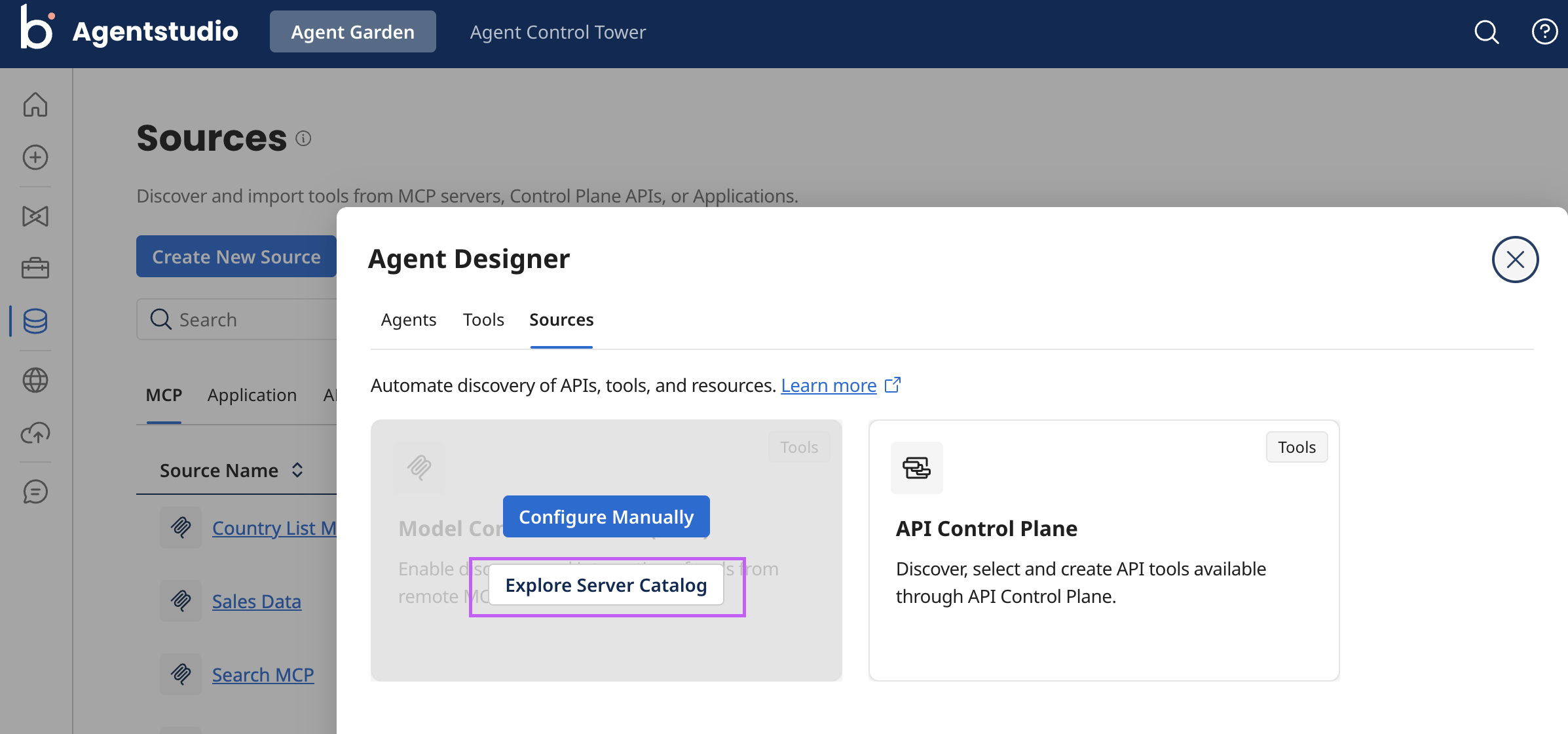
Select Explore Server Catalog. An inline panel opens, displaying your organization's MCP Registry catalog.
 note
noteIf the catalog is empty, your organization has no published MCP servers. Contact your Platform Admin or use Configure Manually to add a server by entering its connection details directly.
-
Search for a server by name, category, or provider. Each server card displays the server name, description, source badge, version, and status(Active/Deprecated).
-
Click a server card.
- If the server publishes a single remote, select the server you need and click Configure. The "Create MCP Source" window opens directly.
- If the server publishes multiple remotes, select the server you need and click Configure. A dialog displays the list of available remotes, select a remote and selct Continue.
-
Review the description, supported tools, transport type (SSE (Server-sent Events) and Streamable HTTP), and any prerequisites.
-
Add in Authentication type and Headers if needed. Click Test Connection.
-
Once you get the “Successfully connected” status, click Discover Tools.
-
Select the tools you want to add to your MCP source and click Continue.
-
Review the pre-filled details. Adjust any fields if needed, then click Save.
Agentstudio saves the MCP Source. You can then go ahead and add your MCP server to your agents as a tool attached to a particular task.
To manage your saved MCP sources refer to, Manage your MCP Source
Add an MCP Source manually
Use this method when the server you need is not registered in the Server Catalog.
To add an MCP server manually refer to Connecting to an MCP server.
If you have access to API Control Plane, and want to add a server to the Server Catalog, refer to Add an MCP Server to your Server Catalog.
Manage your MCP source
An MCP server can have multiple versions. To browse the latest version, check the “Show only Latest version” check box on the right-hand corner of the screen.
You can only edit servers that you created using Agentstudio. You can edit servers imported from API Control Plane only through the MCP Registry in API Control Plane.
Agentstudio manages credentials for both manually created and imported sources. MCP Registry only provides the name, description, connection URL and connection type.
Possible error messages
| Error message | Description |
|---|---|
| Registry unreachable | If Agentstudio cannot reach the MCP Registry, the Browse Registry panel displays an error with a retry option. The Configure Manually path remains fully available. |
| Empty catalog | If your organization has no approved servers, the Browse Registry panel displays an informational message. Contact your Platform Admin to request servers be published, or use manual configuration. |
| Incomplete registry entry | If a server's registry entry is missing required connection details, Agentstudio disables the Add as Source action. A message directs you to contact your Platform Admin. |
| Stale connection details | If a server's connection details change in API Control Plane after you add it as a source, Agentstudio does not automatically update the existing MCP Source. This is a known limitation for this release. Boomi plans to add a "refresh from registry" capability in a future update. |
| Large catalogs | The Browse Registry panel supports pagination and search to handle catalogs with many servers. |
