Connecting models to Agentstudio
Bring Your Own Model is an Early Access release. Refer to the Early Access disclaimer for details.
A model connection links Agentstudio to one of your model provider accounts. Use an API key from your LLM account to connect it to your agents. Using your own LLM account lets your organization control:
- AI usage costs: Leverage your existing LLM provider's usage and cost agreements.
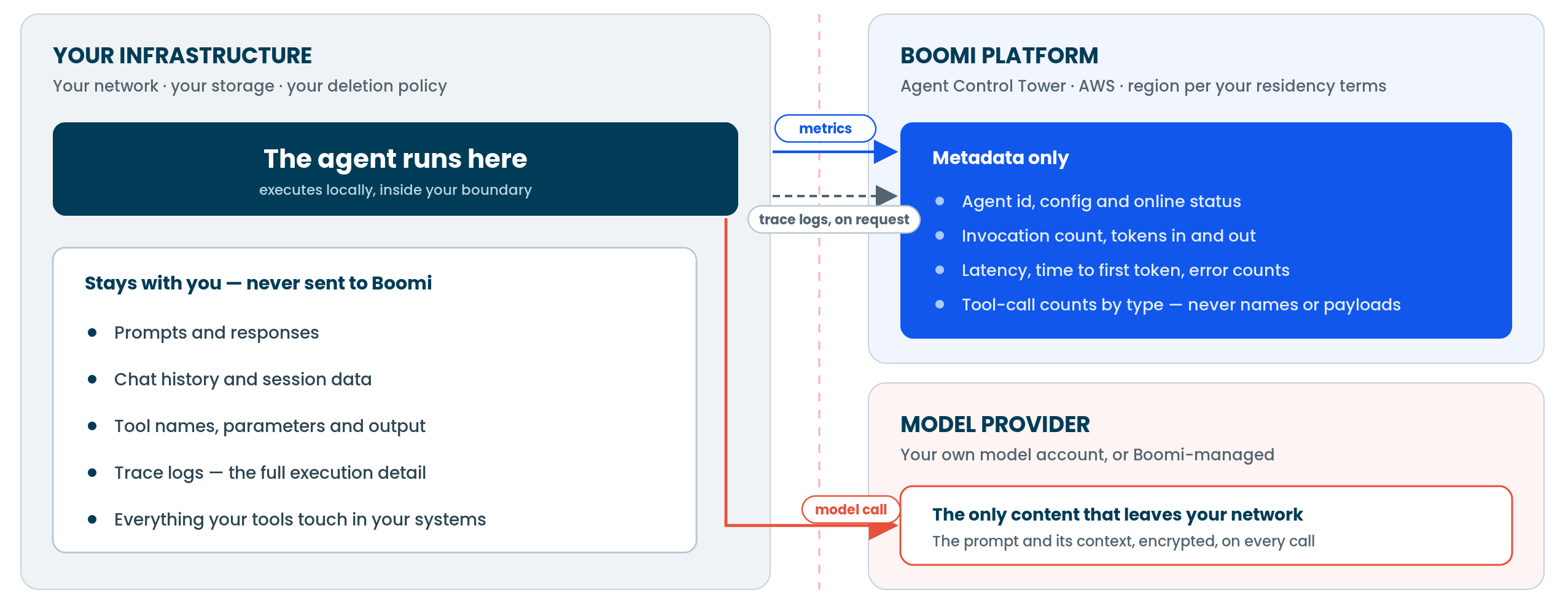
- Data privacy: Keep model prompts within your own LLM account rather than routing them through Boomi-managed models.
Once a connection exists, anyone building an agent in your account can select a model from your account connection. You can create a connection from the Models page, or from the Configuration tab while creating an agent in Agent Designer.
You must deploy agents that use your own model to self-hosted runtimes in the Flex Runtime user interface. Deployment to Flex Runtime keeps agent execution inside infrastructure your organization controls, which can support your compliance requirements. Refer to Prerequisites in Using your own models with agents for details on setup.
Prerequisites
- A Flex runtime attached to at least one production environment. Refer to Prerequisites in Using your own models with agents for details on how to set up a Flex runtime.
- An API key from supported providers (Anthropic, OpenAI, or Google).
- BYOM enabled for your account. Refer to Prerequisites in Using your own models with agents for details on how to sign up for early access.
- Only agentic workflows in Integration currently support agents with your own LLM connection. Conversational agents are not supported.
Create a model connection
You must attach Flex runtimes to a production environment.
- Navigate to Agentstudio > Agent Garden > Models.
- Select Create Model Connection.
- Select the model provider (Anthropic, OpenAI, or Google).
- Enter a connection name. The connection name helps you identify which LLM account connection to attach to your agent and deploy to a Flex runtime.
- Enter the API key from your provider account settings. To generate an API key, open the settings in your LLM provider account. Refer to your LLM provider's documentation for API key guidance:
- Select the Flex runtime environment where the LLM data and the agent will execute. Refer to Flex Runtime documentation to learn how to set up a runtime.
- Select the models from the provider list to control which models appear when developers attach a model to an agent. You can select all available models or specify specific ones.
- Select Save.
Next steps
Refer to Adding a model to an agent.
