Navigating the Solution View
Solution View is the default landing experience when Orchestrate generates a solution. It organizes your solution into business capability layers: a design level map of what the solution does and how data flows through it. Solution View helps business users and IT managers understand the solution before they interact with the underlying Boomi product assets in Asset View.
Solution View is read-only in this release. You make all implementation changes in Asset View. Solution View updates automatically when you save changes there.
The following table summarizes the two views:
| Solution View | Asset View | |
|---|---|---|
| What it shows | Layer based visualization of business capabilities | Boomi product level implementation graph |
| Primary personas | Developers and line-of-business users | Developers |
| Role | Technical design plan | Implementation |
| Examples | Ingestion, Reasoning, Execution | Integration, Agentstudio, Data Hub |
Prerequisites
- Your account must have access to Orchestrate. Refer to Access and permissions.
- Both the Orchestrate and AI Terms and Conditions features must be enabled for your account. If either is not enabled, Orchestrate opens in Asset View when a solution is generated.
Key concepts
Layers
A layer is a reusable automation blueprint that maps a business capability to the Boomi products that implement it. Each layer card on the Solution View canvas shows the layer name, a short description of the business capability it represents for the current solution, and the number of assets assigned to it.
Orchestrate maps each asset to exactly one primary layer based on the solution context, your intent, and upstream/downstream asset relationships and not just the asset type. Solution View always renders all seven predefined layers. The system grays out layers with no mapped assets, keeping the full taxonomy visible across every solution.
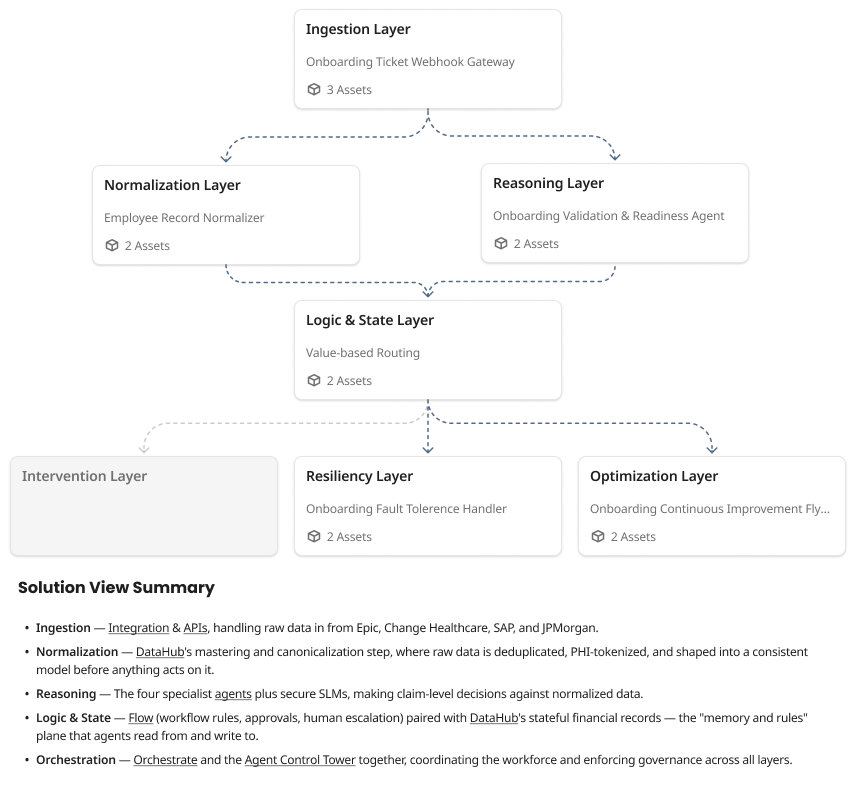
The canvas uses a fixed, directed flow layout. Ingestion at the top, delivering into Normalization and Reasoning, converging at Logic & State, and fanning out to Intervention, Resiliency, and Optimization at the bottom.
The following image shows an example Solution View with six active layers and one grayed-out layer (Intervention):
The seven layers and the Boomi products that implement each one:
| Layer | Boomi products | Business capability |
|---|---|---|
| Ingestion | Integration, API Management, Event Streams | Brings data and events into the solution from source systems |
| Normalization | Integration, Data Hub, Meta Hub | Cleans and standardizes data against golden records and business definitions |
| Reasoning | Agentstudio, Knowledge Hub | Applies AI reasoning, policy checks, and confidence scoring |
| Logic & State | Integration, Flow | Acts as the central routing decision point; runs workflow logic and manages long running state |
| Intervention | Flow, Integration | Routes work to a human for approval, input, or review |
| Resiliency | Integration, Event Streams | Handles failures, retries, and ensures message delivery |
| Optimization | AtomSphere API, Agentstudio, Meta Hub | Monitors execution metrics and surfaces improvement suggestions |
Canvas flow
The layer relationships on the canvas are fixed and consistent across all solutions:
- Ingestion feeds downstream into both Normalization and Reasoning in parallel.
- Normalization and Reasoning converge at Logic & State, the central routing and decision layer.
- Logic & State fans out to Intervention, Resiliency, and Optimization.
Connector arrows between layers mirror the active state of the layers they connect. An arrow between two grayed out layers is also grayed out.
Layer card
Each layer is represented on the canvas as a card showing three pieces of information:
- Layer name — the predefined capability name (for example, Ingestion Layer).
- Business description — a short, solution specific summary of what this layer does in the context of the current solution (for example, "Onboarding Ticket Webhook Gateway").
- Asset count — the number of Boomi assets mapped to the layer, shown with an asset icon.
The system grays out layers with no assets and hides their asset count on the canvas.
Logic & State layer
Logic & State is a named layer and not a visual grouping only that sits at the center of the canvas as the convergence point for Normalization and Reasoning. It runs decision logic, manages long running workflow state, and routes work to the delivery layers below it. Assets that handle routing, approval workflows, or stateful orchestration are typically assigned here.
Solution pattern
A solution pattern is the structured mapping of every asset in a solution to a set of business capability layers. When Orchestrate generates a solution, it also generates a solution pattern analyzing the assets, their relationships, and your stated intent to determine which layer each asset belongs to. Solution View renders that pattern as the layer canvas. The pattern is stored within the solution object and updates automatically each time you save changes in Asset View.
Asset View
Asset View is the implementation canvas where each Boomi product asset appears as an individual node. Asset View is the source of truth for all implementation changes. Refer to Reviewing and configuring assets for details.
How Solution View fits into your workflow
The following steps describe the typical user journey from solution generation to implementation.
- You describe a business problem in the AI chat panel. Orchestrate asks clarifying questions and generates a solution.
- Orchestrate opens Solution View as the default landing view, showing the solution organized into capability layers.
- You select a layer to view its details in the layer sidebar: what the layer does and which assets it contains.
- You toggle to Asset View to interact with individual Boomi product nodes.
- You add or edit assets in Asset View and click Save or Save and Build.
- Solution View updates automatically to reflect the changes. For example, a new Agentstudio node activates the Reasoning layer.
Working in Solution View
Solution View opens automatically when Orchestrate generates a solution with identifiable patterns. Orchestrate enforces Solution View for every solution. If pattern generation cannot complete (for example, because the required features are not enabled for your account), Orchestrate opens Asset View instead.
Loading state: While Orchestrate generates the layer pattern, the canvas displays skeleton placeholder cards. You cannot interact with the canvas during this time.
To switch between Solution View and Asset View, select Solution or Assets from the view toggle.
Exploring layers
Each layer card on the canvas displays:
- The layer name
- A short description of its business purpose
- The number of assets mapped to it
Click a layer card to open the layer sidebar. The sidebar persists until you close it and contains two tabs:
- Overview — the layer name and a plain language business description of the capability it represents.
- Assets — a list of all assets mapped to this layer, each showing the asset type icon and name, grouped by state: built, ready-to-build, and in error.
Clicking an asset in the Assets tab opens that asset in Asset View.
Asset to layer mapping
Orchestrate assigns each asset to one primary layer. Assignment logic considers the solution context, your intent, and upstream/downstream asset relationships. When an asset performs multiple functions such as, an Integration process that handles both ingestion and normalization, Orchestrate assigns it to one primary layer only and does not visualize it in multiple layers.
Orchestrate records a confidence score (0–100) per asset in the solution graph for offline analysis. This score is not displayed in the UI and does not affect any live experience.
Syncing Solution View with Asset View
Asset View is the source of truth for all implementation changes: adding assets, removing assets, and rewiring connections. When you click Save or Save and Build in Asset View, Solution View updates automatically. The updated Solution View may look similar to the previous version if your edits were minimal, or structurally different if they changed the solution graph; for example, removing all assets from a layer causes that layer to gray out.
The AI chat panel summary defaults to a Solution View summary (capability layers) rather than an asset level summary. After you save changes in Asset View, Orchestrate generates an updated chat summary.
Solution View reference
| Capability | V1 behavior |
|---|---|
| Editability | Read only. You cannot move, rename, reassign, or create layers directly in Solution View. |
| Layer modification | Modify layer groupings indirectly by adding, removing, or rewiring assets in Asset View. |
| Layer types | Seven predefined layers. No custom or extensible layer types supported. |
| Maximum layers per solution | 50 |
| Asset assignment | Each asset appears in exactly one primary layer. |
| Sync trigger | Automatic when you click Save or Save and Build in Asset View. |
| Marketplace solutions | Orchestrate attempts pattern detection for Marketplace solutions. Layer persistence for Marketplace solutions is deferred to a future release. |
