Changing the solution layout
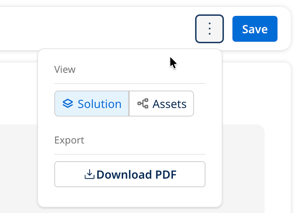
After Orchestrate generates a solution, you can view it in three layouts. Select the More options icon (three dots) and select the layout.
- Solution View: The default view when Orchestrate generates a solution. Organizes the solution into business capability layers, showing you what the solution does and how data flows through it before you look at any individual asset. This view is read-only and updates automatically when you save changes in Asset View.
- Asset View: The implementation canvas showing each asset (API, process, AI agent, and so on), what it does, and how assets connect in execution order. Use this view to confirm, edit, and build assets.
- Business View: A read-only, plain-language summary of your solution's business goal and capabilities, without technical architecture details. To generate it, select Download PDF from the More options menu, then choose the AI-generated solution summary option. Useful for sharing context with non-technical stakeholders.
Changing the Asset view layout
Interact with Asset View to change the diagram layout to fit your needs.
Drag canvas
Click the canvas to activate the hand icon and drag it to reposition the diagram.
Drag asset nodes
Click and drag asset nodes around the canvas to adjust their placement.
View asset node details
In Asset View, select an asset node to view its details (such as title and description) and open the asset in the Boomi service.
The solution diagram contains the following components:
- Asset ID
- Asset detail panel
- Deep link to product for configuration
Asset View toolbar
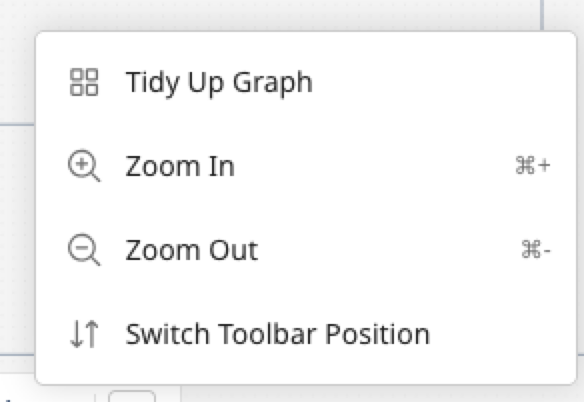
The Asset View toolbar lets you interact with the canvas in the following ways:
- Fit the entire graph on the canvas
- Move the canvas
- Zoom in and out (also possible through hand movements on a trackpad)
- Move the toolbar position to the side of the graph
- Open and close the chat panel

Interacting with Business View
Business View is only available as a PDF export. To generate it, select Download PDF from the More options menu, then choose the AI-generated solution summary option. Orchestrate generates a document describing the solution's business capabilities. The solution summary always contains the following sections:
- Goal: a summary of the business goal the solution achieves.
- Business Capabilities: describes how each asset in the solution operates to achieve the goal and its purpose, including the asset type. Refer to Solution components for details on assets.
