Reviewing and configuring assets
Each asset node in your solution diagram points to one or more components in a specific platform service. For example, the Integration process asset connects to a process in Integration that contains several steps.
After you build assets in Orchestrate, open the asset to view it in the platform service. Apply settings and make adjustments to fit your needs. For example, data models in Data Hub generated by Orchestrate are in a draft state. You'll need to review and publish it in Data Hub after you verify the settings.
When Orchestrate successfully builds an asset, it assigns an asset ID.
-
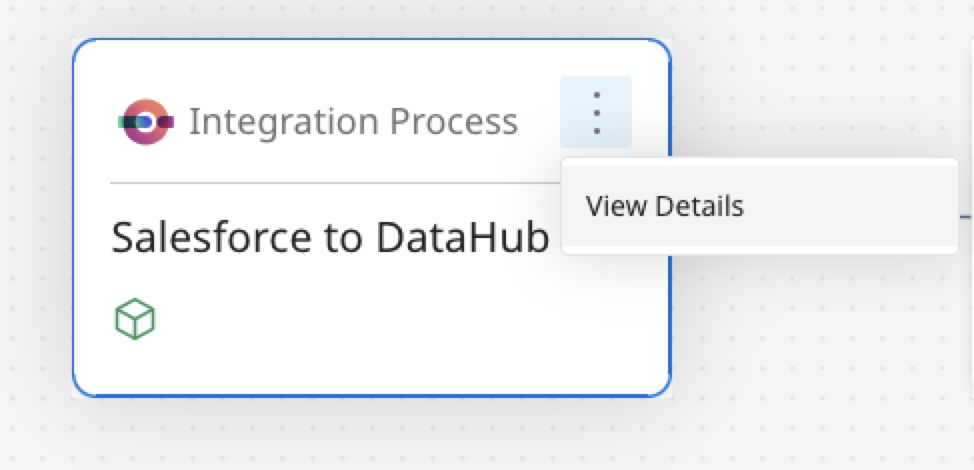
Open the solution and in the solution diagram, select Actions > View Details.
-
Select Manage. A new tab opens the asset in the Platform service. For example, a new tab opens on the Model screen in Data Hub.
-
Add additional configurations to the asset. For example, add connection details to a business process in Integration or publish a data model in Data Hub.
Deleted or non-linked assets
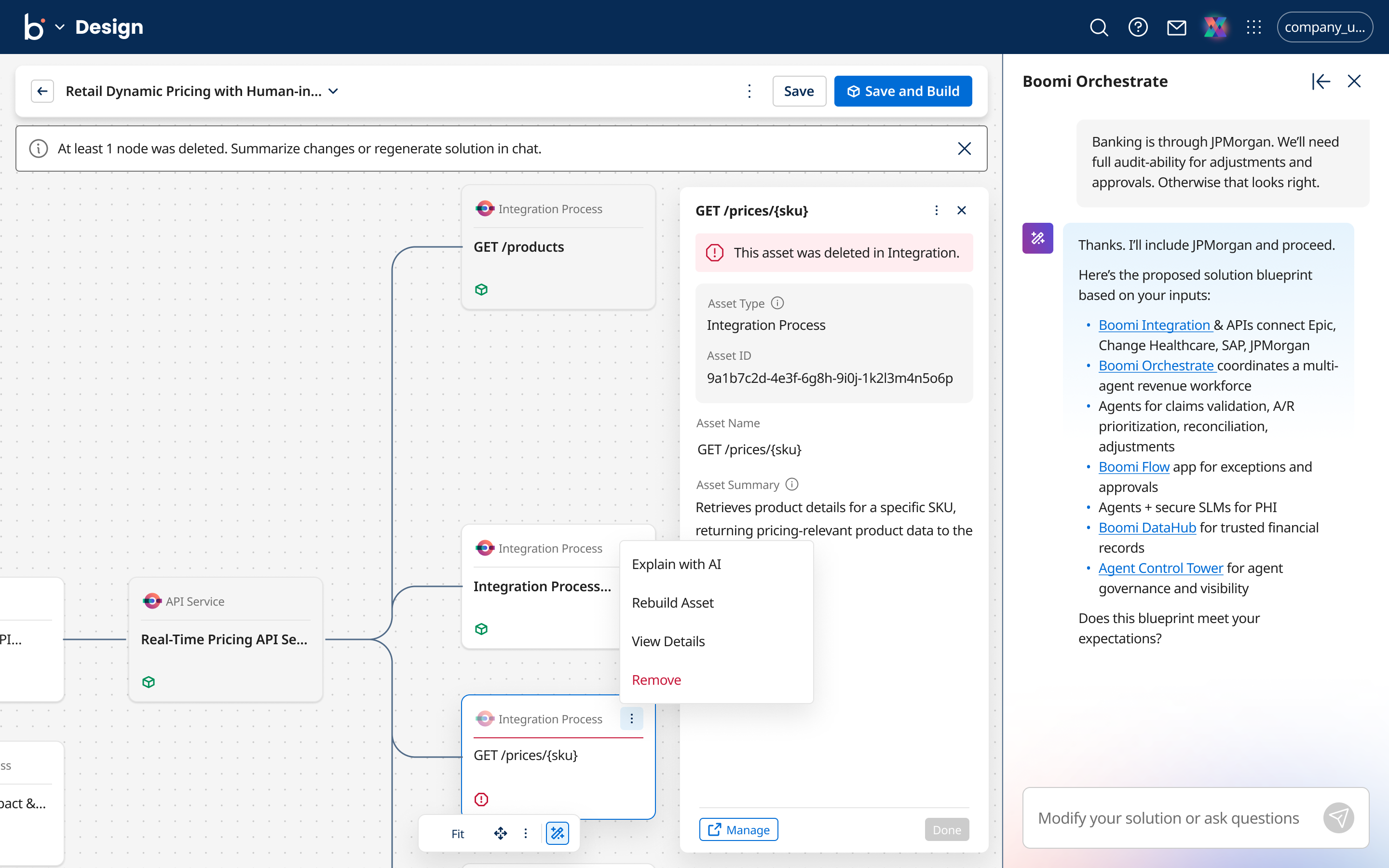
When a user deletes an asset in its home product, Orchestrate marks the node as deleted rather than removing it from your canvas. The asset remains listed in Workspaces with one of the following labels:
- Not linked to active solution version — the asset was removed from the active solution version.
- Deleted in [Product] — the asset was deleted in its home product (for example, Deleted in Integration).
Rebuilding a deleted asset
If a node's linked asset is deleted in its home product, you can rebuild it instead of removing the node from your solution:
- On the affected node, open the context menu.
- Select Rebuild Asset.
- Orchestrate creates a new asset and reconnects the node to it. The node stays in the same place on the canvas.
Rebuilding a node does not restore the original deleted asset. Only Integration currently supports restoring a deleted asset among the home products Orchestrate connects to, and that capability is deferred as restore is out of scope for Orchestrate in this phase.