Generating and refining a solution draft
Orchestrate utilizes Boomi best practices, your de-identified account metadata, Meta Hub business glossaries, and your conversational prompts to design a solution based on your business goals.
Discuss your business problem and your goals with Orchestrate in the conversational user interface. Answer any clarifying questions and provide feedback to Orchestrate to complete a draft of your solution.
Important considerations
- Orchestrate can design solutions containing services you may not have access to.
- If your account doesn't have access to a service, Orchestrate grays it out. The Asset has an Unlicensed state. Contact your account representative to add the service to your account.
- If you lack user privileges to access a service, contact your account administrator.
- If your administrator updates user privileges, wait 15 minutes to allow time for Orchestrate to sync with the latest permission updates.
- Solutions you edit cannot have disconnected assets. Delete the asset node or connect it to another asset in the diagram before saving.
- A solution can have up to 100 assets.
- Marketplace solutions are available for Agentstudio, APIM, Integration, and Flow. You can only install templates for Boomi services you currently have enabled on your account.
Optimizing solution drafts
If you have published, endorsed business glossaries in Meta Hub, Orchestrate utilizes your glossaries as context when processing your request for a solution. Adding a glossary helps Orchestrate understand your business domain, producing solution designs that are more accurate and relevant to your needs.
Refer to Prompt Engineering Tips for guidance on effective ways to request solution designs and edits.
Tip: As Orchestrate builds a solution draft, you can ask it to explain the solution design.
-
Navigate to the Boomi Platform Home > Design and do one of the following:
- Enter your business goal or problem in the chat's prompt field. For example, "We want to modernize our revenue cycle. Claims, A/R, and reconciliations are fragmented and slowing cash flow."
- Select a Marketplace solution template to install. You can only install templates for Boomi services you currently have enabled on your account. After installation, select Download Support Materials to guide you through any required configuration, such as required API keys and authentication credentials. Installation automatically builds assets in the associated Boomi services. After installation, select Save and continue with step 6.
-
Ensure the chat interface is open. To open the chat, select the Chat icon in the bottom tool bar.

-
Respond to Orchestrate's questions so it can clarify and understand your goal. After clarification, it will generate a solution plan, share the plan with you, and ask you to confirm whether to proceed. Provide feedback if the plan is not quite what you want.
-
Optional: Add a business glossary from Meta Hub to give Orchestrate more context for your solution. Orchestrate suggests glossaries based on your business goal and prompt. It compares your request to glossary names and purpose descriptions to find relevant matches. If a glossary has a relevance score above 85%, Orchestrate returns up to three suggestions.
noteYou must have the correct permissions to use Meta Hub Glossaries. Orchestrate will not consider adding glossaries to its build context unless you have Meta Hub glossary permissions. Refer to Access and permissions for details.
-
After Orchestrate generates your solution, you land on Solution View by default. Solution View organizes the solution into business capability layers, showing you what the solution does and how data flows through it before you look at any individual asset. Refer to Navigating the Solution View to learn more.
-
Navigate to More options > Assets to see your solution as a node diagram. If the solution does not fit your needs, you can:
- Describe the changes you want to make in the conversational panel. AI edits the solution for you.
Or - Add an asset node to the diagram. To create a node:
- Hover your cursor over the nearest node you want to connect to. Connection dots display.
- Select the node near the connection dot then select the plus icon.
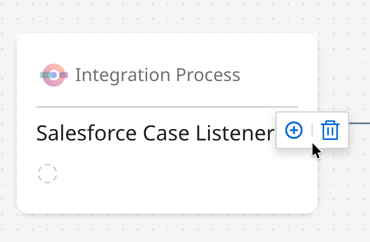
- A menu shows the available services that logically connect to the asset. Select a service name to create a new asset. If the menu is empty, there is no asset that can logically connect to the solution based on Boomi best practices.
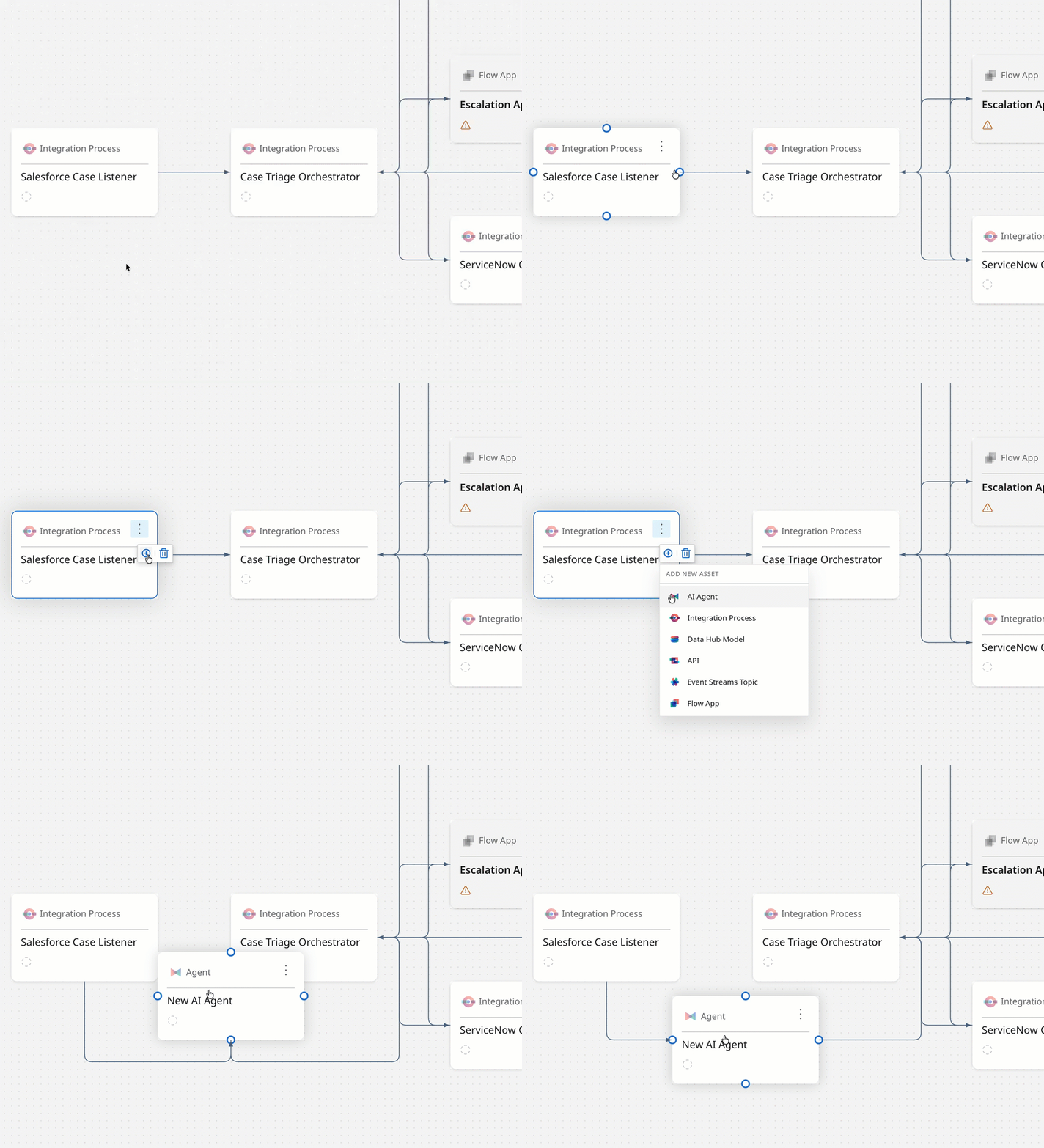
- Describe the changes you want to make in the conversational panel. AI edits the solution for you.
-
Hover over a node in the solution diagram and select the Actions icon > View details about each asset in the solution. Details include a summary explaining what the asset does.
-
Optional: To edit an asset's name or summary before building the asset, select the Actions icon > View details.
-
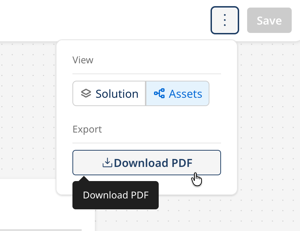
Optional: To view a business-friendly explanation of the solution, select More options > Assets, then select Download PDF > AI-Generated Solution Summary to export it as a PDF. Refer to Business View for details.
-
Optional: Rename your solution to your preferred title by requesting Orchestrate to update the title in the chat interface.
-
Select Save to save the solution draft and start building the solution in the Boomi Platform.
Next steps: Building a solution
