Designing business solutions with AI
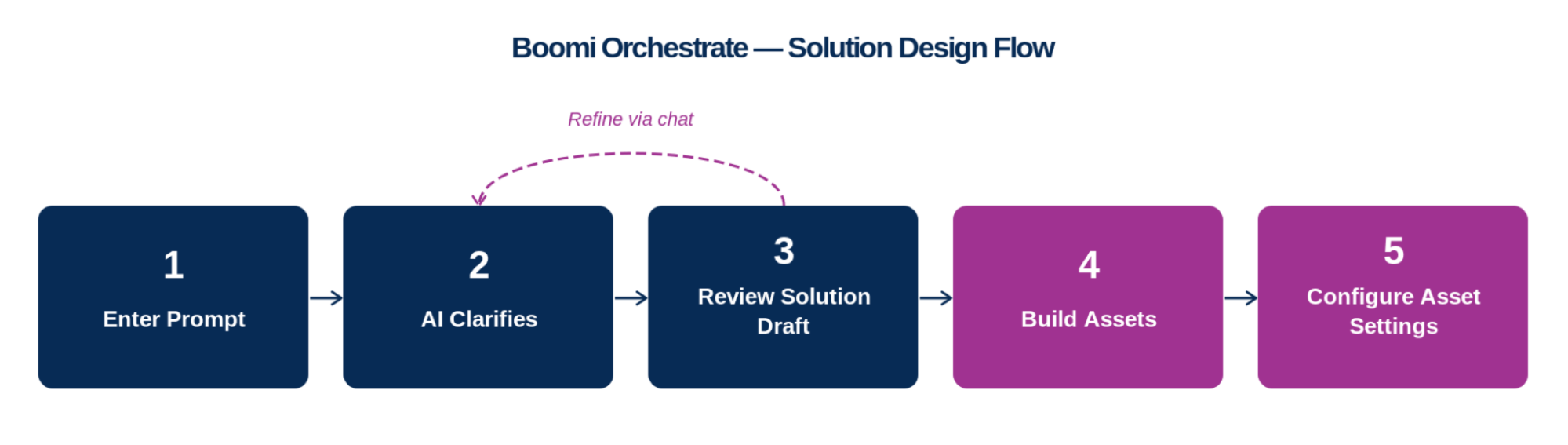
Orchestrate accelerates Boomi solution building using generative AI through a conversational user interface. Designs can include several services across the Platform, helping you envision a complete picture of how Boomi can achieve your business goals. Simply describe your goal in everyday language, and Orchestrate designs a solution that fits your needs.
Community-endorsed templates
You can use pre-built solutions from the Marketplace to get started. Marketplace solutions are available for Agentstudio, APIM, Integration, and Flow. There are two ways you can install templates:
- Select Home > Design in the Platform and select a solution card in the chat overlay. After you install the Marketplace solution, Orchestrate displays it on the solution canvas and automatically builds each asset (agent, process, etc.) in the associated Boomi service. You can only install templates for Boomi services you currently have enabled on your account.
- Converse with Orchestrate about your business goals. If your goals match an existing Marketplace template, it will suggest it. Select the suggestion to install it on the solution canvas. Orchestrate automatically builds each asset (agent, process, etc.) in the associated Boomi service.
Context-aware solutions
Orchestrate utilizes Boomi best practices, your de-identified account metadata, your Meta Hub glossaries, and your conversational prompts to craft an end-to-end Boomi solution diagram. You can ask questions, discuss, and refine your solution diagram with Orchestrate to deliver a fully custom solution design.
If you have published, endorsed business glossaries in Meta Hub, Orchestrate utilizes your glossaries as context when processing your request for a solution. Adding a glossary helps Orchestrate understand your business domain, producing solution designs that are more accurate and relevant to your needs.
Streamlined solution building
When you're ready to build the solution, Orchestrate develops Platform assets for each phase in your blueprint. Each asset represents a connection or component you use to build automation and integrations, such as data models, APIs, integration processes, or AI agents.
Once you save a solution, fine tune and configure each asset in its Boomi service. Orchestrate sends the solution and all assets to Workspaces where you and other team members can manage development.
Important considerations
- Orchestrate can design solutions containing services you may not have access to.
- If your account doesn't have access to a service, Orchestrate grays it out. The Asset has an Unlicensed state. Contact your account representative to add the service to your account.
- If you lack user privileges to access a service, contact your account administrator.
- If your administrator updates user privileges, wait 15 minutes to allow time for Orchestrate to sync with the latest permission updates.
- Solutions you edit cannot have disconnected assets. Delete the asset node or connect it to another asset in the diagram before saving.
- A solution can have up to 100 assets.
- Marketplace solutions are available for Agentstudio, APIM, Integration, and Flow. You can only install templates for Boomi services you currently have enabled on your account.
Next steps
Generate a solution draft for your business goal.
