Building a solution
If the solution draft fits your needs, you are ready to build your solution with Orchestrate. Built solutions include assets, which are working components in the Platform, such as an Integration process, an Event Stream topic, an AI agent, a Flow asset and so on. Orchestrate must generate each asset in order for the Platform solution to work.
Assets have states that indicate whether they are ready for building or require your attention. For example, the solution may include assets for a platform service you don't have access to. Refer to Asset states for details and guidance on state meanings.
After building assets, Orchestrate sends them to Workspaces where your team can manage development.
Important considerations
-
Certain assets require you to provide additional details to Orchestrate in the conversational panel. The asset state changes to error until you provide details. For example, Orchestrate wants to know what fields to include when building a data model. Refer to Prompt engineering tips for more information on prompting Orchestrate.
-
If you install a Marketplace solution template, Orchestrate automatically builds the assets for each associated Boomi service (process, API endpoint, agent, etc.). Since the assets are already built, attempting to re-build the solution creates a new, duplicate asset in the Boomi service.
Prerequisites
- Before building a solution, Orchestrate must generate a draft. Refer to Generating and refining a solution draft.
- You must have the correct privileges to build assets. Refer to Access and permissions for details.
You can build assets in two ways:
- Build manually: Select and trigger building for each asset.
- Build through a chat request: Ask AI to individually build each asset.
Building a solution manually
After saving the solution draft:
-
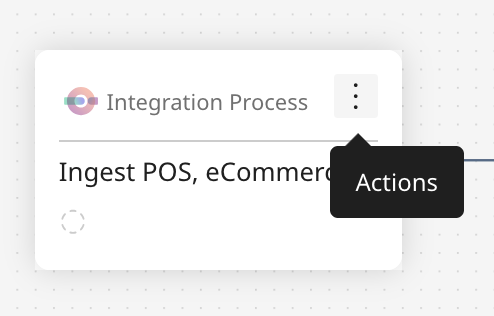
Hover over an asset node in the solution diagram and select the Actions icon > View Details. Review details about the asset.
-
Select Build Asset. Orchestrate asks you questions in the chat to help you build your asset. The chat also displays the build progress and what Orchestrate is working on.
-
Repeat steps 1 and 2 for each asset node in the diagram.
-
Select Save. Orchestrate sends assets to Workspaces so you can manage and govern them.
Building solution assets with AI assistance
You can prompt Orchestrate in the chat to build all the assets.
Important considerations
- Orchestrate builds one asset at a time. When making a request, specify the name of the asset you want to build.
- If you rebuild an asset, Orchestrate replaces it in the solution, but it does not delete the previous version from the Boomi Platform service.
- Orchestrate builds assets but cannot fully configure them. Some settings, such as connection credentials in a process, you must add manually.
- Orchestrate cannot test or deploy assets.
- Orchestrate may ask you for additional information in the conversational panel when building certain assets. For example, when building Data Hub models, it will ask for details about fields and data types.
- Event Streams assets require you to pick an environment and provide a topic name for in the asset panel to successfully build.
- Flow assets require you to install them through a Marketplace template, Orchestrate cannot build a Flow asset from scratch the way it does for Integration, APIM, or AgentStudio assets.
After saving the solution draft:
-
Enter a prompt in the chat interface to trigger asset building. Include the name of the asset node you want Orchestrate to build. Orchestrate can only build one asset at a time. For example: "Build the Distribute Approved Prices to All Channels asset". Orchestrate asks you questions in the chat to help you build your asset.
-
After Orchestrate builds all the assets, review the asset statuses to verify if Orchestrate successfully built all assets. Orchestrate updates the built state in the chat. Error messages indicate reasons why certain assets did not build successfully. Review Error Messages for guidance on resolving errors.
-
Repeat steps 1 and 2 for each asset node in the diagram.
-
Select Save. Orchestrate sends assets to Workspaces so you can manage and govern them.
Keeping assets in sync with their home product
Assets that Orchestrate builds stay linked to their component in Integration, Data Hub, Flow or API Management. If a user renames or deletes one of these components directly in its home product instead of through Orchestrate, Orchestrate detects the change and updates your solution automatically and you don't need to reload the page.
Renamed assets update automatically with no further action needed. If an asset is deleted in its home product, Orchestrate marks your solution as out of sync. You can keep working, but the next time you try to save, Orchestrate first asks you to acknowledge the out-of-sync state, only after you confirm can Orchestrate save your changes.
Orchestrate keeps the following details in sync with the home product: the asset's name, its status, and whether it still exists.
If an asset is out-of-sync in a solution (if it gets deleted or updated in it's home product), a banner is displayed in the solution to convey the same.
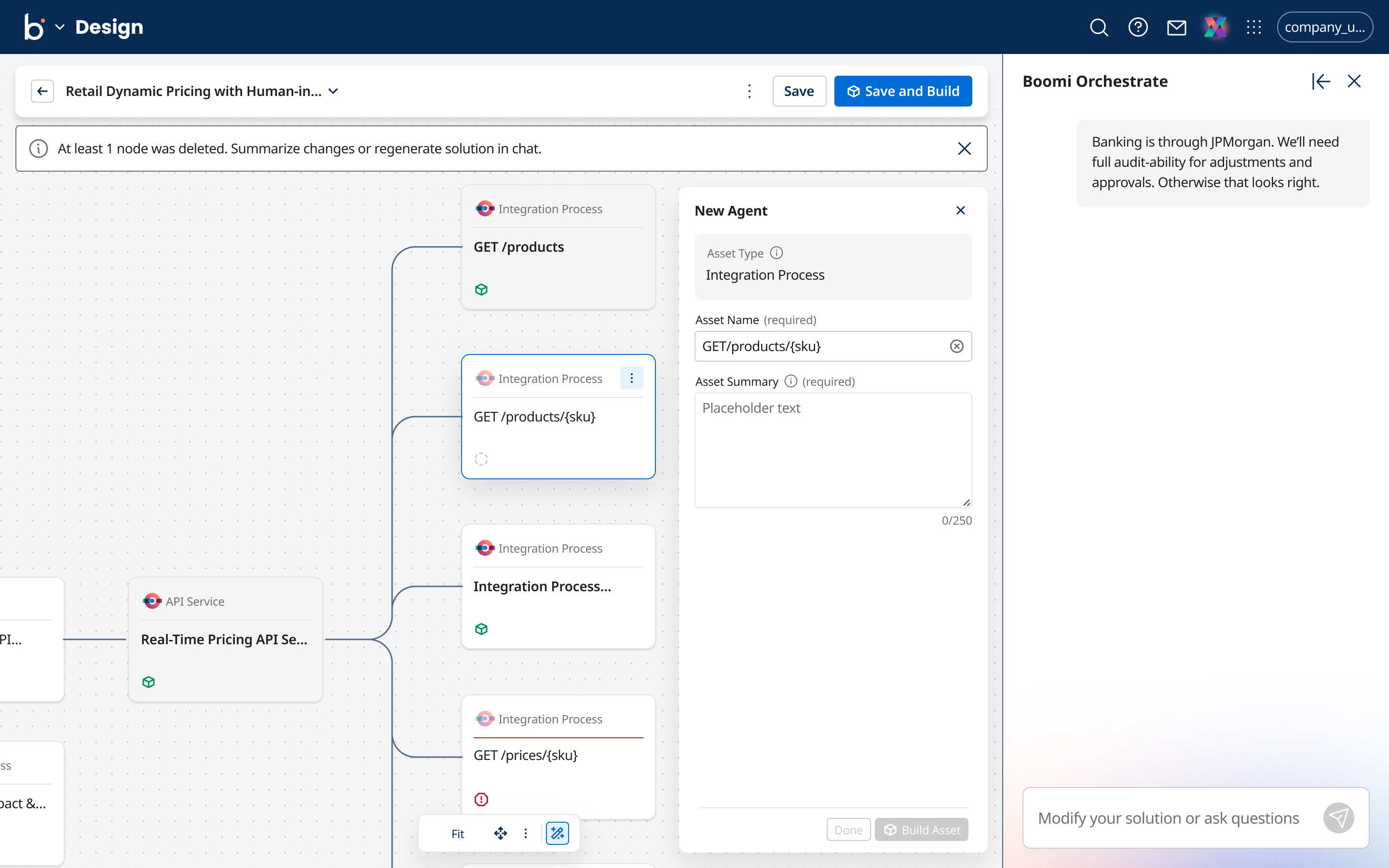
Only assets that Orchestrate created are tracked this way. Assets you create directly in a home product, without going through Orchestrate, aren't tracked. Sync also flows one way: removing a node from the canvas, deleting a linked asset from Workspaces, or deleting an entire solution does not delete the corresponding asset in its home product.
Refer to Editing a solution and Reviewing and configuring assets for details on renamed and deleted assets.
Next steps: Review built assets
