Activating Boomi Orchestrate
Before you can use Boomi Orchestrate to build AI driven solutions, you review and accept a short activation checklist. The checklist unlocks AI features, Event Streams, and data driven insights for your account.
Overview
The Activate Your Boomi Platform modal appears on the Home page when you sign in with pending activation items. It contains a three item checklist: AI Terms and Conditions, Event Streams Terms and Conditions, and Data Collection. You can accept everything at once, review each item individually, or postpone the checklist for your current session.
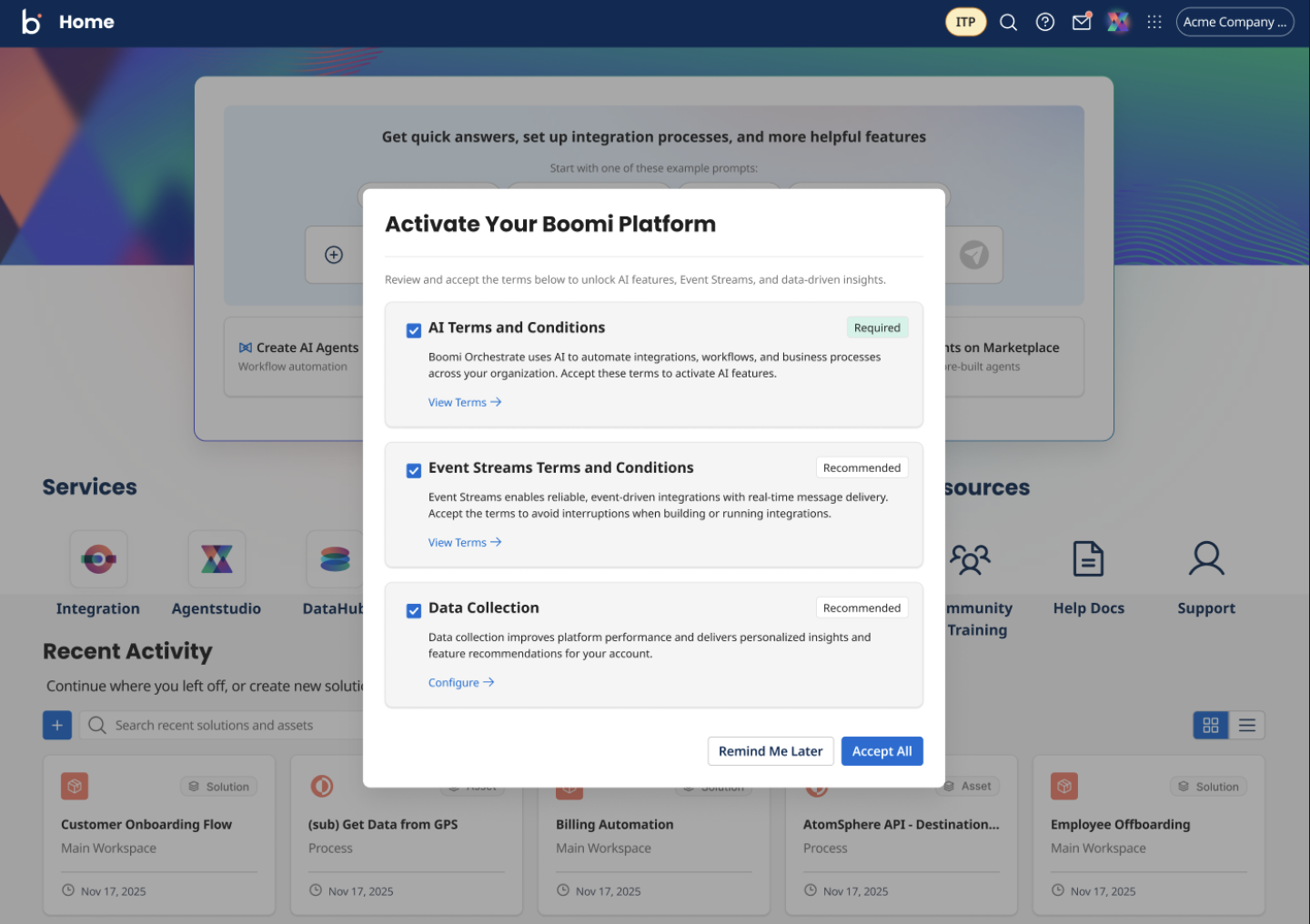
Enabling Boomi Orchestrate for your account
Only account administrators can enable Boomi Orchestrate. Once enabled, access turns on for the entire account, not per individual user.
-
Sign in to the Boomi Platform.
-
Go to Settings > Features.
-
Turn Orchestrate on.
After enabling Orchestrate, the Activate Your Boomi Platform modal appears on the Home page. It presents a checklist for accepting the AI Terms and Conditions, Event Streams Terms and Conditions, and configuring Data Collection. Refer to Activating Boomi Orchestrate for details on completing the activation checklist.
To disable Boomi Orchestrate for your account, return to Settings > Features and turn Orchestrate off.
Non-admin access
If you are not an account administrator, you cannot enable Boomi Orchestrate. Your account administrator must enable it first.
Once Boomi Orchestrate is enabled for your account, you can access it if you have the Build Read and Write privilege in the Boomi Platform. Users without this privilege cannot see or interact with the Boomi Orchestrate experience.
Activation checklist items
AI Terms and Conditions
Required. Boomi Orchestrate uses AI to automate integrations, workflows, and business processes across your organization. You must accept these terms to activate AI features. This is the only item that blocks access to Orchestrate.
Event Streams Terms and Conditions
Recommended Boomi Event Streams enables event-driven integrations with real-time message delivery. Accept these terms to avoid interruptions when you build or run integrations that use Event Streams.
Data Collection
Recommended. Data collection improves platform performance and delivers personalized insights and feature recommendations for your account. You configure Data Collection in Settings, not from the activation modal. Refer to Data Collection for details.
Accepting the activation checklist
- Sign in to the Boomi Platform. If your account has pending activation items, the Activate Your Boomi Platform modal opens on the Home page.
- Review the checklist items.
- To read the full terms for AI Terms and Conditions or Event Streams Terms and Conditions before accepting, select View Terms. The modal swaps its content to show the full text in place of the checklist.
- Select Accept to check the item and return to the checklist, or select Back to return to the checklist without accepting.
- To configure Data Collection, select Configure. This takes you to Settings, where you turn Data Collection on or off.
- To accept every recommended and required item at once, select Accept All.
- To postpone the checklist, select Remind Me Later. This suppresses the modal for your current session only; the modal returns the next time you sign in if items are still pending.
Your checked items persist if you navigate to Settings to configure Data Collection and then return to the modal.
When the activation modal appears
Boomi Orchestrate shows the activation modal or a banner depending on which items you've already accepted.
| Acceptance state | What you see |
|---|---|
| Nothing accepted | The full activation modal, with Accept All available. |
| Some items accepted | A banner on your next login that opens the modal with only the remaining items. |
| AI Terms and Conditions accepted, Event Streams pending | A targeted banner prompting you to accept the Event Streams terms. |
| AI Terms and Conditions and Event Streams accepted, Data Collection off | A prompt that routes you to Settings to configure Data Collection. |
| Everything accepted | No modal and no banner. You go directly to the Home page. |
The Almost There modal in Workspaces
If you've accepted the AI Terms and Conditions but still have Event Streams or Data Collection pending, Boomi Orchestrate shows an Almost There modal when you open Workspaces. Select Configure in the modal to go to Settings and complete the pending item.
If you dismiss the Almost There modal, Boomi Orchestrate shows a banner the next time you sign in. If you dismiss the banner instead, it's suppressed for your current session and reappears at your next login.
Important considerations
- AI Terms and Conditions is the only activation item that blocks access to Boomi Orchestrate. Event Streams Terms and Conditions and Data Collection are recommended but don't prevent access.
- Once you accept all activation items, you don't refer to the modal or banner again unless your acceptance status changes.
- Data Collection is configured only in Settings — you can't accept it directly from the activation modal.
