Trading Partner Document Types tab
Use the Trading Partner Document Types tab to select the document types you wish to exchange with a trading partner, set acknowledgment and validation options, and configure Tracked Fields to capture key values for Process Reporting. The list of available document types is based on the document standard configured for the Trading Partner.
This tab is visible only for trading partner components classified as “This is a partner that I trade with.” For custom trading partners, this tab is visible only when a Custom Document Standard is set on the CUSTOM Standard tab.
By configuring document types, data received from the trading partner are validated automatically against the selected profile to generate message-level acknowledgments.
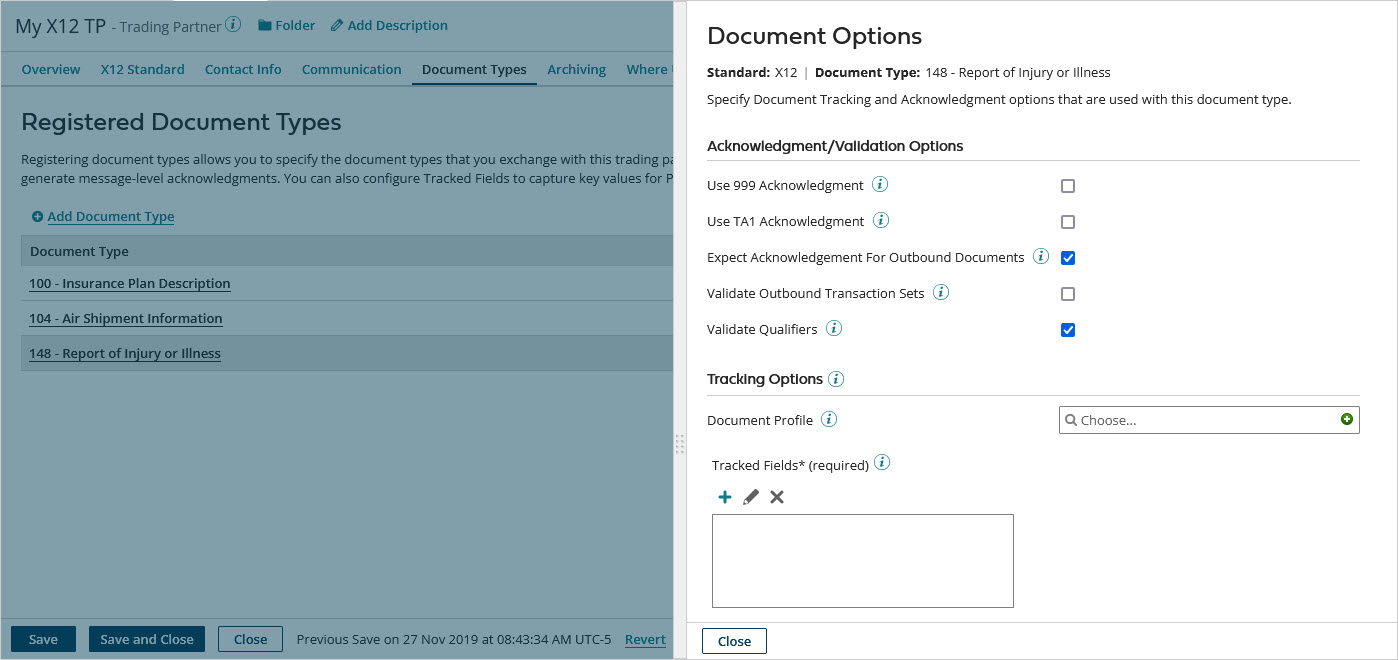
Acknowledgment/Validation Options
This section does not apply to Tradacoms document types.
-
Use 999 Acknowledgment - (X12 only) If selected, EDI 999 functional acknowledgments are enabled for the selected transaction set. 999 acknowledgments confirm that the file passed standard-level syntax and structure within EDISS (EDI Support Services). EDI 999 acknowledgments are similar to EDI 997 acknowledgments, which serve as receipts that generally acknowledge healthcare-related transaction sets (X12 version 5010 and higher).
-
Use TA1 Acknowledgment - (X12 only) If selected, TA1 acknowledgments are enabled for the selected transaction set. TA1 is an interchange-level (ISA/IEA) acknowledgment. TA1 acknowledgments have a Transaction Set document property value of “TA1”.
To route TA1 acknowledgment messages to processes:
-
Clear the Filter Functional Acknowledgments check box on the X12 Standard tab in the Basic X12 Options section.
-
Use the Transaction Set document property to route TA1 acknowledgment messages.
-
-
Expect Acknowledgment For Outbound Documents - (Selected by default) Used to indicate whether an acknowledgment is expected for the EDI document that was sent. You can search for documents with missing acknowledgments in the Process Reporting Document Ack Status column. When on, the Ack Status column is blank until an acknowledgment is received. When cleared, the Ack Status column is automatically populated with "Not Expected."
-
Validate Outbound Transaction Sets - (X12 and CUSTOM only) If selected, individual transaction set documents are validated against the selected Document Profile. For X12, each document found to have any errors is sent to the step’s Errors path.
If this option is selected and, in the X12 Standard tab, Validate Outbound Interchanges with the Fail Interchange if Any Documents Have Errors option is also selected, if a document error occurs, the validation outcome is the same as if transaction set-level validation had not been selected: The entire interchange is sent to the step’s Errors path.
-
Validate Outbound Messages - If selected, individual EDIFACT and ODETTE messages are validated against the selected Document Profile. Each document found to have any errors is sent to the step’s Errors path.
If this option is selected and, in the EDIFACT Standard or ODETTE Standard tab, Validate Outbound Interchanges with the Fail Interchange if Any Documents Have Errors option is also selected, if a document error occurs, the validation outcome is the same as if message-level validation had not been selected: The entire interchange is sent to the step’s Errors path.
If selected and Validate Outbound Documents is also selected in the ROSETTANET Standard tab, RosettaNet messages are validated against the selected Document Profile. Each document found to have any errors is sent to the step’s Errors path.
-
Validate Outbound Transmissions - (HL7 only) If selected, individual messages are validated against the selected Document Profile. Each document found to have any errors is sent to the step’s Errors path.
If this option is selected and, in the HL7 Standard tab, Validate Outbound Interchanges with the Fail Interchange if Any Documents Have Errors option is also selected, if a document error occurs, the validation outcome is the same as if transmission-level validation had not been selected: The entire interchange is sent to the step’s Errors path.
-
Invalid Inbound Document Routing - (CUSTOM, EDIFACT, HL7, and ODETTE only) Used to choose the Start step path to which invalid inbound documents are routed — the Documents path or the Errors path.
-
Validate Qualifiers - (X12, EDIFACT, HL7, and ODETTE only) If selected (the default), qualifiers in documents are validated.
Tracking Options
Configure custom field tracking for the selected document type in Process Reporting.
-
Document Profile - Identifies the profile that represents the inbound/outbound data structure for the selected transmission. Selecting a document profile is required for field-level validation and acknowledgment handling.
For Custom trading partners, the Profile ID displays only profiles that have an option for Custom Document Standard and Document Type that matches the Trading Partner Custom Document Standard and Document Type selected.
-
Tracked Fields - To add a specific field that you want to have tracked in Process Reporting, add them on the Settings > Document Tracking page and then select them from the list.
