Integration process design patterns for agentic workflows
Agentic workflows in integration are compatible with conversational agents, structured agents, and Decision Engine agents. Refer to Structured agent mode and Decision Engine mode for more information on the differences between agent modes.
You can use global variables in the Agent step and Agent Operation component. For more information, refer to Global Variables.
Requirements for structured agents
File uploads
If your agent is structured and receives a file to read, add the Data Process step to base64 encode your file. Refer to Enabling file uploads for input schema examples for agentic workflows.
Otherwise, structured agents do not require additional steps. Save your integration and select Test to test your process.
Requirements for conversational agents
If your agent is conversational, complete the following steps in your integration:
Add a Message step
Add a Message step before an Agent step to prompt the agent to respond.
- Add a Message step to the canvas before the Agent step.
- In the Message step, enter the AI agent prompt. You can copy a Conversation Starter from the agent's profile.
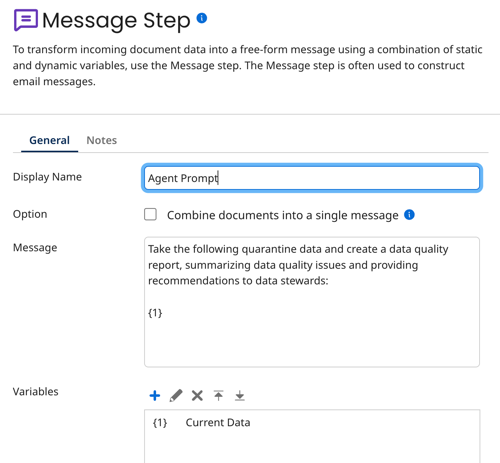
- Optional: To pass data from a previous step:
- In Variables, add a variable.
- Set Type to Current Data.
- Select OK, then save your progress.
Add a Data Process step
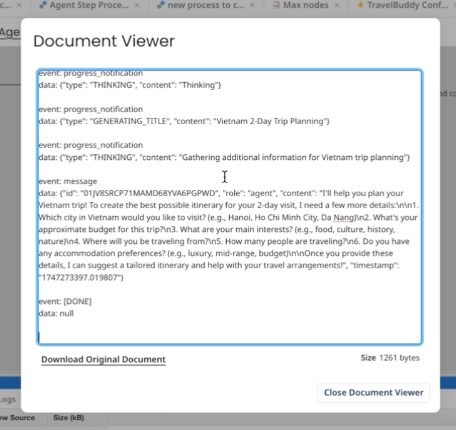
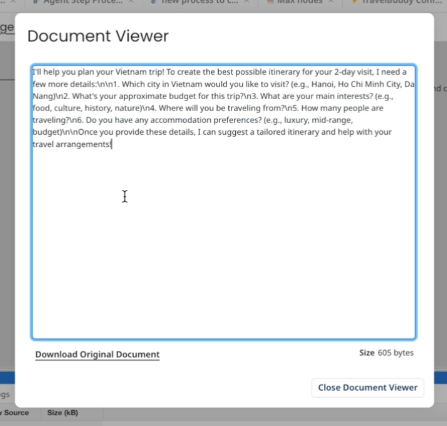
The Agent step's raw output includes event notifications and metadata alongside the agent's actual message. Use a Data Process step after the Agent step to strip that out and return only the message text.
- Add a Data Process step to the canvas after the Agent step.
- Under Data Process Properties, click the plus icon to add a new property and use the following configuration:
-
Processing Step: Select Search/Replace.
-
Text to Find:
[\s\S]*event: message\n.*\"content\":\s?\"(.*)\", \"timestamp\"[\s\S]*This searches the output of the Agent step for only the message.
-
Replace With:
$1 -
Search: Select Entire document at once.
-
- Click OK to save the step.
Before adding the Data Process step, the Agent step's output includes event notifications and other information.
After adding the Data Process step, the output is reduced to an easy-to-read message.
If your Agent step output still includes unexpected raw data after adding this step, refer to Agent step testing and troubleshooting.
Next steps
Test your agent. Refer to Agent step testing and troubleshooting for details.
