Uploading files using MFT dropbox™
A MFT Dropbox™ is available to each MFT user account with an enabled HOME folder.
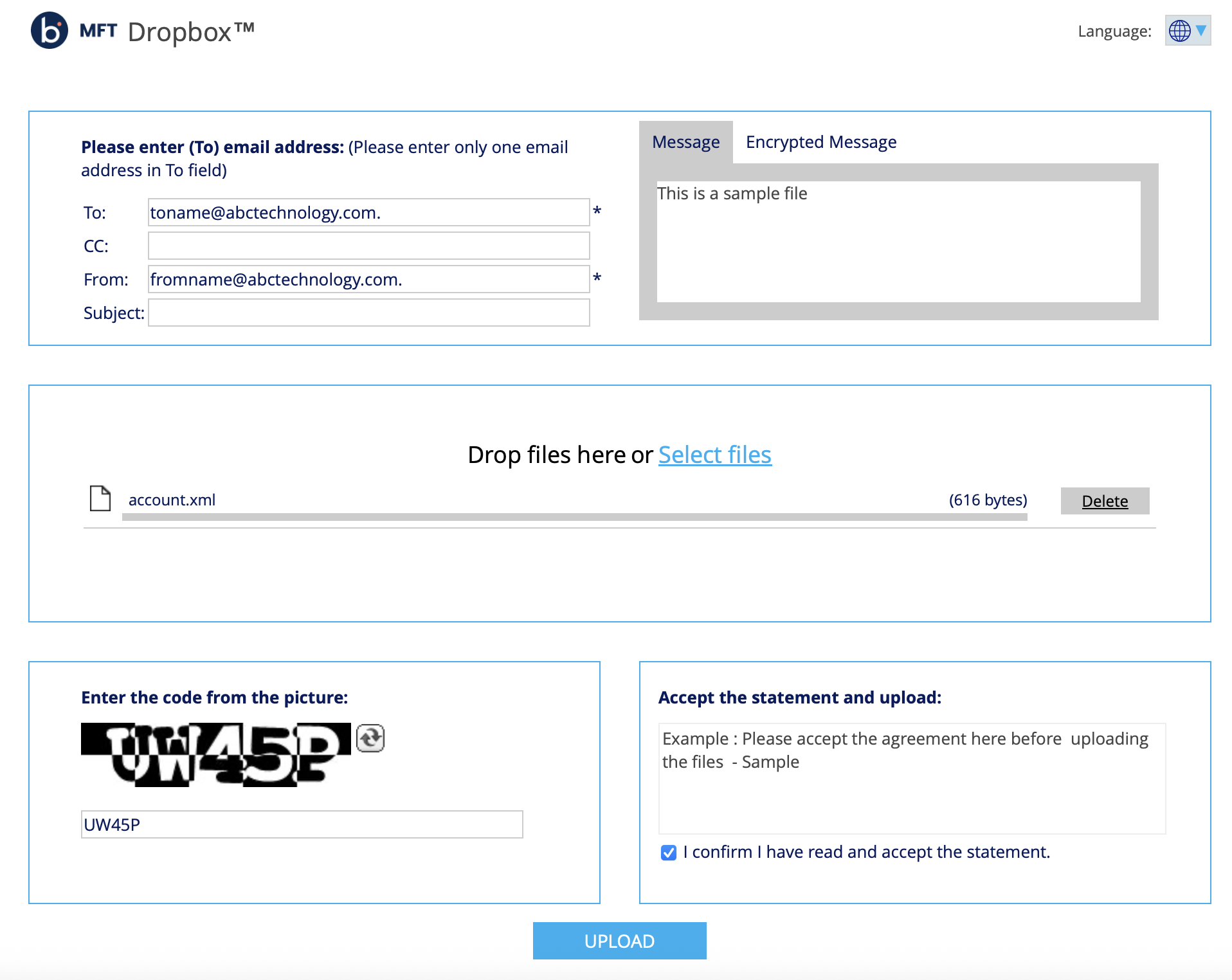
When users click the MFT Dropbox link, they are directed to a file upload form, where they can complete the fields to send files.
-
In the To field, enter the email address of the MFT user to whom you want to send files.
This is the email address of a registered MFT user who will receive the uploaded files. The files will be delivered directly to that user's MFT inbox.
noteIf a user is CCed, they cannot view the files the user sends. They can only get a notification about the files that were sent.
-
In the From field, enter your email address to upload and send the files.
This email will be used to send upload confirmation notifications.
-
Subject and Message are optional fields, but it is recommended to include the reason for uploading the files.
-
Select the files you want to upload to the recipient's MFT Dropbox™.
- For multiple upload options, refer to Selecting MFT Upload Options.
The Browser upload is the commonly used option for uploading files manually or using the drag-and-drop capability. - Files can be removed from the upload list by clicking 'Delete' or 'Remove', depending on the upload method.
- For multiple upload options, refer to Selecting MFT Upload Options.
-
After selecting the files, the user must enter a CAPTCHA code and accept the confidentiality statement to complete the upload.
-
Click Upload.
-
After a successful upload, a confirmation message will be displayed.