Configuring MFT dropbox™ with message password mode
The Dropbox file download page supports both message password mode and request login protection mode.
Dropbox file download is available in two modes: Regular and MFT email-style.
A back-end metadata setting determines how the Dropbox notification email link behaves.
-
Regular mode: Redirects to the internal MFT site page and requires full MFT portal user authentication for a Dropbox file recipient.
-
MFT email-style mode: Redirects to a MFT email-style Dropbox download page that can be protected by request login or message password. Users without MFT Web portal accounts can register or enter a message password and download the files uploaded via Dropbox.
Enabling message password mode
You can enable message password mode on both the Dropbox page and the MFT email-style Dropbox download page.
- Set the Dropbox notification email link to the MFT email-style Dropbox download page via a back-end metadata setting.
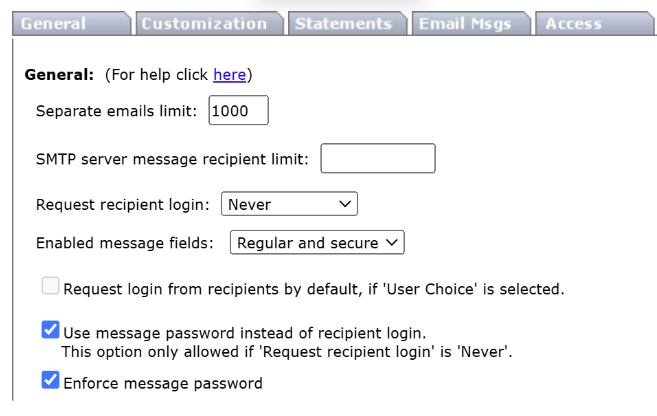
- Set Request recipient login to Never, and select the message password checkbox. (Enforcing this setting is optional.)
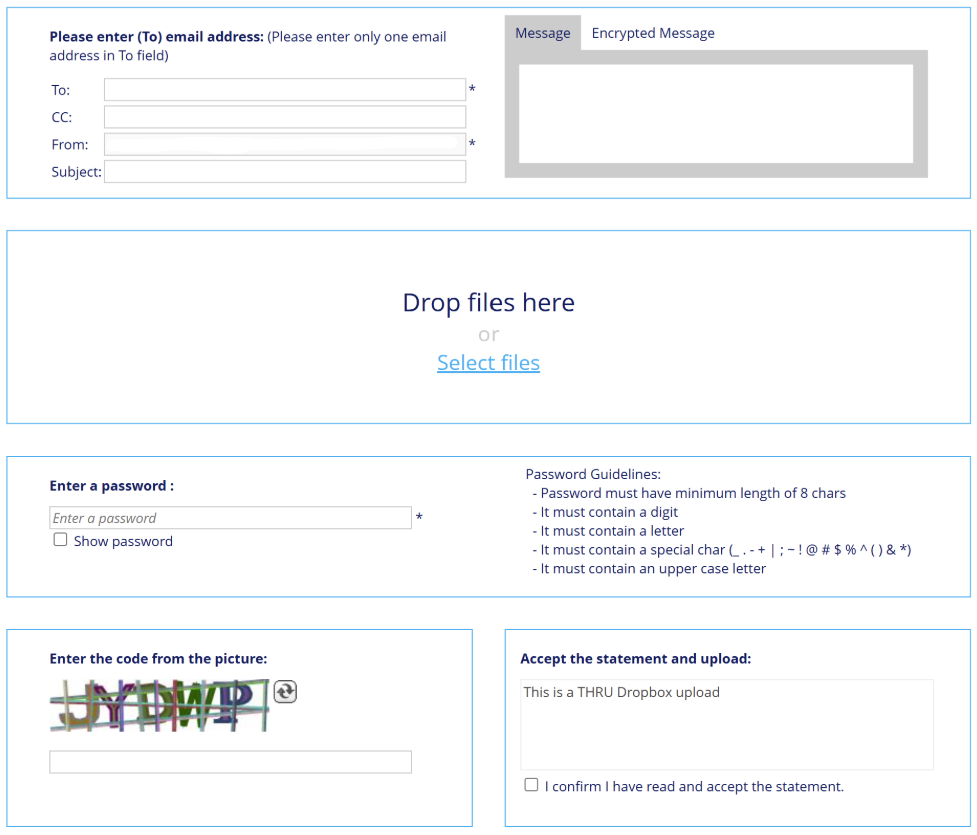
After you configure these settings, the Dropbox page displays the Password field.
To enable this feature on your MFT site, contact MFT support.
