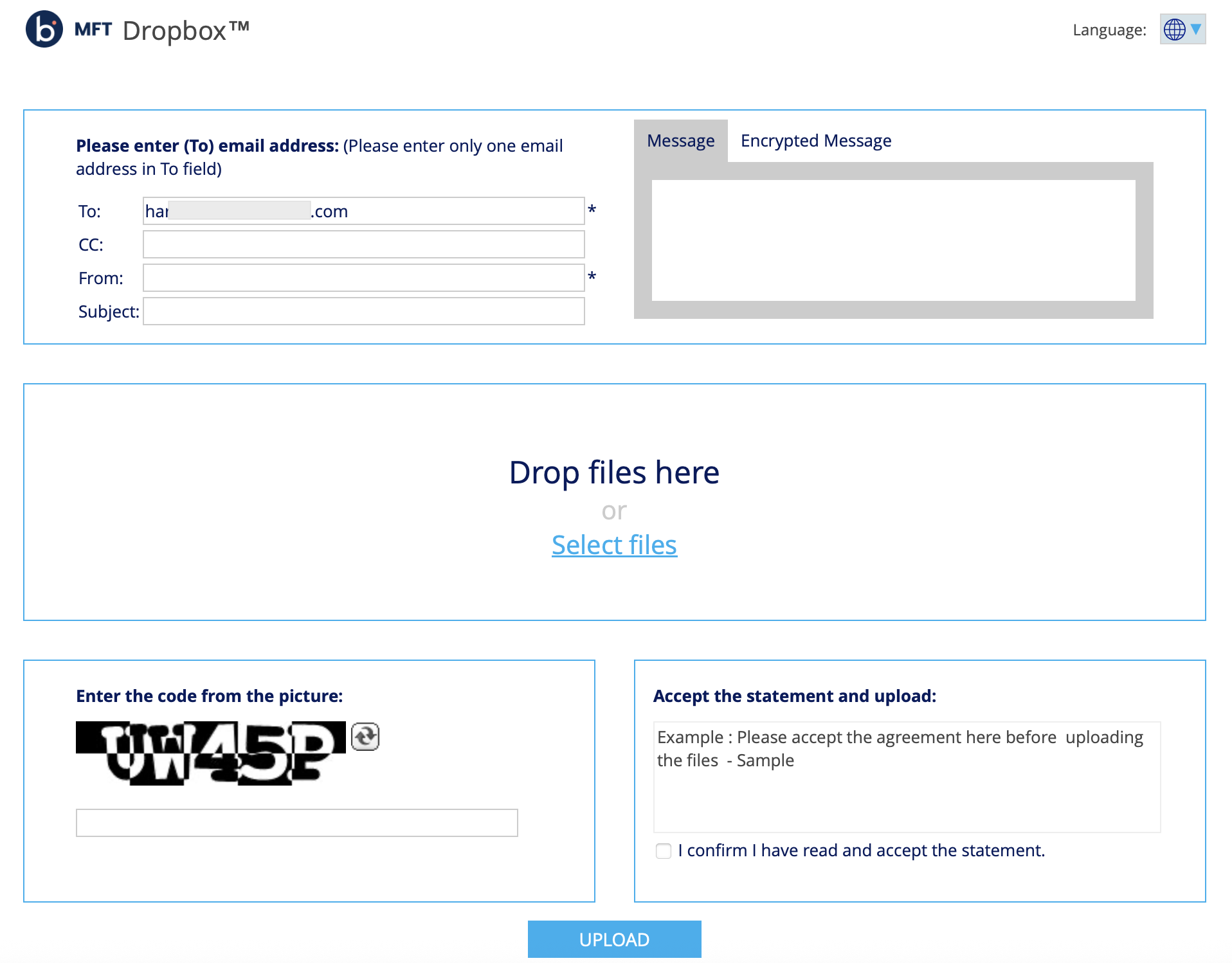
Creating a link to your MFT dropbox™
You can create a link to your MFT Dropbox™ to securely receive large files from users who do not have MFT accounts. These non-registered users can send files directly to your MFT Dropbox™.
MFT Dropbox™ URL format: https://companyname.thruinc.net/Desktop/Dropbox/Create/?toemail=name@companyname.com
To create an MFT Dropbox™ link:
-
Replace "companyname" in the link format with MFT site name.
-
Replace "name@companyname.com" with your MFT site email address. For example, replace "companyname" with demo and the email address with name@abctechnology.com.
https://demo.thruinc.net/Desktop/Dropbox/Create/?toemail=name@abctechnology.comnote- If your company has a unique MFT site URL (not ending in .thruinc.net), replace https://companyname.thruinc.net* with your MFT site URL.
https://filetransfer.companyname.com/Desktop/Dropbox/Create/?toemail=name@companyname.com
- If your company has a unique MFT site URL (not ending in .thruinc.net), replace https://companyname.thruinc.net* with your MFT site URL.
-
After creating your link, you can share it via email, on company websites, and on portals.
To add your MFT Dropbox™ link to your Microsoft Outlook email signature, refer to Adding MFT Dropbox™ link to email signature.
When users click the MFT Dropbox™ link, they are directed to a file upload form, where they can provide required fields and send files.