Managing sent emails
You can manage messages sent through the Managed File Transfer web application, Managed File Transfer Add-Ins, or any application that uses the Managed File Transfer file transfer system.
By default, messages are sorted by the sent date and include the recipient's email address, message subject, sent date, and file expiration date. Expired messages appear in orange text.
Message status icons
The following icons specify the download status of a Managed File Transfer message.
| Icon | Message status |
|---|---|
 | Indicates that the files in a Managed File Transfer message have been downloaded by the recipient. |
 | Indicates that a message has expired before the recipient could download the files. When a message expires, recipients of the files are no longer able to download them from that distribution. |
 | Indicates that the recipient has not yet downloaded the file(s) and the message has not expired yet. |
Extending message expiration date
You can extend or modify the expiration date of a message sent.
- Navigate to the Managed File Transfer File Sharing page.
- Click the Sent Emails tab.
- Select the message you want to edit.
- Click on the date next to Expires.
- Choose a new expiration date on the calendar.
- Click Save.
Deleting sent messages
Deleting a Managed File Transfer message deactivates the sent files (links expire) and permanently removes the message from Sent Emails.
- Navigate to the Managed File Transfer File Sharing page.
- Click the Sent Emails tab.
- Select the checkbox next to the message and then select the Delete Distribution.
Expiring a message
You can manually expire a Managed File Transfer message to revoke access to its files immediately.
- Navigate to the Managed File Transfer File Sharing page.
- Click the Sent Emails tab.
- Select the checkbox next to a message and select the Expire Selected Emails.
Viewing message details
To view the details of the sent emails, follow these steps:
- Navigate to the Managed File Transfer File Sharing page.
- Click the Sent Emails tab.
- Select an email from the list.
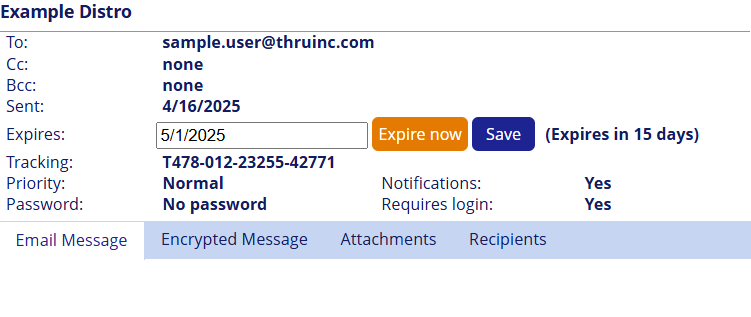
When you select an email, you can view details about the sent email, such as the tracking number, notifications, required login settings, and more.
Removing attachments or recipients
You can remove attachments from the distribution if recipients have not accessed the link.
- Navigate to the Managed File Transfer File Sharing page.
- Click the Sent Emails tab.
- Select an email from the list.
- Click the Attachments or the Recipients tabs to remove attachments and recipients.
If a message is protected by a Message password using Registered Recipient Login, recipients can be removed from the distribution if they haven't accessed the link.
