Managing favorites
Updated 20 February 2026
You can store files and folders that you mark as favorites in the Favorites folder either from the Folder tree or the Clipboard section.
From the Favorites folder, you can download favorite files and folders, add them to the Clipboard, and send notifications via email.
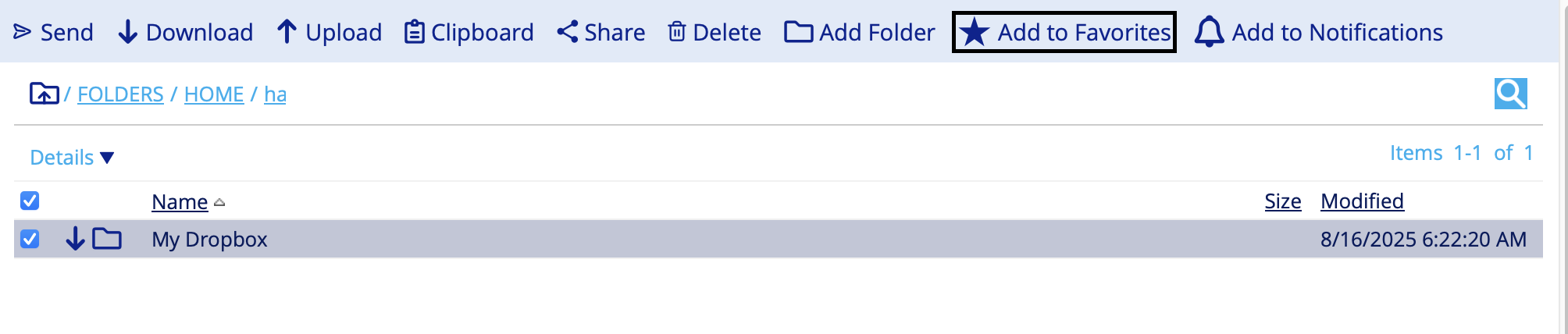
Adding file or folder to favorites
To add files or folders to favorites, follow these steps:
- Navigate to the Managed File Transfer File Sharing page.
- Click the Folder tree and locate the file or folder you want to mark as a favorite.
- Select the checkbox next to files or folders.
- Click Add to Favorites.
Removing file or folder from favorites
To remove files or folders from favorites, follow these steps:
- Navigate to the Managed File Transfer File Sharing page.
- Click the Folder tree and locate your file or folder.
- Select the checkbox next to the file or folder.
- Click Remove.
