Managing contacts
Updated 19 February 2026
You can store email addresses and distribution lists using a Contacts tab in the Managed File Transfer web portal.
important
- The Contacts tab is available only to administrators with permissions to create and manage contacts.
- The Contacts section of the Administration portal lets administrators edit the Contacts of any Managed File Transfer user.
Each user maintains their own contacts and contact lists. However, Administrators can manage contacts for all users via the Administration portal.
- Contacts are unrelated to Managed File Transfer users and cannot be included in Managed File Transfer groups.
- Managed File Transfer users may or may not be included in the Contacts.
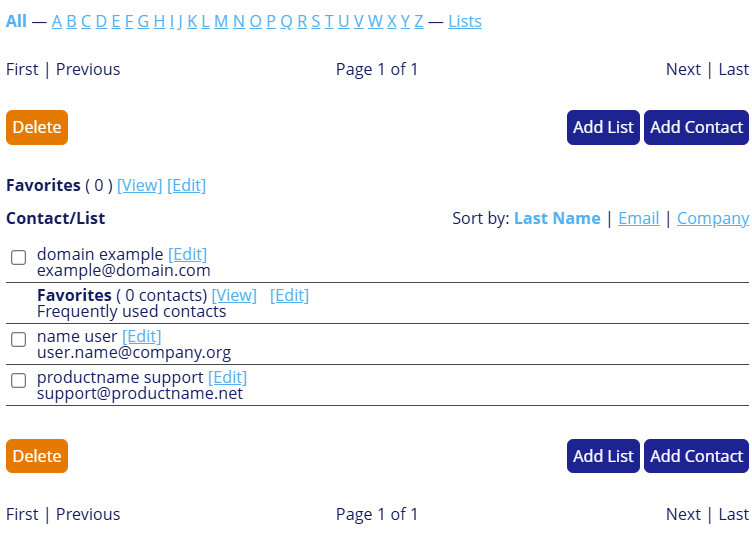
You can group contacts into custom contact lists independent of Managed File Transfer groups. Outlook contacts are available using the Managed File Transfer Add-In for Microsoft Outlook.
Adding new contact
To add new contacts to the contacts list, follow these steps:
- Navigate to the Managed File Transfer File Sharing page.
- Click the Contacts tab and select Add Contact.
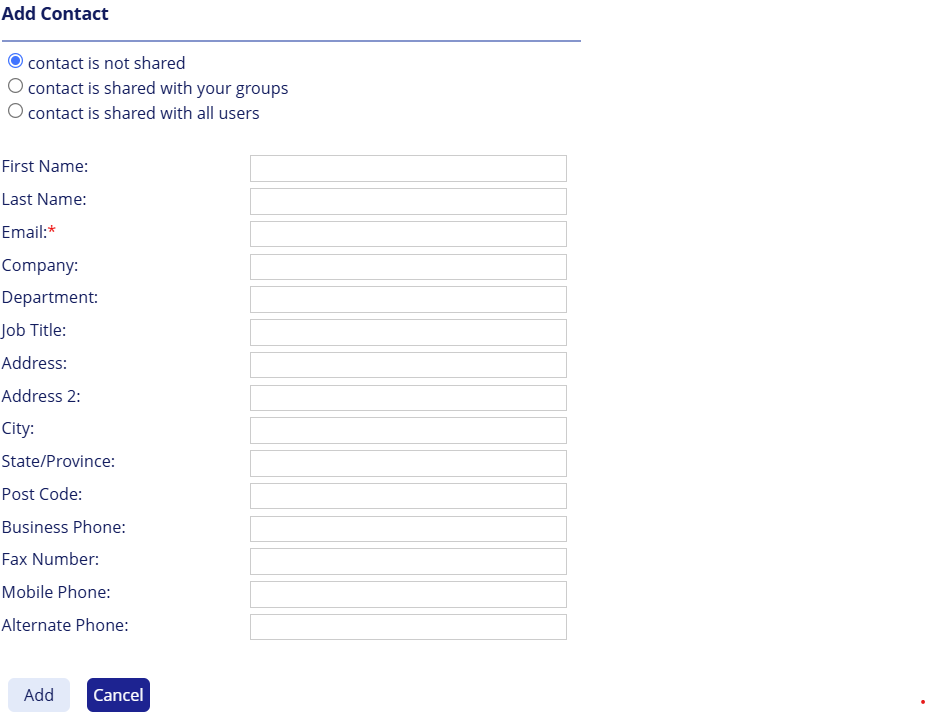
Fields indicated with a red asterisk are required. - In the Add Contact window, enter the contact information.
The form has three bullets at the top that provide the option to keep the required contact private, share with a user's groups, or share with all system users. - Click Add to add the contact to your contact list.
Adding a contact list
You can add a new list to email multiple recipients simultaneously.
- Navigate to the Managed File Transfer File Sharing page.
- Click the Contacts tab.
- Click Add List.
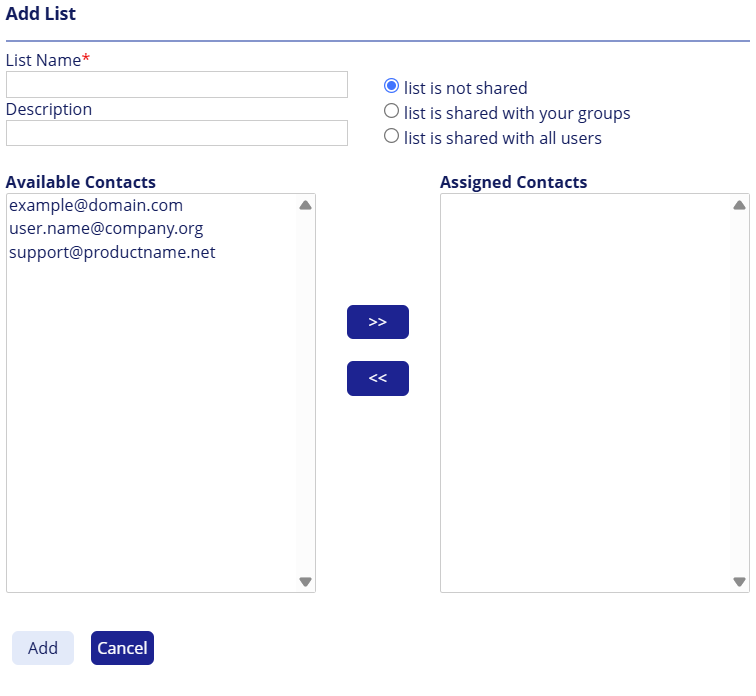
- In the Add List window, enter the desired name for the list.
- Optional: Enter the description.
- Select one of the following:
- list is not shared – You can only view this List in the Contacts folder.
- list is shared with your groups – Only users classified in the same group can access this List.
- list is shared with all users – All users can view your List.
- Select the contacts to add to your Contact List, then click Add.
UseCtrl+Clickto select multiple contacts. - Click Submit Changes.