Using clipboard
Updated 19 February 2026
The Clipboard allows you to temporarily store files for moving or copying within the Managed File Transfer system.
- Navigate to the Managed File Transfer File Sharing page.
- Click the More tab and select Clipboard.
- Select one or more files and click Clipboard.
- Select Add To Clipboard.
info
- After adding a file (or files) to the Clipboard, their icons will appear slightly dimmed.
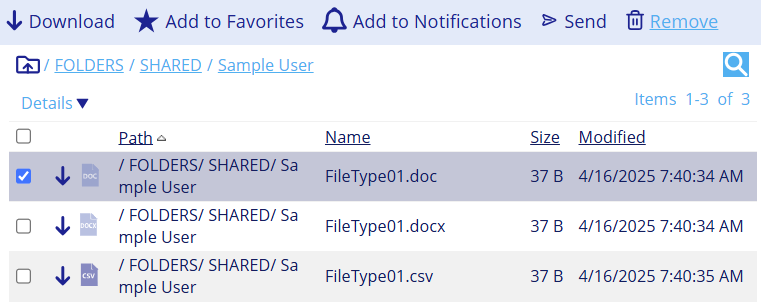
- You can download files and folders from the Clipboard, add them to Favorites, or send them by email.
- After adding files to the Clipboard, you can either move or copy the file to another location.
Removing files from clipboard
To remove files from the clipboard, follow these steps:
- Navigate to the Managed File Transfer File Sharing page.
- Click the More tab and select Clipboard.
- Select the checkbox next to the file.
- Click Remove.