MFT Runtimes
MFT Runtime allows Cloud to LAN or LAN to Cloud file transfers. It can transfer files within your enterprise firewall, allowing LAN to LAN transfer, yet orchestrated and managed by the MFT cloud.
Use the online administration portal to re-configure, pause/resume, restart, or update MFT Runtimes.
Configurations are retrieved by the runtime via outbound polling using an HTTPS connection.
-
From the Organizations page, click the organization for which you want to create an MFT Runtime, then click the MFT Rutnimes tab.
-
Click Add MFT Runtime.
-
In the MFT Runtime Name field, enter a name for the runtime.
-
Optional: Enter a description.
-
Under Alert Configuration, select one of the following options:
- Disabled - Alert emails are disabled. Alerts will continue to be generated on the Alerts page.
- Instance Admins - (Default) Alert emails will be delivered to all instance administrators.
- Email List - Enter email addresses for alerts.
-
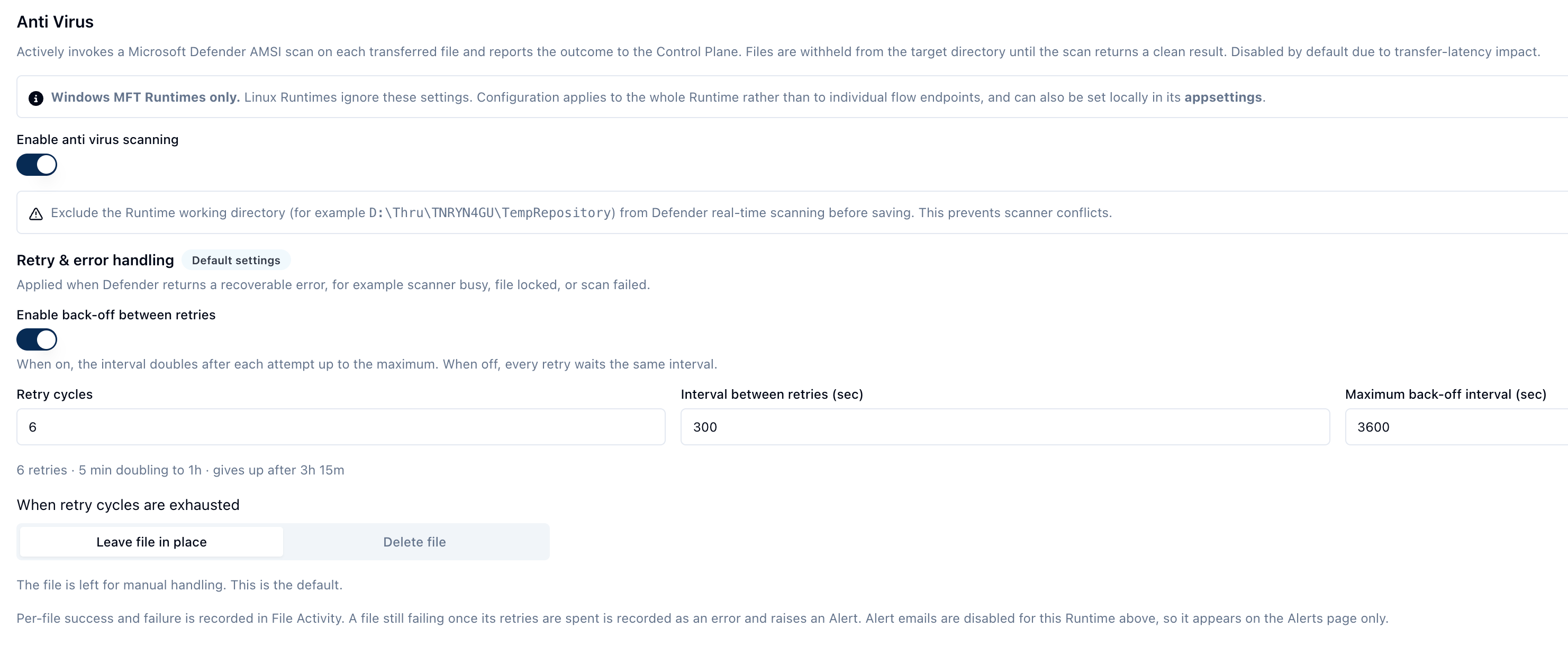
Anti Virus actively invokes a Microsoft Defender AMSI scan on each transferred file and then reports the outcome to the Control Plane. Files are withheld from the target directory until the scan returns a clean result. Disabled by default.
noteAnti Virus is available to Windows MFT Runtimes only.
When Anti Virus is enabled, you can configure Retry & error handling:
-
Enable back-off between retries - When on, the interval doubles after each attempt up to the maximum. When off, every retry waits the same interval.
- Retry cycles - The number of times a file is retried
- Interval between retries - The length of time, in seconds, between retry attempts
- Maximum back-off interval - The maximum time, in seconds, before the system gives up retrying a scan
-
When retry cycles are exhausted - Leave files in place or Delete the file. The default behavior is to leave the file for error handling.
Per-file successes and failures are recorded in File Activity. A file that is still failing once its retry attempts are exhausted is recorded as an error and raises an alert. If alert emails are disabled, it still appears on the Alerts page.
 note
noteIf you require specific enterprise EDR or antivirus software (e.g., CrowdStrike, SentinelOne), you can deploy local MFT Runtime agents on your own hosts, where local endpoint security agents inspect files at the host level.
-
-
Click Save.
From the Actions menu, you can Edit MFT Runtime, View Associated Endpoints, or Delete MFT Runtime.
To successfully complete runtime setup, you must configure at least one File Share endpoint. You can add additional File Share endpoints and associate those endpoints with any MFT Runtimes you have created under MFT Runtimes.
MFT Runtime download
From the MFT Runtime page, you have the option to download the runtime for installation on either Windows or Linux operating systems.
Clicking Download MFT Runtime opens a window with commands to download the runtime.
You can execute this single installation and configuration line on Windows using PowerShell or on Linux through a terminal. This will guide you through the steps necessary to download and configure the runtime.
Refer to MFT Runtime for hardware requirements and installation steps.
