Heartbeat alert system
Any enabled MFT Runtime that has not updated its latest heartbeat within the last 5 to 10-minute interval will now trigger an alert in the UI and send email notifications.
The heartbeat alert is polled every 5 minutes and checks for 5 minutes of inactivity, meaning the alert may not be generated until up to 10 minutes of heartbeat inactivity, depending on when in the polling cycle the runtime stopped sending the heartbeat.
This alert links back to the runtime within its organization, displaying an inactive status. The alerts are only generated by MFT Runtime marked as Enabled in the UI.
Email notifications on heartbeat alerts are sent to all instance users with the "Instance Admin APIs" permission.
The following conditions trigger or clear the alert and change the runtime status:
- If an active runtime has previously created a heartbeat but has not updated or created a new heartbeat within the last 5 minutes, an alert is triggered once and the runtime status in UI is set to Inactive.
- If an active MFT Runtime heartbeat alert is cleared manually and the runtime is still disconnected during the next 5-minute polling cycle, an alert is triggered once and the runtime status stays Inactive.
- If a runtime resumes heartbeat, UI heartbeat alerts for this runtime are cleared. If a runtime was in Inactive status, it is cleared and replaced by the timestamp of the last alert; an Alert Cleared email is sent.
Under the following conditions, no alert is triggered:
- If a runtime is installed, created a heartbeat, and is continuing to heartbeat.
- If a runtime is new and has never created a heartbeat (likely the runtime is not yet installed).
- In an active/passive runtime configuration, a passive runtime is allowed to send heartbeat after an active runtime disconnects.
MFT Runtime health check
The MFT Runtime heartbeat is a simple http ping to the MFT API, so we can track and display the status of MFT Runtime in the web UI.
The local MFT Runtime EXE health check is disabled by default upon installation, it can be enabled by modifying the appsettings.json or by setting environment variables
You will also need to add or define the HealthCheckPort as a line in the appsetting.json file, and you can pick any port that works for your environment.
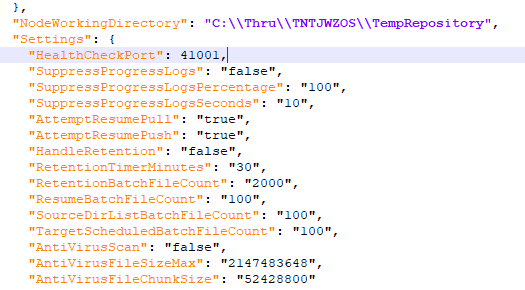
Once enabled, the runtime’s health check would be available directly from a URL such as http://127.0.0.1:41001/api/HealthCheck/Thru.MFT.Node.
