Rename settings
The MFT Rename feature offers a powerful file renaming capability through File Patterns, also known as Rules. Multiple rules can be configured for each Flow Endpoint, providing flexible file management options.
These renaming rules are versatile, as they can be implemented on both source and target Flow Endpoints. The system applies specific rename patterns based on which rule matches the defined filter criteria, ensuring precise and automated file handling.
To set up a new file pattern, follow these steps:
-
Click NEW File Pattern.
-
Enter a unique Rule Name.
-
In the Rename Files Matching field, enter a regular expression to filter the files. To allow all files, enter
.*. -
Under the Pattern Builder pane, configure the following:
- Enter a Test String, which is the text you want to replace.
- In the New Pattern field, drag and drop common rename building blocks to create a rename structure.
The Result field will show what the new filename would be.
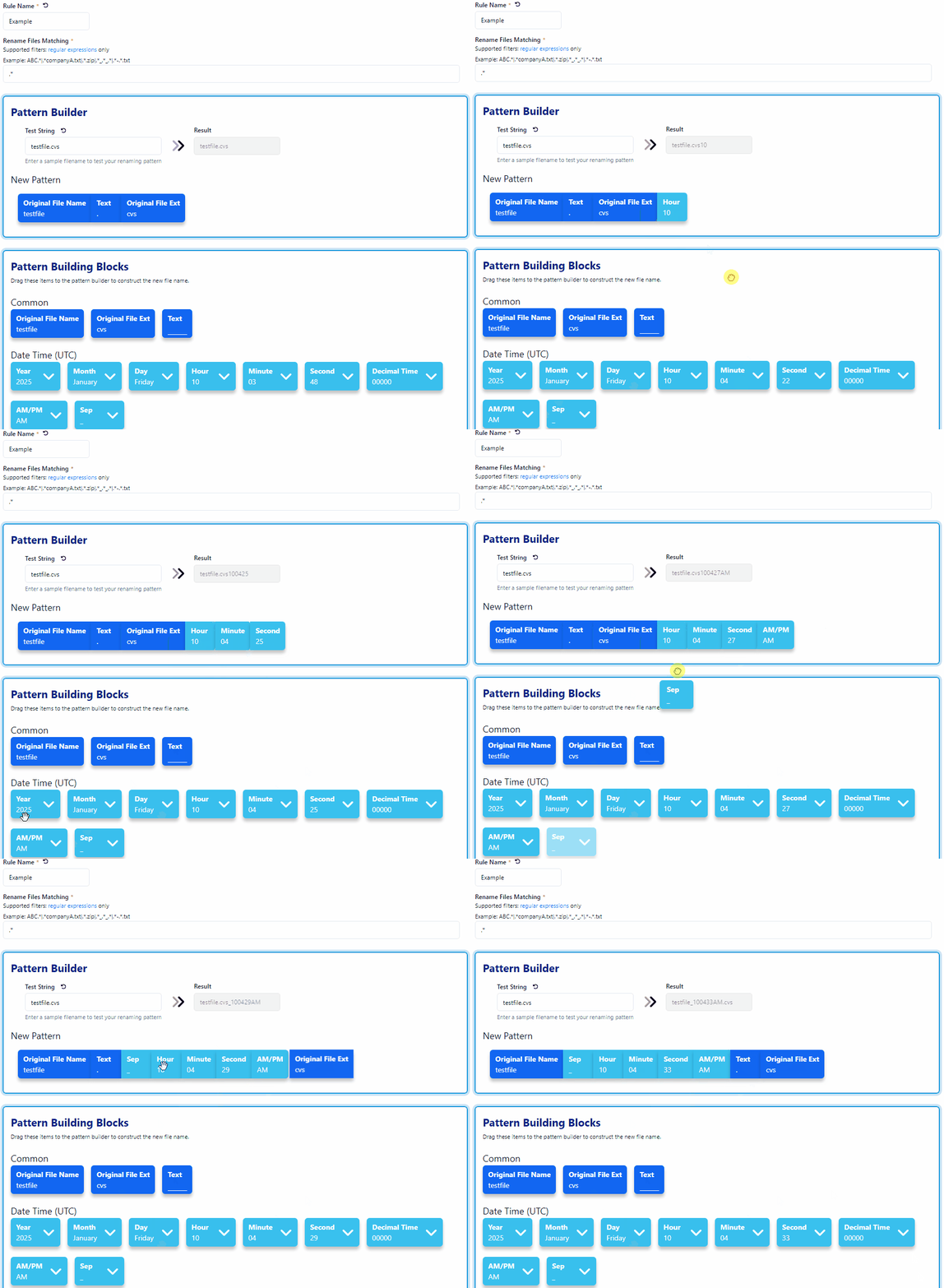
File processing is added to the file before file renaming.
Regex groups
Whenever you use parentheses, a new capture group is generated. The first capture group is always the entire matched string, and anything else is from adding parentheses.
When you put part of a regex pattern inside parentheses ( ), it creates a "capture group". A capture group treats that piece of the pattern as a separate unit.
- Group 1: The very first capture group (group 1) always contains the entire text that matched the full regex pattern.
- Group 2: Any additional capture groups (group 2, group 3, and so on) come from the other sets of parentheses ( ) you included in the pattern. Each additional set of parentheses marks off a new capture group.
Example:
In the regex /(abc)(123)/, there are two capture groups:
- The full matched text "abc123".
- The text "123" is inside the second set of parentheses.
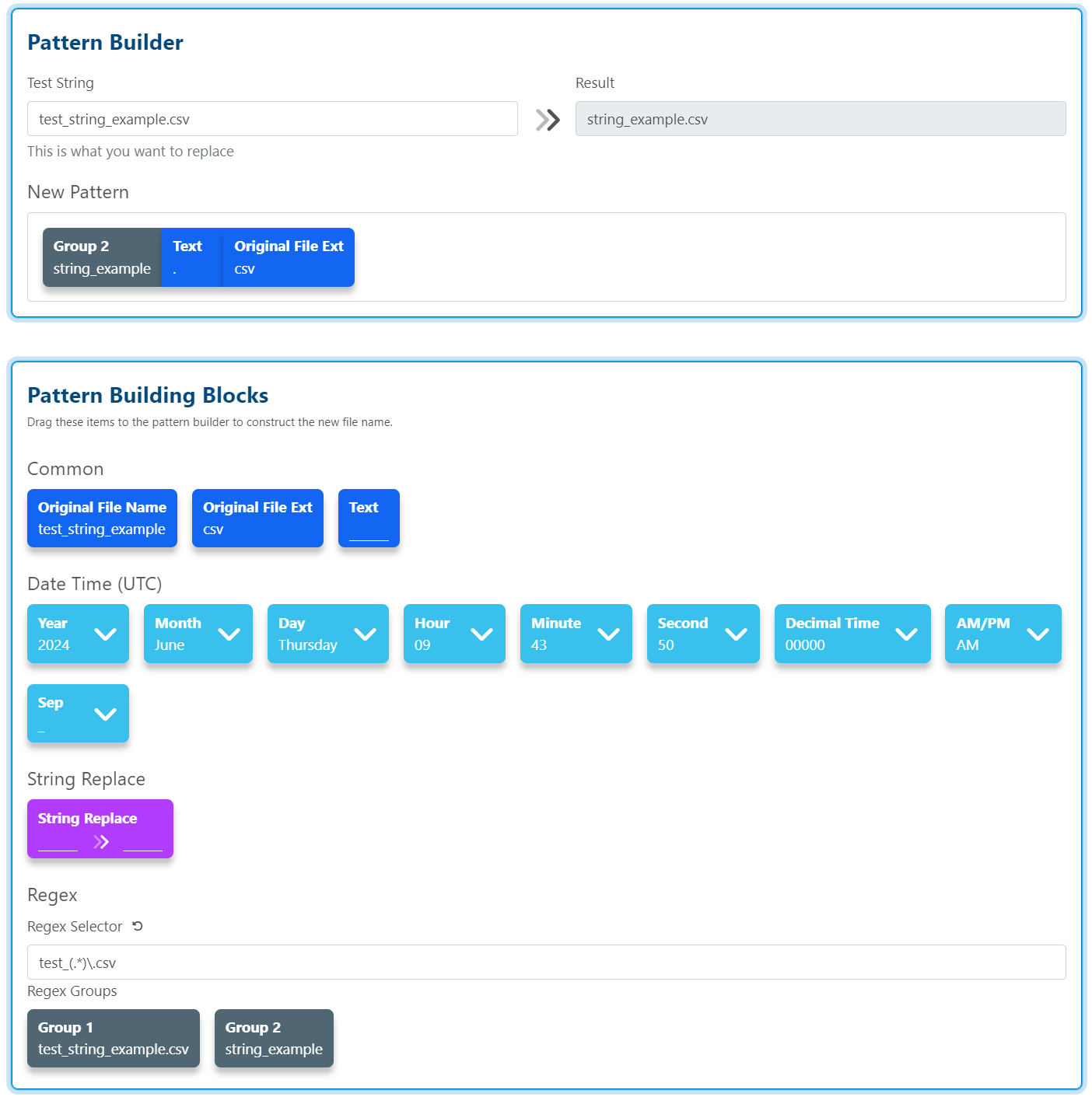
In the following example, you can see the preview of the capture groups just below the Regex.
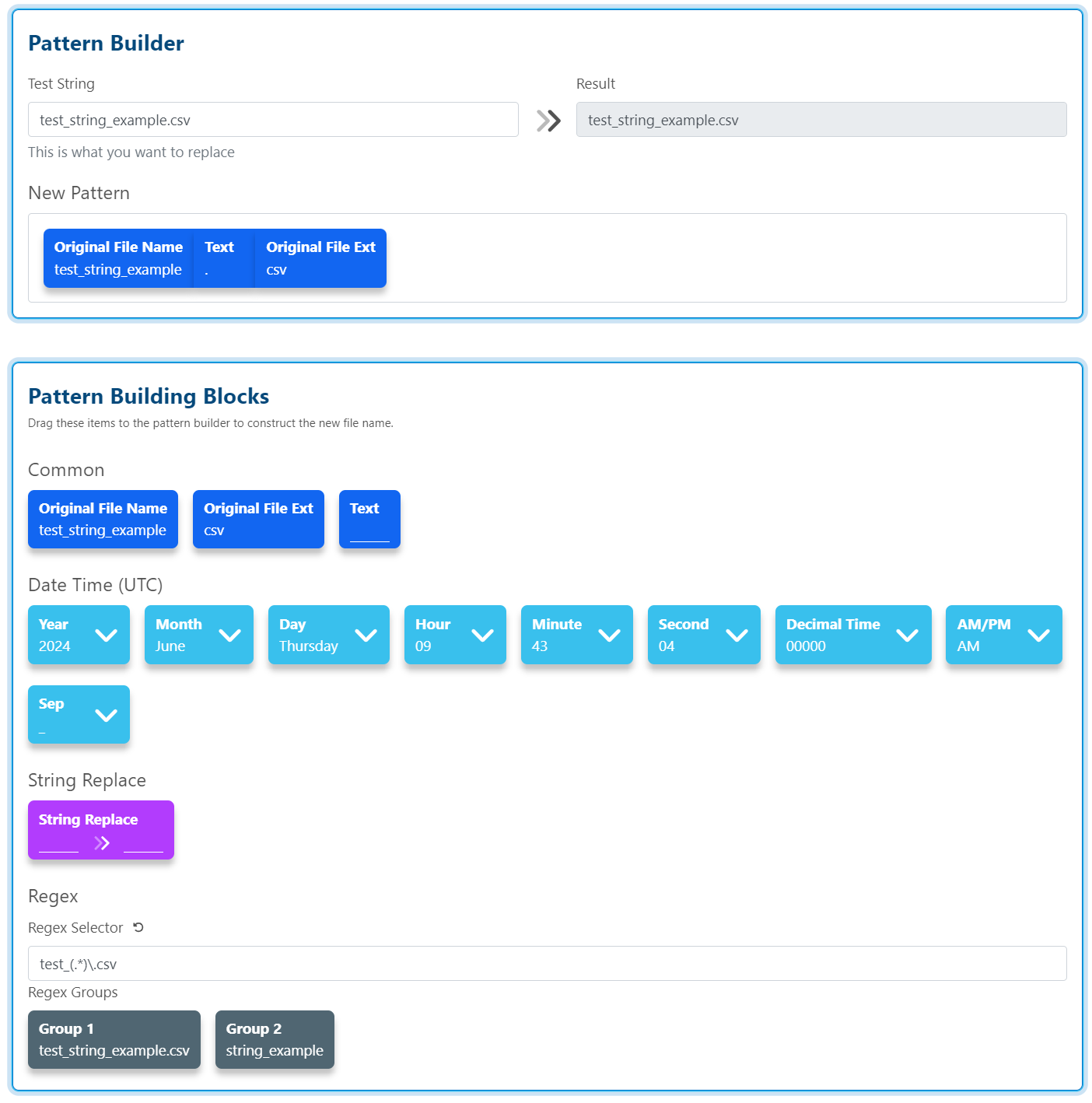
The parentheses let you pick out and separate specific parts of the original text.
For example, if the original text is "file_example_2023.txt", using parentheses in the regex pattern allows you to capture certain sections like:
- "example"
- "2023"
- "file_example_2023"
Instead of just matching the entire text, the parentheses let you define and extract particular substrings that are useful to you.
To include the groups in the result preview at the top, you must drag them into the new pattern. The following example shows that Group 2 is pulled into the Pattern Builder.