Processing options
Processing Options allow the selection of PGP for Encryption, Decryption, Compression, or Decompression. Processing is disabled by default.
Expanding the drop-down menu exposes the processing options available.
For information on each processing type, refer to:
Encryption
Enabling Encryption will list the PGP keys associated with the Organization. If a PGP Key is missing or no keys are listed, navigate back to the Organizations PGP Keys.
To enable the encryption, follow these steps:
-
Click Processing Options.
-
In Encryption Key field, select a PGP Key.
-
Optional: Turn on the Sign File toggle, and select an additional PGP key to sign the encrypted file.
-
Click Save to save the changes and return to Flow Studio.

Decryption
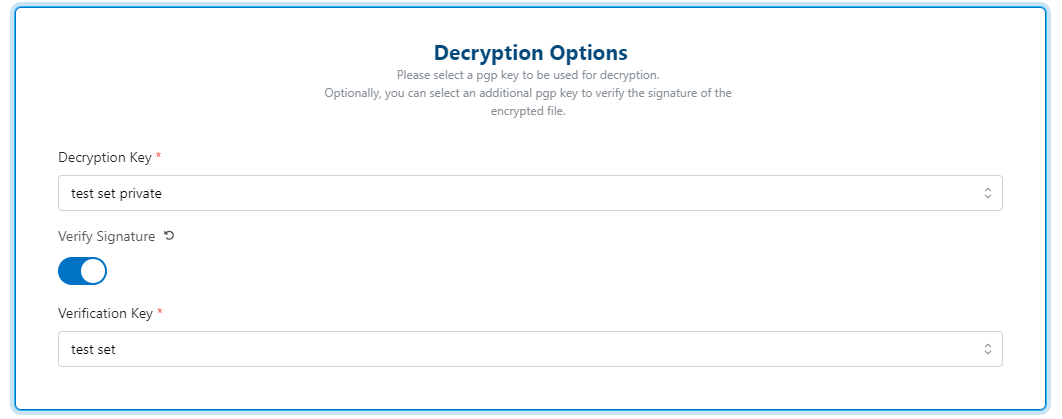
Enabling Decryption will list the PGP keys associated with the Organization. If a PGP Key is missing or no keys are listed, navigate back to the Organizations PGP Keys.
To enable the decryption, follow these steps:
-
Click Processing Options.
-
In Decryption Key field, select a PGP Key.
-
Optional: Turn on the Verify Signature toggle, and select an additional PGP key to verify the signature of the encrypted file.
-
Click Save to save the changes and return to Flow Studio.
Error Handling
If "Continue on Error" is selected, the flow will continue to process the file even if an error occurs during processing.
Compression
Files that pass through a Flow Endpoint can be compressed, and if required, the compressed file can be password-protected.
To compress a file, follow these steps:
-
Click Processing Options.
-
Select one of the following compression types:
- Zip
- 7zip
- Gzip
- Tar/GZ
By default, Compression is done on a per file basis.
-
Optional: Set an Archive Password.
-
Optional: Turn on Compress Batch Toggle. Batch compression is supported for external endpoint types, but not for the MFT’s internal endpoints, like SFTP or FTPS.
Compress batch compresses all files in a batch into a single archive. The maximum batch size is 100 files.
When a batch of files is found at an external source and successfully pulled into MFT, the files will be placed into a single archive, which will be renamed and date time stamped.
Example

Error Handling
If "Continue on Error" is selected, the flow will continue to process the file even if an error occurs during processing.
Decompression
To decompress a file, follow these steps:
-
Click Processing Options.
-
Select one of the following decompression types:
- Zip
- 7zip
- Gzip
- Tar/Gz
-
Optional: Under the Archive Password (Optional) field, set a password. Use the password reveal button if you wish to check your password.
-
Click Save to save the changes and return to Flow Studio.
Error Handling
If "Continue on Error" is selected, the flow will continue to process the file even if an error occurs during processing.
Important Note About Other Compressed File Formats
Many common file formats are compressed archives that can be processed through the decompression function:
- Microsoft Office files (.xlsx) - These are ZIP-based archives containing XML files and media
Running these file types through the decompression process will extract their internal components (XML files, images, etc.) rather than treating them as the intended document format. This may not be the desired behavior for most use cases involving these file types.
If you need to process these files as documents rather than archives, ensure they bypass the decompression step in your flow configuration.
