Users
The Users dashboard displays information about all active users in your instance.
You can click Add User to create additional users for your instance and manage their settings from the Actions menu.
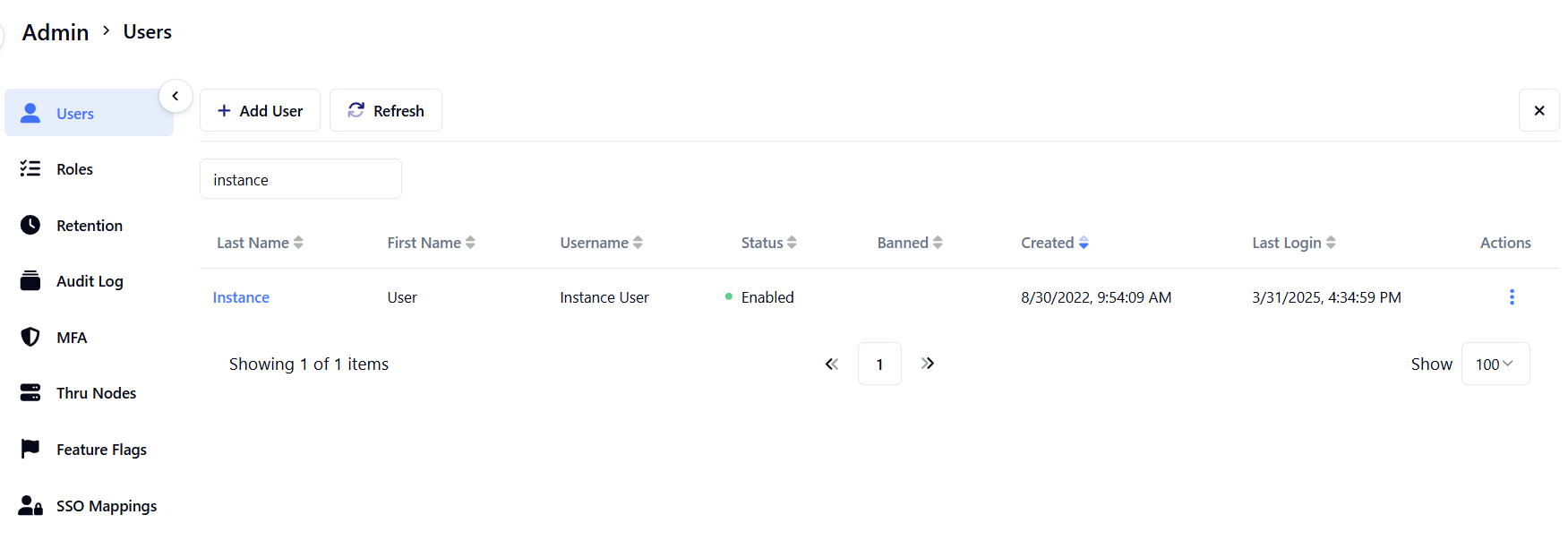
Adding user
To add a new user to the instance, follow these steps:
- Click the Add User.
- In the Username field, enter a username. Usernames can have a maximum length of 50 characters.
- In the First Name field, enter a name.
- In the Last Name field, enter a last name.
- In the Email field, enter an email.
- Turn on Log Session Toggle if needed. Enabling Log Session allows you to view a user's history.
- Click Save.
info
Users created in the Administration panel are MFT Web Portal instance users, not MFT FTPS/SFTP Server users who can access a MFT FTPS/SFTP Server endpoint.
Role Templates
-
The following four default user role templates are available:
- Instance Admin
- Instance User
- Org User
- Org Transfer
The roles assigned to the user determine the permissions the user has.
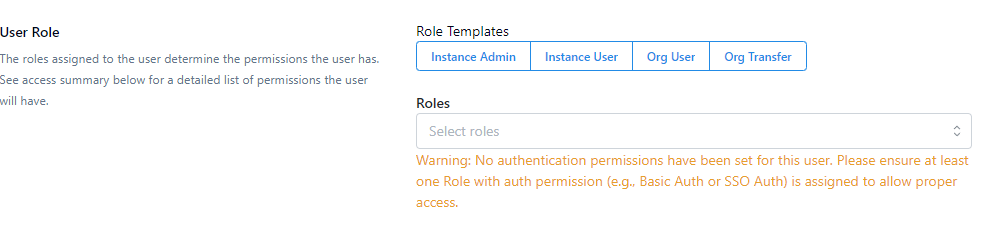
Ensure at least one role with authentication permission (e.g., Basic Auth or SSO Auth) is assigned to allow proper access.
Actions
From the Actions menu, you can perform the following actions:
- Edit - Edit user information.
- Sessions - View user sessions
- Delete User - Delete a user
- Resend Activation - Resend activation emails to users who might have forgotten their passwords and are unable to reset them.
- Unban User - (Available only if a user is banned) Unban a user who has been locked out of their account
