Setting or viewing runtime or account properties
The capability and steps to set runtime or Account properties vary depending on your account type and privileges.
Before you begin
You must have the Runtime Management privilege to set properties. If you have the Runtime Management Read Access privilege, you can view existing settings, but you cannot change them.
About this task
If your account owns a local runtime, you can set its properties on the Runtime or Cloud Properties panel.
If your account owns a private runtime cloud, the owner can set the Cloud’s properties and its accounts’ properties in the Account Properties panel. An individual account that owns a basic runtime in a Cloud can set only its own account properties in the Account Properties panel.
Cloud owners and accounts that have a basic runtime attached to the Cloud can use the Cloud Attachment Quotas tab to view the account’s properties and property values in the Cloud.
Procedure
-
Go to Manage > Runtime Management.
-
Do one of the following:
-
If you are the owner of a local runtime, select your basic runtime, runtime cluster, or runtime cloud from the list on the left.
-
If you are an account owner, select your runtime from the list on the left.
-
-
Do one of the following:
-
Open the Properties panel.
-
Open the Account Properties panel.
noteThe properties that you see are those that were in effect when the runtime started. Properties are displayed regardless of how they were set — through the UI or manually by editing the <installation_directory>/conf/container.properties file or the <installation_directory>/bin/atom.vmoptions file.
-
-
To set a property value on the Basic tab, use the field or check box next to the property name.
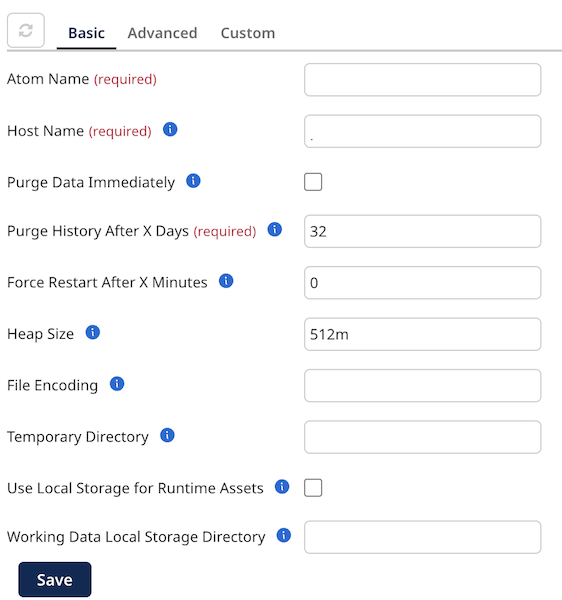
-
To set a property value on the Advanced tab:
-
Click the Advanced tab.
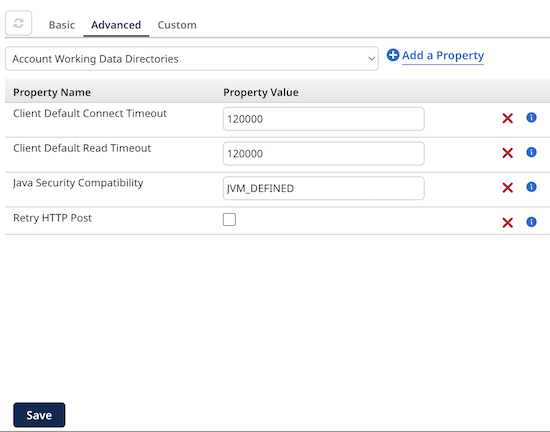
-
Select a property from the list and click
 Add a Property.
 -
Enter a value in the Property Value field next to the property name.
Some errors can be detected immediately. A red box appears around the property if there are errors. The error messages appear below the box.
Properties initially appear in the order in which you add them. After you click Save, the properties are alphabetized by property name.
-
-
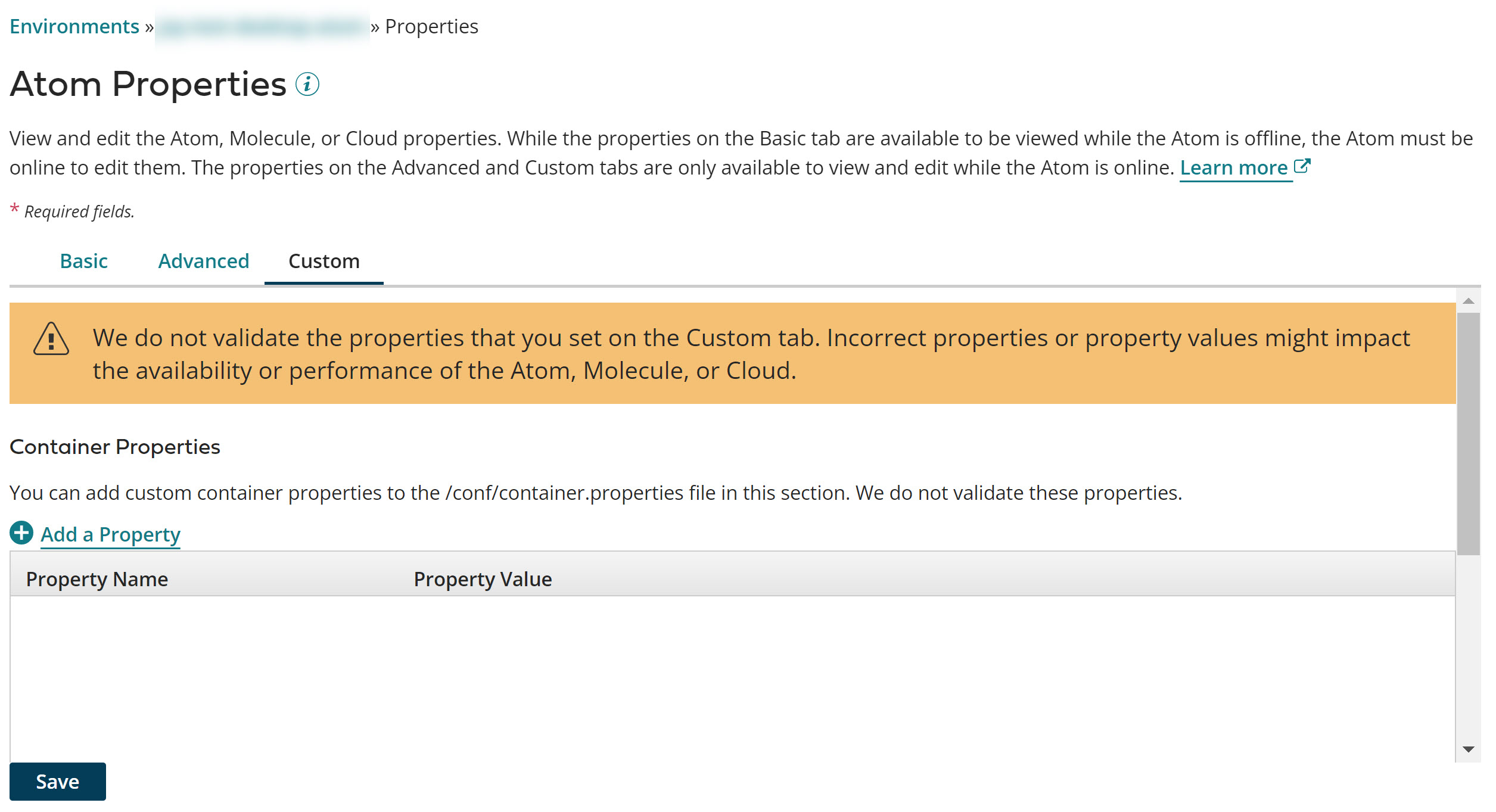
To set a property value on the Custom tab, click the Custom tab.
Only owners of local basic runtimes, runtime clusters, and private runtime clouds have access to this tab. If you own a basic runtime set up in a private runtime cloud, you cannot see the Custom tab.
Some errors can be detected immediately. A red box appears around the property if there are errors. The error messages appear below the box.
Properties initially appear in the order in which you added them. After you click Save, the properties are alphabetized by property name.
-
To set a custom container property on the Custom tab:
-
Click
Add a Property in the Container Properties section. -
Type the property name in the Property Name field.
You must enter the complete property name. For example,
com.boomi.container.property. -
Enter a value in the Property Value field next to the property name.
-
-
To set a custom system property on the Custom tab:
-
Click
Add a Property in the System Properties section. -
Type the property in the Property field.
You must enter the complete property. For example,
-Djava.propertyor-Dcom.property.
-
-
Optional: To delete a property from the Advanced or Custom tab, click Remove
 next to the property.
 -
Optional: To view an account’s properties and property values in the Cloud, in the Account Properties dialog click the Cloud Attachment Quotas tab.
-
Click Save.
Because changes to many of these properties do not take effect until the runtime is restarted, you are prompted to restart. You have the option to restart now or restart later.
Only runtime owners can restart them. Accounts that have a basic runtime in a Cloud cannot restart the Cloud.
If errors are still detected, a warning message appears containing the names of the tab(s) on which there are errors. You must correct the errors before the properties can be saved.
