Setting a schedule to update a runtime to the latest Java version
Use the Boomi Enterprise Platform to set a schedule to automatically update a runtime to the latest Java version.
About this task
You can set a schedule from the Java Information panel to automatically update a runtime to the latest version of Java after it becomes available. You must have the Runtime Management privilege to perform this task.
Important: After upgrading the Java version, you must perform a rolling restart for multi-node runtime clusters or runtime clouds.
Procedure
-
Go to Manage > Runtime Management .
-
From the left side of the page, select the runtime for which you want to set a schedule and go to the Java Information panel.
-
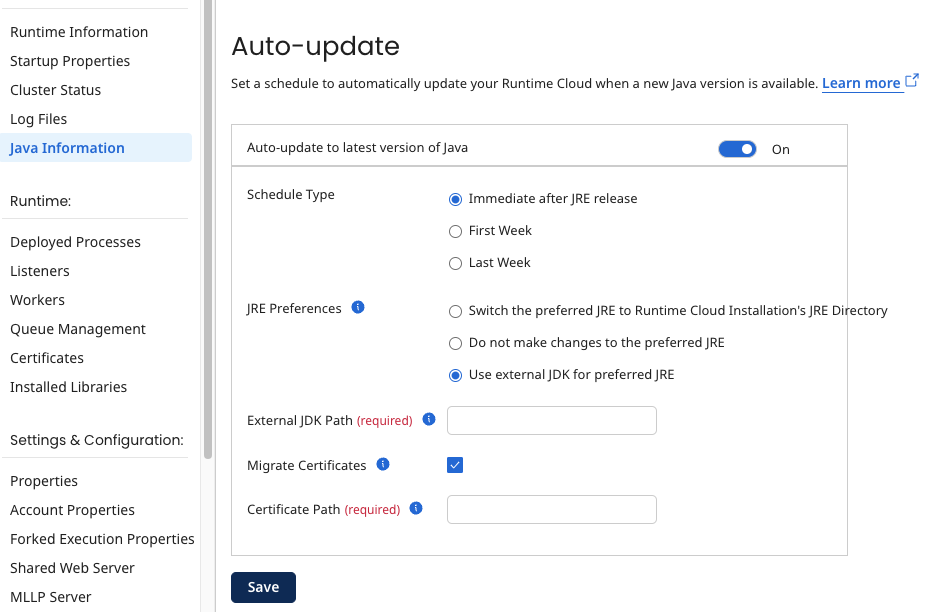
In the Auto-update section, select the toggle next to Auto-update to latest version of Java to set a schedule.
-
For Schedule Type select one of the following options:
-
Immediate after JRE release - The Java version is updated immediately after it is released. If you select this option, skip to step 8.
-
First Week - The Java version is updated in the first week after the JRE is released.
-
Last Week - The Java version is updated in the last week after the JRE is released before the Platform Release.
For more information about Boomi's release schedule, refer to Runtime and Platform releases.
-
-
For Schedule Day, select which day of the week you want the update to be applied from the drop-down menu.
-
For Schedule Hour, select the time of day you want the update to be applied from the drop-down menu.
-
For Schedule Time Zone, select the time zone for which you want the date and time settings to apply for the runtime to be updated from the drop-down menu.
-
(Optional) If you want certificates to be migrated automatically during the update process, check the box next to Migrate Certificates. Enter the directory location of your certificates in the Certificate Path field.
-
For JRE Preferences, select one of the following options:
-
Switch the preferred JRE to Runtime Installation's JRE Directory - Updates your runtime with Boomi's latest version of Java and changes the location in the pref_jre.cfg file. The pref_jre.cfg file contains the path to the JRE that the runtime will use.
-
Do not make changes to the preferred JRE - Updates your runtime with Boomi's latest version of Java but does not change the location in the pref_jre.cfg file. The pref_jre.cfg file contains the path to the JRE that the runtime uses currently.
-
Use external JDK for preferred JRE - Uses a custom distributed version of Java. In the External JDK Path field, enter the location of the directory that contains the external JDK that you want to use. Note: For Switch the preferred JRE to Runtime Installation's JRE directory and Do not make changes to the preferred JRE, if the runtime is currently using the JRE directory, the new Java version is downloaded into the jre_a (previously named jre_backup) folder, otherwise the new Java version is downloaded into the JRE directory.
-
-
Click Save.
