Upgrading a runtime to Java 11 from Runtime Management
You can upgrade the Java version of an online runtime directly from the Java Information panel in Runtime Management.
About this task
We strongly recommend upgrading via Runtime Management, in the platform. However, if you want to download the upgrade wizard instead of upgrading directly from the platform, select Download the Java upgrade wizard for the Upgrade Method and then click Download and Close. See the topic Upgrading a basic runtime or runtime cluster to Java 11 for more information.
If the runtime is offline, Download the Java upgrade wizard is the default option.
After upgrading the Java version, you must perform a rolling restart for multi-node runtime clusters or runtime clouds.
Procedure
-
In the user interface, navigate to Manage > Runtime Management.
-
Select the runtime that you want to upgrade and click Java Information.
-
Click Update to Java <version number>.
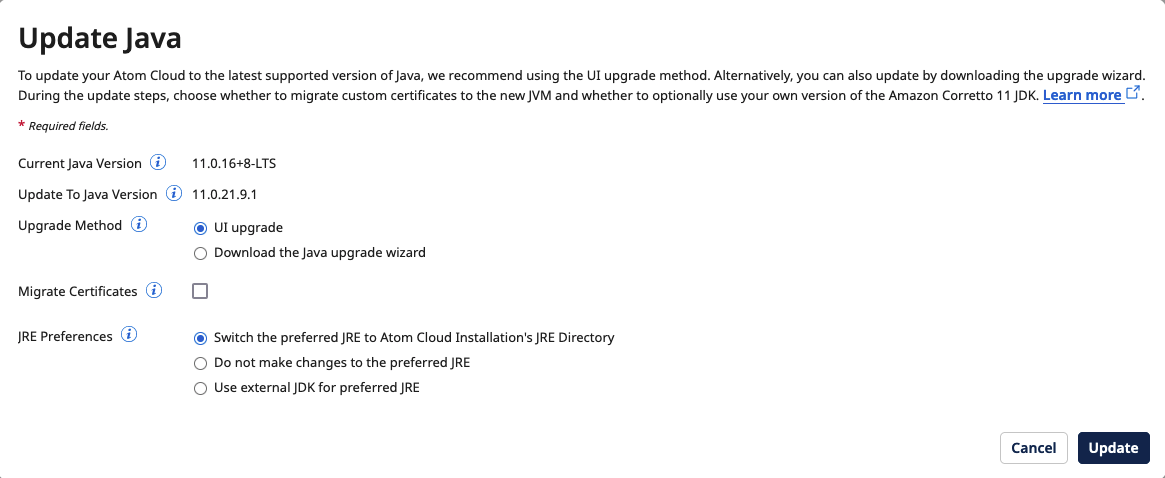
A dialog box opens with the following information and options:
-
Current Java Version
-
Update To Java Version
-
Upgrade Method
-
Migrate Certificates
-
JRE Preferences
-
-
To upgrade directly from the select UI upgrade for the Upgrade Method.
noteSteps 5 and 6 are available only for the UI upgrade method.
-
(Optional) Select the checkbox next to Migrate Certificates if you want to migrate any certificates during the upgrade process and then locate the folder containing the JDK that your runtime is using next to Certificate Path.
noteThe certificates that can be migrated during this step are located in the /lib/security/cacerts directory.
-
Next to JRE Preferences, select one of the following options:
-
Switch the preferred JRE to Runtime Installation's JRE Directory - Updates your runtime with Boomi's latest version of Java and changes the location in the pref_jre.cfg file. The pref_jre.cfg file contains the path to the JRE that the runtime will use.
-
Do not make changes to the preferred JRE - Updates your runtime with Boomi's latest version of Java but does not change the location in the pref_jre.cfg file. The pref_jre.cfg file contains the path to the JRE that the runtime uses currently.
-
Use external JDK for preferred JRE - Uses a custom distributed version of Java 11. Next to External JDK Path, enter the location of the folder that contains the external JDK that you want to use.
noteFor Switch the preferred JRE to Runtime Installation's JRE directory and Do not make changes to the preferred JRE, if the runtime is currently using the JRE directory, the new Java version is downloaded into the jre_a (previously named jre_backup) folder, otherwise the new Java version is downloaded into the JRE directory.
-
-
Click Update.
A pop-up dialog box displays in the bottom right corner of the screen, indicating that the upgrade will begin shortly.
