Creating a package from the Build page
After configuring and saving a component on the Build page, use the Create Package button to begin the deployment process.
Before you begin
You must have the Build Read and Write Access privilege and the Package Management privilege to perform this task.
About this task
You can create a package for any deployable component while the component is open on the Build page.
Procedure
-
With the component that you want to package open on the Build page, click Create Package.
noteYou must save the component at least once before the Create Package button is available.
The Package Manager page is displayed with the component selected. The Package History table lists previously created packages, if any.
-
In the Create drop-down list, click New Package.
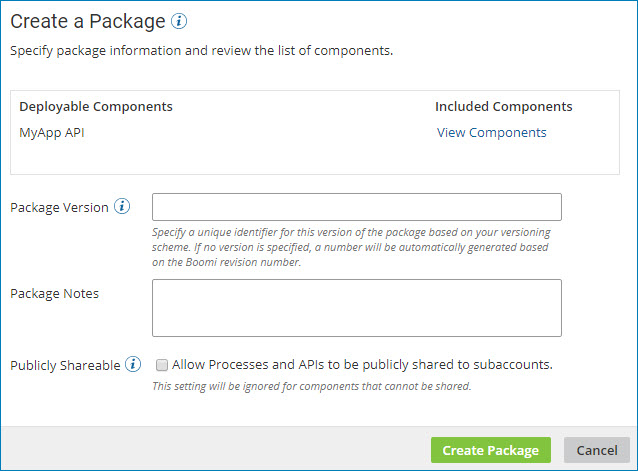
The Create a Package dialog is displayed.
-
In the Deployable Components section, click View Components to review the list of components that are included in the package.
For processes, API Service components, and Processing Group components, a package consists of the primary component and all the dependent components that are required to support that component (such as subprocesses, connectors, or maps). For other deployable components (such as certificates), a package is the component itself.
You can review the list of components, but you cannot modify it.
-
Provide the following information:
-
Package Version - A unique identifier for this version of the component package.
You can specify any alphanumeric value that will help you identify the package. For example, your versioning scheme might consist of 1.0, 1.1, 1.2, 2.0, etc.
If you do not specify your own package version, a value will be automatically generated based on the component's revision number.
-
Package Notes - (Optional) Descriptive notes to help you identify the package version.
For example, you could use this field to describe changes that were made for this version of the package or to identify what release the package version is a part of.
-
Publicly Shareable - (Optional, for processes and API Service components only) To share the package publicly in a process library or as part of an integration pack, turn on this check box.
The Publicly Shareable option is ignored for components that cannot be shared.
:::
-
-
Click Create Package.
The new package appears in the Package History table.
If the specified Package Version value already exists for this component, an error message is displayed.
Results
After you create the package, you can deploy it or share it in a process library or integration pack, if appropriate.
