Comparing two versions of a deployed package
On the Deployments page, use the Compare Deployed Package action to compare two versions of a deployed package.
This following can help you determine why you might view another version of a package:
- To identify differences for the purpose of troubleshooting
- To decide if you want to deploy a newer version of the package or redeploy an older version of the package
-
On the Deployments page, click the
 Actions menu for a deployed package and select Compare Deployed Package.
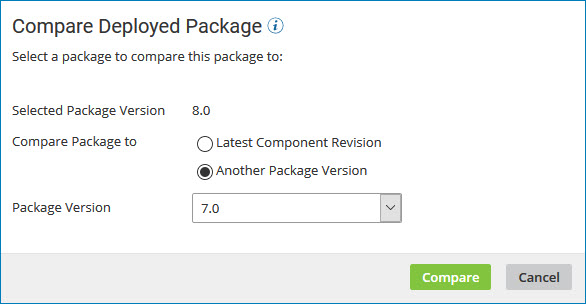
The Compare Deployed Package dialog opens with the selected version in the Selected Package Version field.
-
In the Compare Package to field do one of the following:
- Select Latest Component Revision.
- Select Another Package Version and select a version ID from the drop-down list.
-
Click Compare.
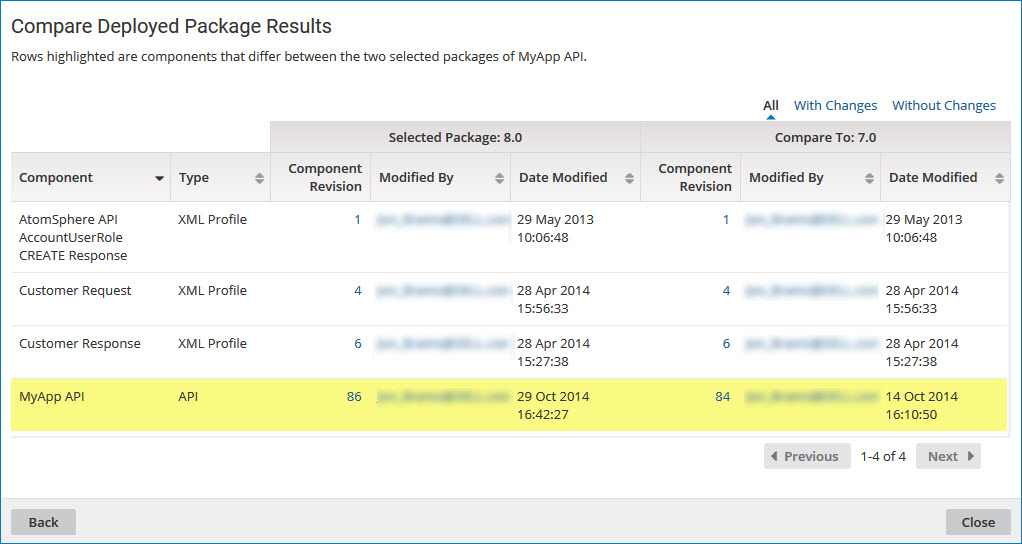
The comparison results are displayed. Differences between the two package versions are highlighted.
-
To contact the user who last modified a specific component within either version of the package, click the email address in the Modified By field.
Your email application opens with the user's name in the To field of a new message.
-
To select a different version with which to compare, click Back and repeat steps 3 and 4.
-
When you are done comparing the two package versions, click Close.
