Configuring a runtime for Microsoft SQL Server BCP browse operations
Before using the Microsoft SQL Server BCP connector, configure a basic runtime for Microsoft SQL Server BCP browse operations. Because this connector is available only on Windows, the basic runtime must be installed on Windows.
Procedure
-
Go to Manage > Runtime Management.
-
On the left, click a basic runtime.
-
Under Settings & Configuration, click Properties.
-
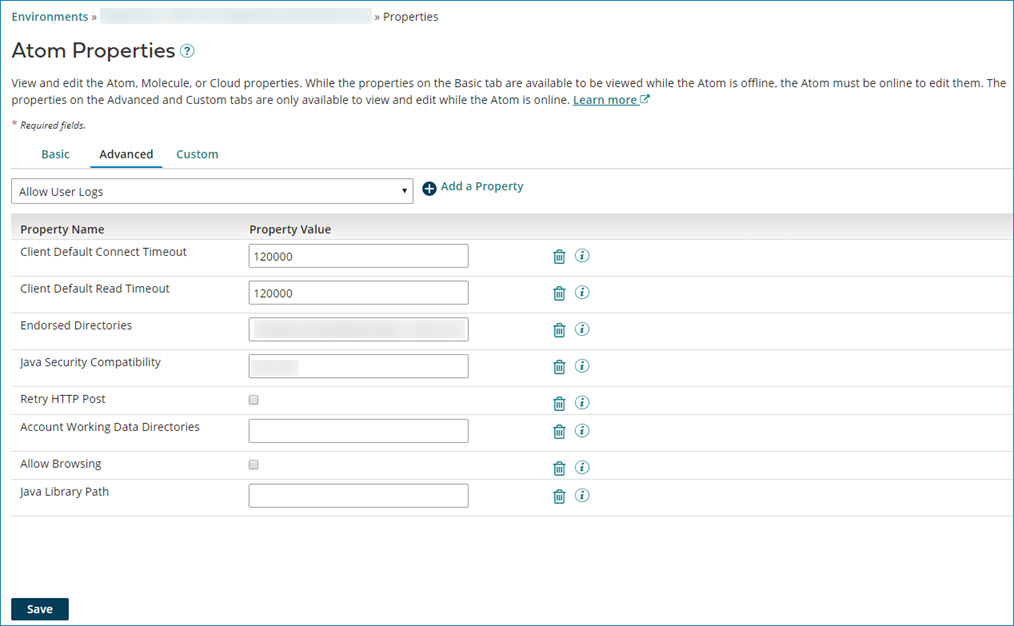
Click the Advanced tab.
-
Under Property Value select Java Library Path in the drop-down and click
 Add a Property.
 -
Set the library path in the Property Value field to:
<atom_installation_directory>\work\connector\connector-bcp-auth -
In the path, replace
<atom_installation_directory>with your runtime installation directory. -
Optionally add an additional library path to the Property Value field. Separate multiple entries with a semicolon (;).
-
Click Save.
Changes to these properties do not take effect until you restart the basic runtime. You have the option to restart now or later.
After restarting the basic runtime, you can use a trusted connection to browse the database simply by turning on the Use Trusted Connection check box on the Microsoft SQL Server BCP connector operation.
