Deploying and using your MCP tools
Deploying your MCP tools
You deploy your MCP Server (Early Access) and tools the same way you deploy any other Boomi Integration process. For details, refer to the Deployment documentation.
Once your process has successfully deployed to a local environment, you will be able to register your tools in the preferred LLM.
Using your MCP tools with MCP Inspector
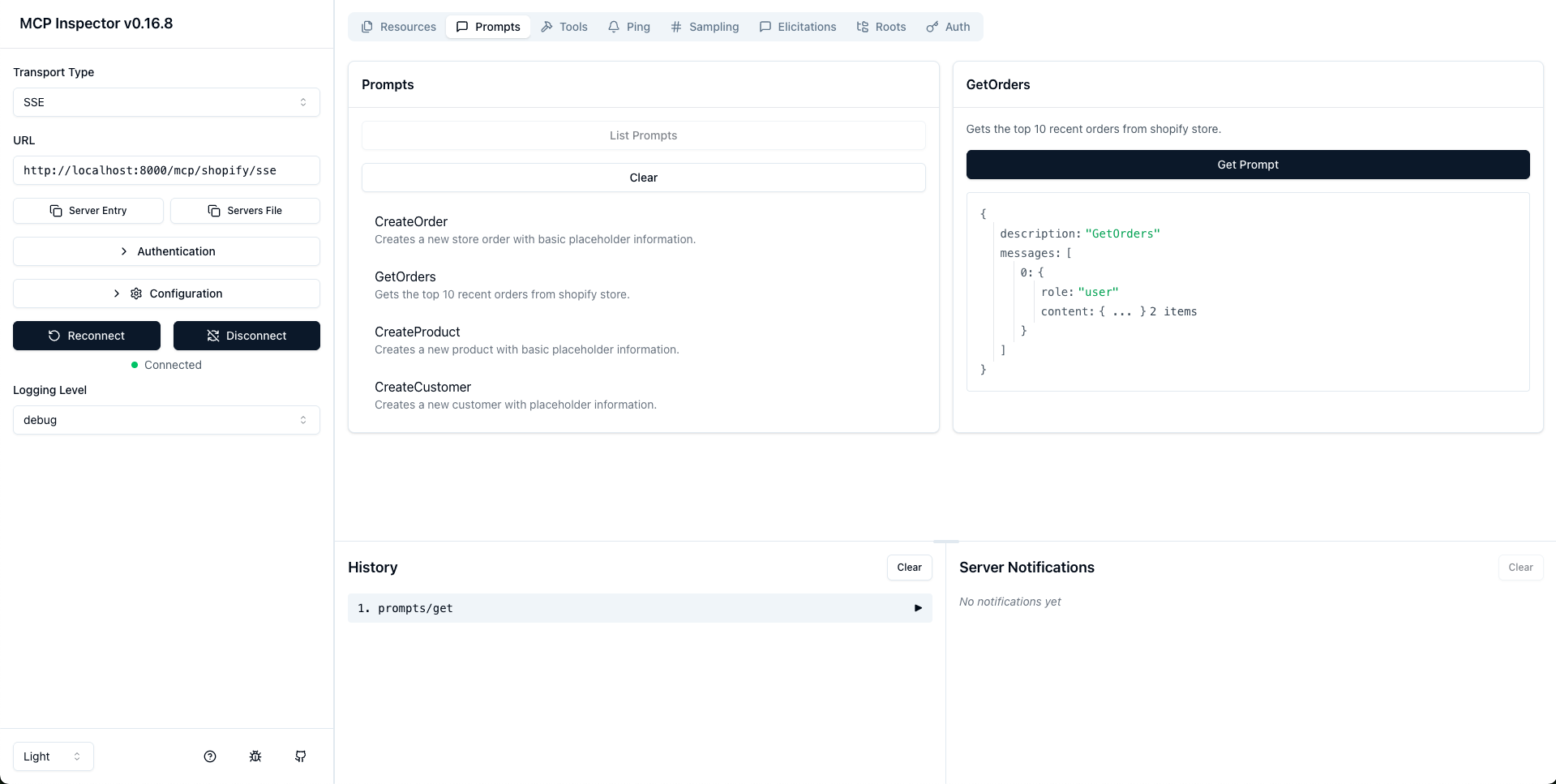
The MCP Inspector is an interactive developer tool for testing and debugging MCP servers. The Debugging Guide covers the Inspector as part of the overall debugging toolkit. This document goes further, providing a detailed exploration of the Inspector's features and capabilities.
For more information about MCP Inspector, please visit https://modelcontextprotocol.io/legacy/tools/inspector#getting-started.
Once your MCP Inspector is up and running, you can use it to explore prompts, tools, and other areas of your newly deployed MCP Server.
Using your MCP tools with Claude desktop
You can register your deployed tools in Claude by adding them to the claude_desktop_config.json file.
In the Claude desktop, navigate to Settings > Developer > Edit Config.
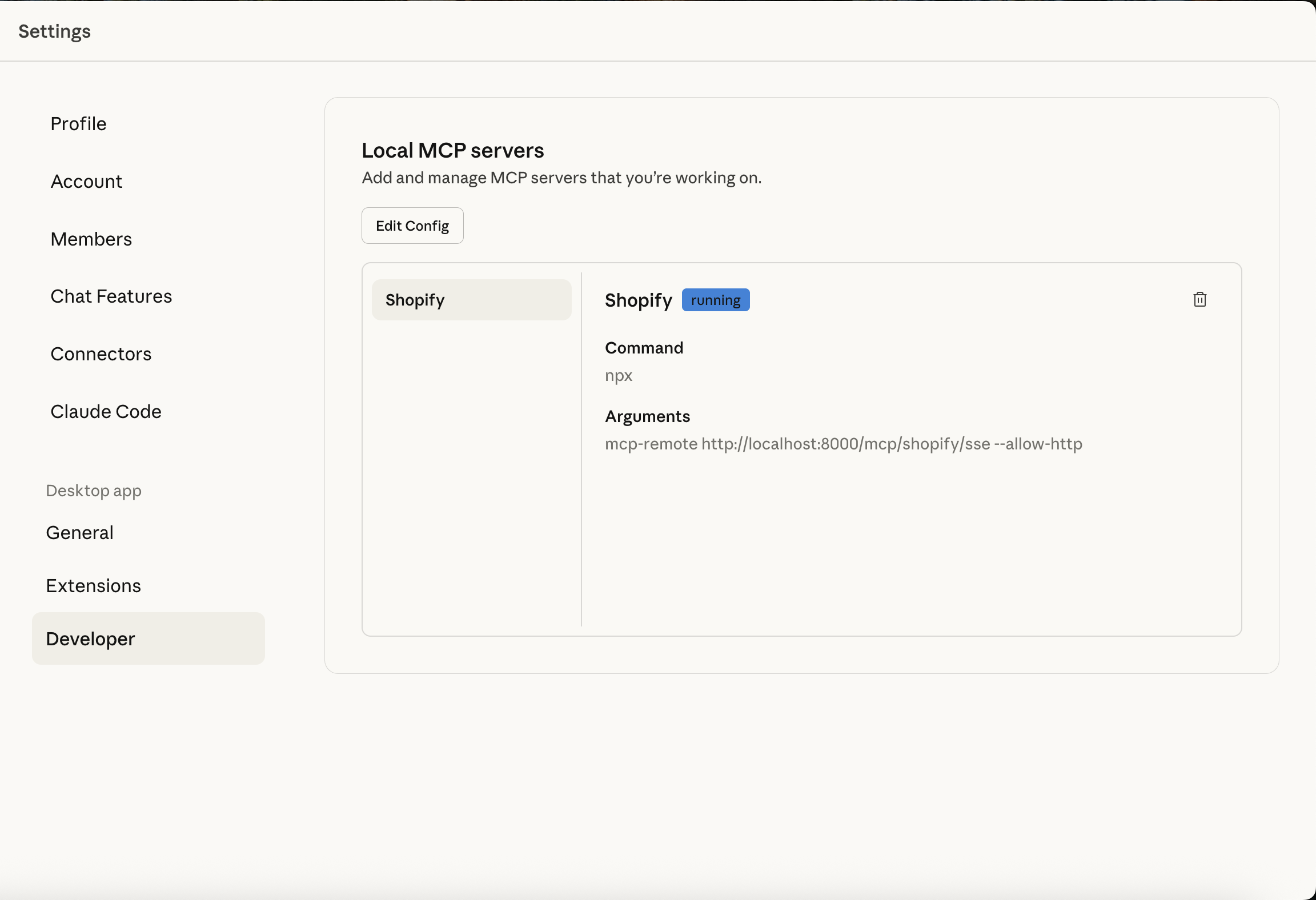
The following is an example of a claude_desktop_config.json file:
{
  "mcpServers":{
    "shopify":{
      "command":"npx",
      "args":[
        "mcp-remote",
        "http://localhost:8000/mcp/shopify/sse",
        "--allow-http"
      ]
    }
  }
}
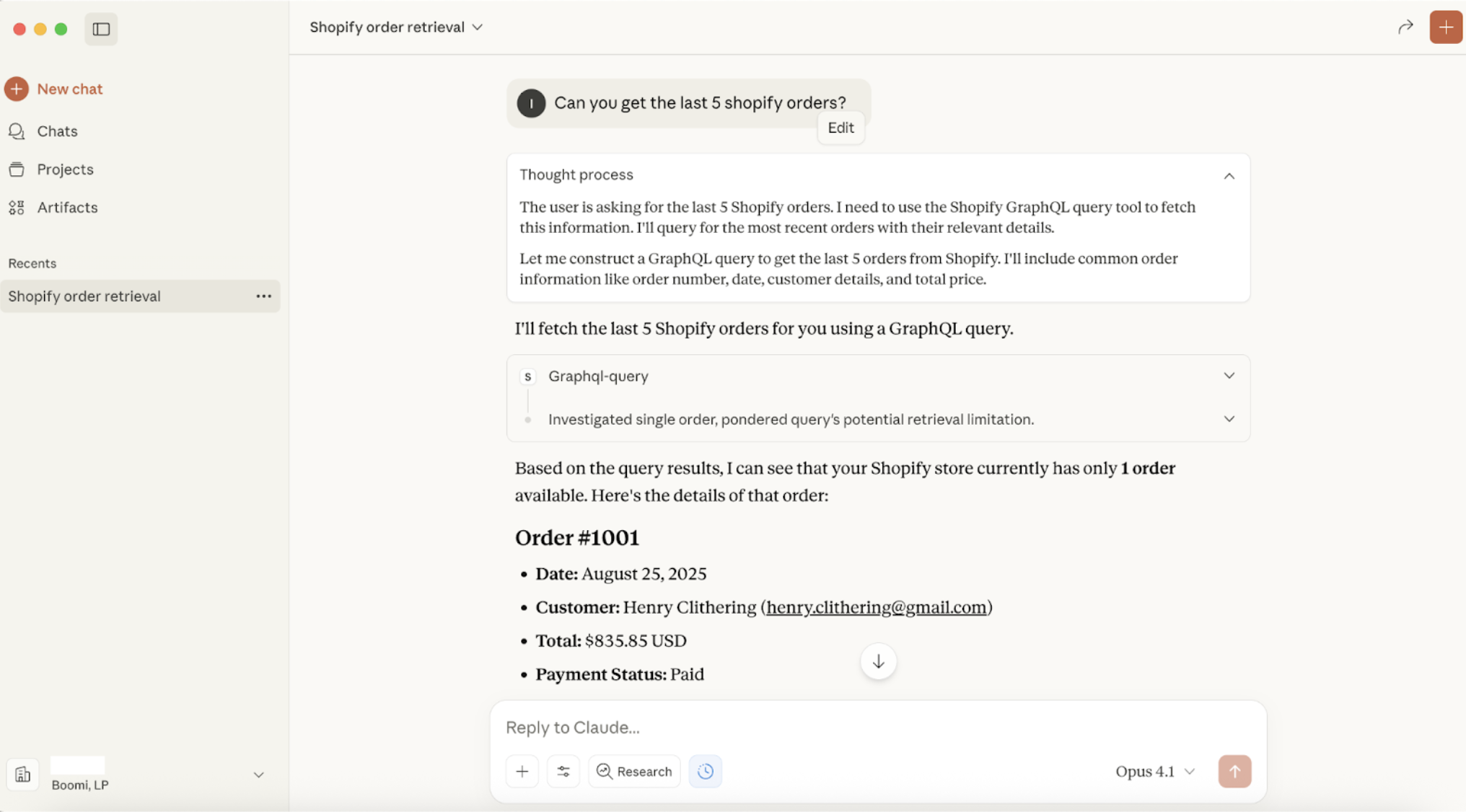
Once you have added your newly deployed MCP tools, you will be able to interact with them via Claude chat.