Amazon DynamoDB (Early Access) operation
The Amazon DynamoDB operation defines how to interact with the connection, including the action, the table or object, the request and response profiles, and operation options.
Options tab
When you configure an action, the Options tab shows the following fields.
Connector Action (All operations): Shows which action you are configuring, such as Get, Query, Update, Upsert, Delete, Create, or Execute.
Object (All operations): Select what the action works on: a single Item, multiple Items (batch), or a Table. The choices you see depend on the action.
Table Name(s) (Get (Items), Upsert (Items), Delete (Items), Execute (Execute Statements), Execute (Transact Get Items), Execute (Transact Write Items)): Enter one or more table names, separated by commas. During import, the connector checks each name against your AWS account and fails the import if a name isn't found.
Request Profile:
-
For item and batch operations, the connector generates the profile from your table during import, using the table's real attribute names. Operations that take several tables show a node for each table.
-
For Create Table, Update Table, Delete Table, Describe Table, List Tables and List Global Tables the profile is static. Response Profile:
-
For item or items, object based operations, the connector generates the profile from your table(s) during import, using plain attribute names you can map directly.
-
For Create Table, Update Table, Delete Table, Describe Table, List Tables and List Global Tables the profile is static. Return Application Error Responses check-box (All connector-managed operations): Controls what happens when the operation returns an error or unprocessed document.
-
Disabled: The document fails the whole step.
-
Enabled: The document continues down the process to your Decision shape, so you can route it. Consistent Read checkbox (Get, Query, Execute (Execute Statement)): Disabled by default.
-
Disabled: The read may return data from a replica that might be out of sync with the master server. This is the AWS default and uses half the read capacity.
-
Enabled: The read returns the latest data. Select it only when the read must see a write made earlier in the same process.
For Get (Items) consistence read option will be visible inside the request profile for each table node.
Return Values (Update (Item), Delete (Item), Upsert (Item)): Set to None by default, which returns an empty acknowledgment document.
Index Name (Query): An optional dropdown listing the table's global and local secondary indexes, which the connector discovers during import. Leave it as None to read the base table.
Scan (Query import screen): Disabled by default.
- Disabled: the operation runs a keyed Query.
- Enabled: the operation runs a Scan. Tracking Direction (All operations): Select Input Documents or Output Documents to choose which document Process Reporting displays.
Create
Create (Table) is an outbound action that creates a DynamoDB table from the key schema, attribute definitions, billing mode, and indexes in the request.
Get
Use the Get action to retrieve items from DynamoDB using their primary key. Configure the Object field to specify the quantity of items to fetch:
- Item retrieves one item from one table.
- The Items option allows fetching multiple items across one or several tables.
Query
The Query inbound action fetches items from a single table based on a specified key condition. This key condition requires an exact match on the partition key and can optionally include a range condition for the sort key. The connector automatically handles pagination, emitting a separate document for each matching item.
To configure a Query operation, choose your target table during import and define the key condition, filtering rules, sort sequence, and requested attributes on the Filters, Sorts, and Fields tab. This setup screen supersedes the standard request profile mapping.
Query with Scan Enabled
The Scan inbound action is enabled by selecting the Scan checkbox within the Query import configuration screen. Unlike standard queries, a Scan evaluates every item in the target table and runs specified conditions as post-read filters. Consequently, every execution consumes read capacity across the entire table. Additionally, sorting is not supported for Scan operations. You should utilize a Scan only when your query requirements cannot be fulfilled using key conditions.
Upsert
The Upsert action inserts new item(s) into DynamoDB or replaces existing item(s) across one or more tables.
Update
- Item: The Update action on item modifies attributes of an existing item or creates the item if it does not already exist.
- Table: The Update action on table modifies the table schema and Table configuration.
Delete
Delete action removes an item(s) by its primary key or a table by its table name.
Execute
-
Transact Get Items: Reads a set of items, possibly across different tables, as one atomic read. The limit is 100 items.
-
Transact Write Items: Commits Put, Update, Delete, and ConditionCheck actions as one atomic, all-or-nothing write. The limit is 100 actions.
-
ConditionCheck: It names an item and a condition that the item must meet. If the condition is false, the connector cancels the entire transaction, including Put, Update, and Delete actions on other tables.
To fill in a ConditionCheck:- Key: Map the primary key of the item to check.
- ConditionExpression: Type the condition in DynamoDB condition syntax, for example
version = :expectedVersion,attribute_exists(dept_id), orattribute_not_exists(dept_id). - ExpressionAttributeNames: Use this field only when an attribute name is a reserved word, such as
status. Add a row whose key starts with#, for example#st, and set its value to the real attribute name. - ExpressionAttributeValues: Supply each value the condition compares against. Rename each key to the placeholder used in the condition, starting with
:. The names must match exactly. - ReturnValuesOnConditionCheckFailure: Write NONE, or ALL_OLD to include the item's current attributes in the error.
{
"Key": { "id": "lt-01-00001" },
"ConditionExpression": "version = :expectedVersion",
"ExpressionAttributeValues": { ":expectedVersion": { "N": "999" } },
"ReturnValuesOnConditionCheckFailure": "ALL_OLD"
}
-
-
Execute Statement: Execute Statement is an in/outbound action that runs one PartiQL statement (
SELECT,INSERT,UPDATE, orDELETE) against one table. ASELECTemits one document per matching item.
Example: The statement below uses three placeholders:?department,?startDateand?endDate.SELECT * FROM "Boomi_DDB_QA_Employees" WHERE "department" = ?department AND "createdAt" BETWEEN ?startDate AND ?endDateDepartment is a column in the table, so it already appears under Parameters. Map your source department field to Parameters/department.
createdAt is the actual column, but startDate and endDate are range bounds you define, so they don't appear under Parameters. To create them:
- Under Parameters, rename the generic attributeName1 field to startDate.
- Replicate that field and rename the copy to endDate.
- Under each field, map your source value to the DynamoDB type that matches createdAt. In this example, it is a number, so both map to N.
The field names must match the placeholders exactly.
?startDatein the statement is replaced with the value mapped to Parameters/startDate, and?endDatewith the value mapped to Parameters/endDate. The query then becomes"createdAt" BETWEEN startDate AND endDate.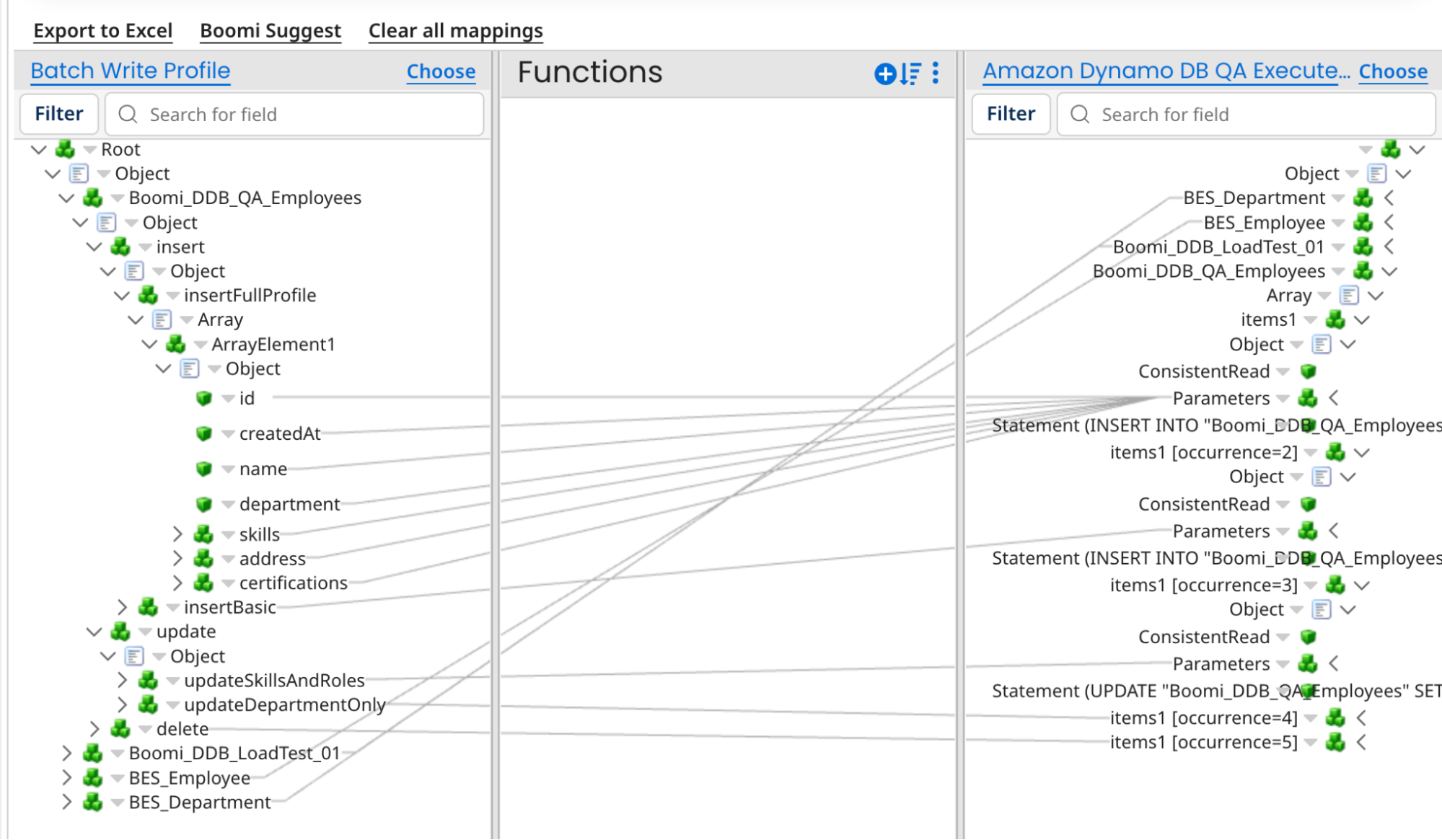
-
Execute Statements: Execute Statements is an in/outbound action that runs many PartiQL statements, across one or more tables.
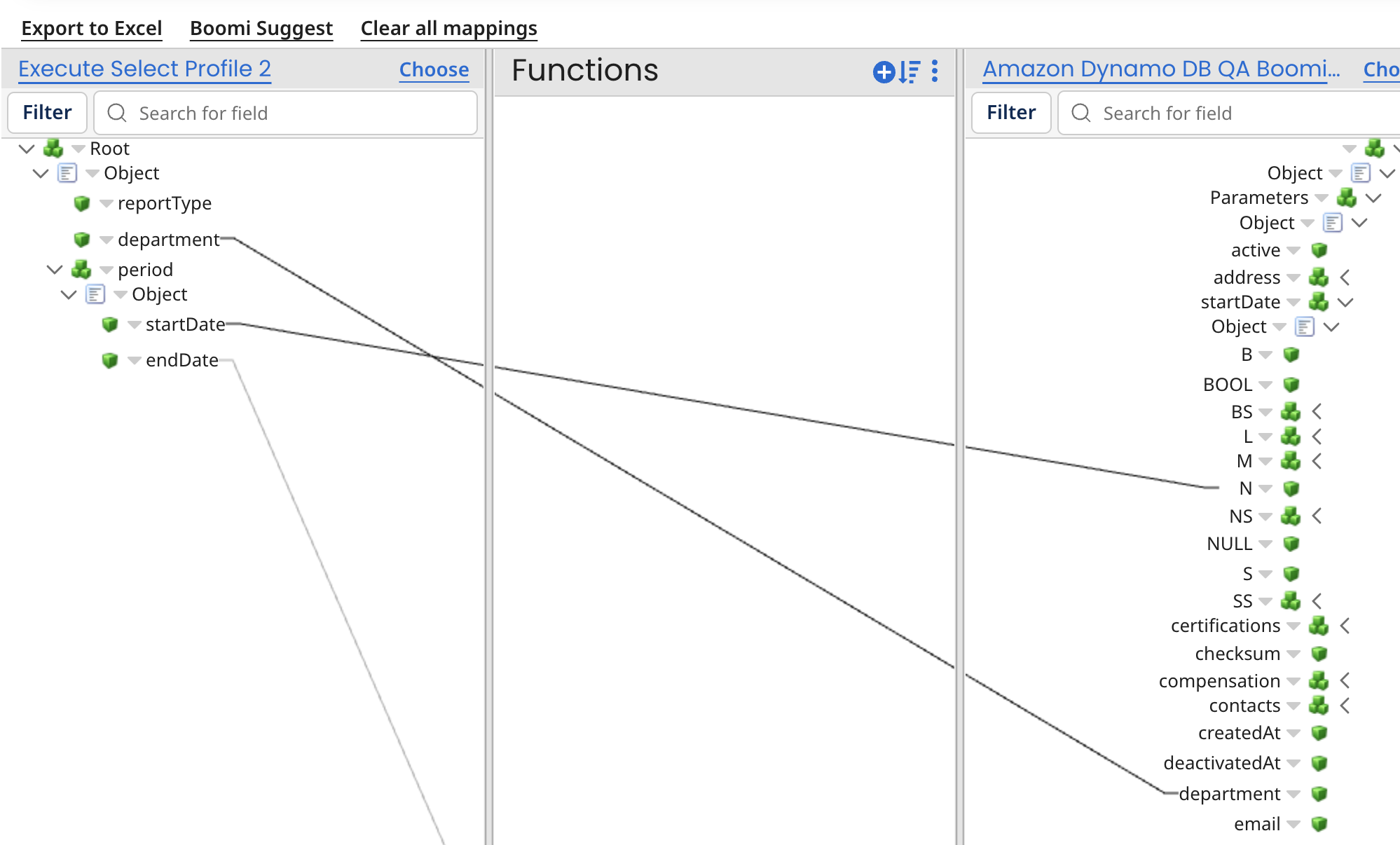
Example: Each statement you want to run is one occurrence of items1 under its table, and each occurrence has its own Statement, Parameters and ConsistentRead. In the screenshot, occurrences 1 to 5 under Boomi_DDB_QA_Employees are five separate statements (inserts and an update) sent in one batch.
-
Fully map the first occurrence. Set its Statement, and map your source fields to the matching fields under Parameters.
-
If the statement needs a parameter that is not a table column, add it to this occurrence now. Rename the generic attributeName1 to the placeholder name and set its type.
-
Replicate the occurrence once for each remaining statement, then change the Statement text and the Parameters mapping on each copy.
Add all extra Parameters fields before you replicate. A field added after replicating exists only on the occurrence where you added it, so the copies made earlier won't have it.
 note
A batch must contain only reads or only writes. AWS does not allow a batch to mix
SELECTwith write statements.Scenario Output Read batch ( SELECT)One success document per statement, keyed by source table. Write batch, at least one statement applied One empty success document {}.A statement with blank text, or a statement AWS rejects One error document for that statement. The rest of the batch still runs. Nothing in the batch was written Error documents only. -
-
Describe Table: It retrieves a table's definition and status, including key schema, indexes, billing mode, item and size estimates, and replicas.
-
List Tables: It retrieves all tables within the connected region. The connector outputs a single document containing every TableName.
-
List Global Tables: Lists legacy (version 2017.11.29) global tables.
noteThis API returns only legacy global tables. Tables replicated with the current version (2019.11.21) do not appear in the list. An empty response is expected in that case. Use Describe Table to inspect them.
