Setting up a cloud attachment in a runtime cloud
On the Runtime Management page, install and configure a cloud attachment in a runtime cloud or Test runtime cloud, or in a private runtime cloud.
About this task
If your integration scenario requires only internet-accessible applications or data locations, you can set up your production processes to run virtually within a Boomi runtime cloud. If you enable environments and test connections in your account and if you have test connection licenses, you can set up your test processes to run virtually within a Boomi Test runtime cloud. If you have access to a private runtime cloud, you can set up your processes to run virtually within it. To run your processes in one of these runtime clouds, you must set up a cloud attachment in the Cloud. You do not have to install any hardware or software.
If you have access to a private runtime cloud, you can set up additional cloud attachments in this Cloud. To do so, repeat the setup process for each additional runtime.
Procedure
-
Download the runtime installer in one of the following ways:
-
Go to Manage > Runtime Management and click New > Basic runtime.
-
On the Build page, click the Welcome tab. Then, under Create, click Basic runtime.
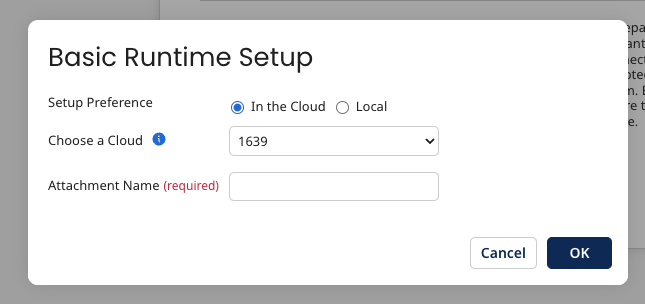
The Basic runtime Setup dialog opens.
-
-
Select In the Cloud and do one of the following:
-
If you want to use a runtime cloud or Test runtime cloud, choose one from the list.
The list includes the runtime clouds and Test runtime clouds to which your account has access.
-
If you have access to a private runtime cloud, choose one from the list.
 Important
If you cannot select the In the Cloud option, click Cancel.
If this option is not available, it means one of two things:
-
Your account is attached to a runtime cloud or Test runtime cloud, and there are no other runtime clouds available for you to use.
-
Your account has access to a private runtime cloud, but you have already set up the maximum number of runtimes that you are allowed to have in that Cloud.
-
-
-
In the Runtime Name field, type a name for the new basic runtime.
There are no naming restrictions for the display name. You can use the same display name for multiple runtimes if needed.
-
Click OK.
You receive a confirmation message indicating that the new basic runtime is set up in the runtime cloud that you selected.
-
Click OK.
-
To confirm that you can access the new basic runtime, go to Manage > Runtime Management.
The basic runtimes appears in the runtimes list on the left. Now, you can deploy processes to this basic runtime.
If you would like to install a local basic runtime instead, refer to Downloading the local basic runtime installer
