Installing a local basic runtime on Windows
Install the downloaded Windows version of the local basic runtime by running the installation file. Refer to Downloading the local basic runtime installer and Basic runtime installation checklist (Windows) for further details.
Before you begin
Basic runtimes require the Java 8 JRE or the Java 11 JDK. Boomi internally tested the latest Amazon Corretto OpenJDK Java and Amazon Corretto Open JDK.
The installer installs the latest private copy of Java 11 for the basic runtime to use. Alternatively, you can manage your own distribution of the Java 11 JDK by downloading the JDK from Amazon prior to installing the runtime.
Before completing these steps, download the local basic runtime installer.
Depending on the version of Windows you are running, you might require Administrator access to run the local runtime installer.
If there are Unicode characters in the directory path to where you intend to install the runtime, the installation will fail.
Procedure
-
After downloading the runtime installer, run the executable file.
-
If you see a security verification window, click Yes.
The Runtime Setup Wizard opens.
-
If the installer cannot find the JRE on the computer, you receive a prompt to download it.
-
On the Welcome page, click Next.
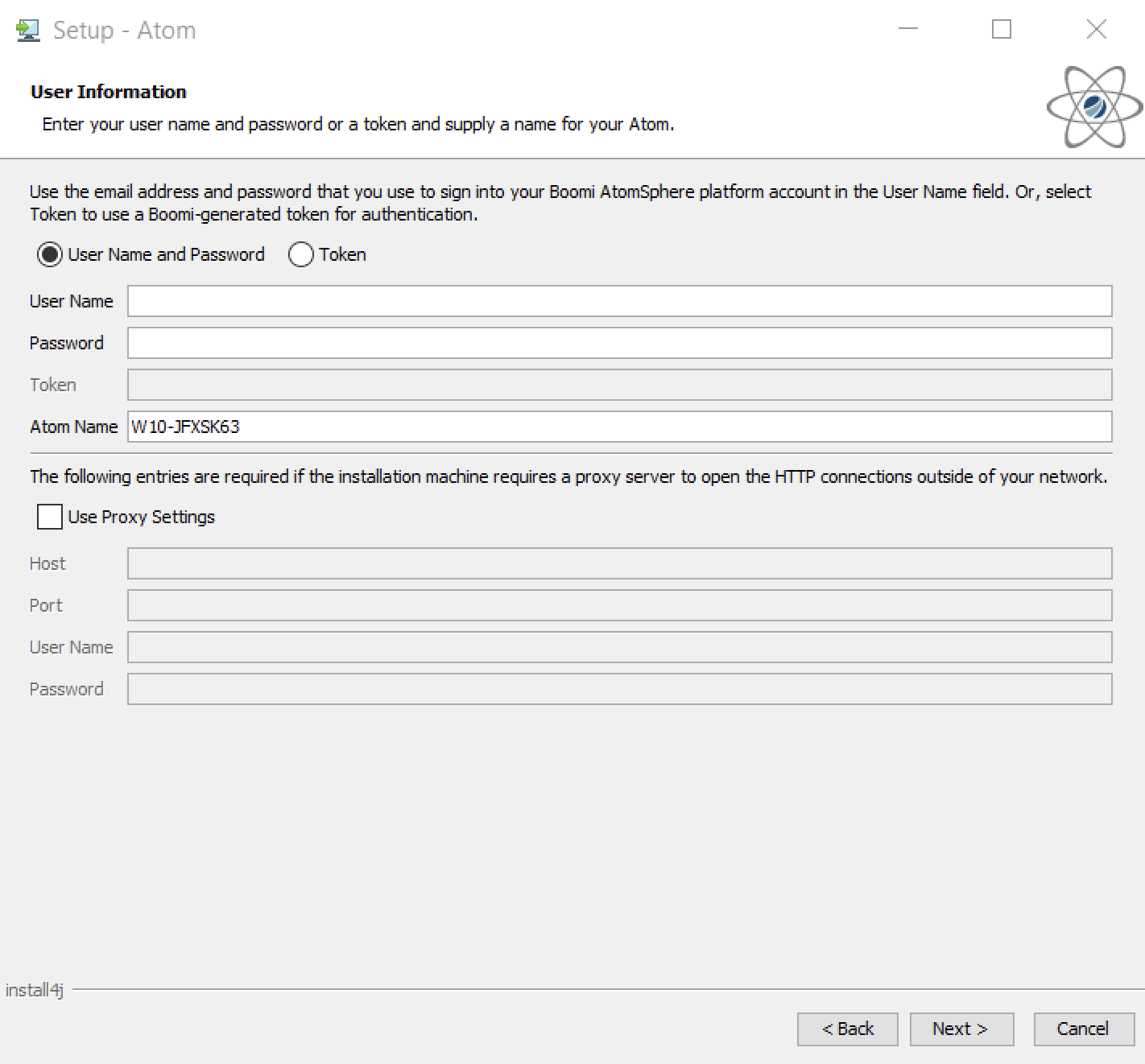
The User Information page appears.
-
On the User Information page:
-
Select User Name and Password or Token, depending on how you want Platform to authenticate the runtime.
-
Enter one of the following, depending on the selected option:
- Type your Platform User Name and Password.
- Type a valid installer token
When downloading the runtime installer from the Runtime Setup dialog, you can generate installer tokens. A token is valid only for the account that creates it. Tokens expire after a set time ranging from 30 minutes to 24 hours.
-
Enter a name for the runtime.
The runtime name that appears in Manage > Runtime Management. The name defaults to the local host name, but you can change it to something more familiar.
noteThe following characters are reserved and cannot be used in the name: asterisk (
*), backslash (\), caret (^), colon (:), dollar sign ($), greater than (>), less than (<), percent (%), pipe (|), question mark (?), quotation mark ("), slash mark (/), Yen sign (¥). -
(Optional) If the local computer uses an HTTP proxy to connect to the internet, select Use Proxy Settings and enter the appropriate host, port, user name, and password for the proxy.
If you do not fill out the proxy settings now, you can add them later.
-
Click Next.
You connect to Platform with your credentials authenticated.
If you specified a user name and password, the Accounts page appears.
If you specified an installer token, the Select Destination Directory page appears and you can skip to step 7.
-
-
(Optional) On the Accounts page:
-
If your user name has access to multiple accounts, you get a list of accounts. Select the account to which you associated the runtime. This step typically applies only to partners.
-
Click Next.
-
(Optional) On the Environment page:
-
If you created environments for your account, a list of them appears. Select the environment to which you attach the runtime. If you do not select an environment, your new runtime appears in the list of Unattached Runtimes on the Runtime Management page in the user interface.
-
Click Next.
-
-
On the Select Destination Directory page, select the installation directory and click Next.
By default the runtime installs to C:\Program Files\Boomi Enterprise Platform\Atom —<Atom_name>.noteIf you are using Windows Vista, Windows Server 2008 or Windows 7, anyone who needs to modify files in this directory must have Administrator access.
-
On the Select Start Menu Folder page, modify any Start menu settings and shortcuts and click Next.
-
On the Information page, review the installation settings and click Next.
The installer installs all of the necessary files for the runtime.
-
When the installation is complete, click Finish to start the runtime.
Results
The runtime runs as a Windows service. You can view the runtime online by going to Manage > Runtime Management.
Next steps
Refer to the topics about maintaining runtimes. You might want to modify how the runtime runs, change default settings, or remove it.
