Changing field visibility with a basic page condition
This worked example shows how a basic page condition can be used to conditionally control the visibility of a field on a page.
Before you begin
Before using this worked example, ensure that you are familiar with the following concepts and procedures:
- Working with page layouts. See Pages.
Flow/Topics/Setting_up_and_managing_flows/Pages/c-flo-Pages_Overview_15c245e1-5232-4173-8a85-dae7ea7f060b.md).
- Input components such as input fields and radio buttons, enabling user input in a flow. See Input Component.
Setting up the flow
In this example flow, a basic page condition is used to show an input component on a page when a user selects a specific option in a radio component. The input component is not visible until the option is selected.
-
The flow has a single page step, linked to the Start step.
-
The page layout assigned to this page has 2 components:
-
A radio component named "Radio" that uses a list value to present a user with 3 options - "Yes", "No" and "Other". The user selection is saved to an object value named "SelectedRadioObject", with the "Label" property added to the Data Presentation column.
-
An input component named "Show on condition" that provides a field for a user to enter additional details if the "Other" option is selected.
-
Setting up the page condition
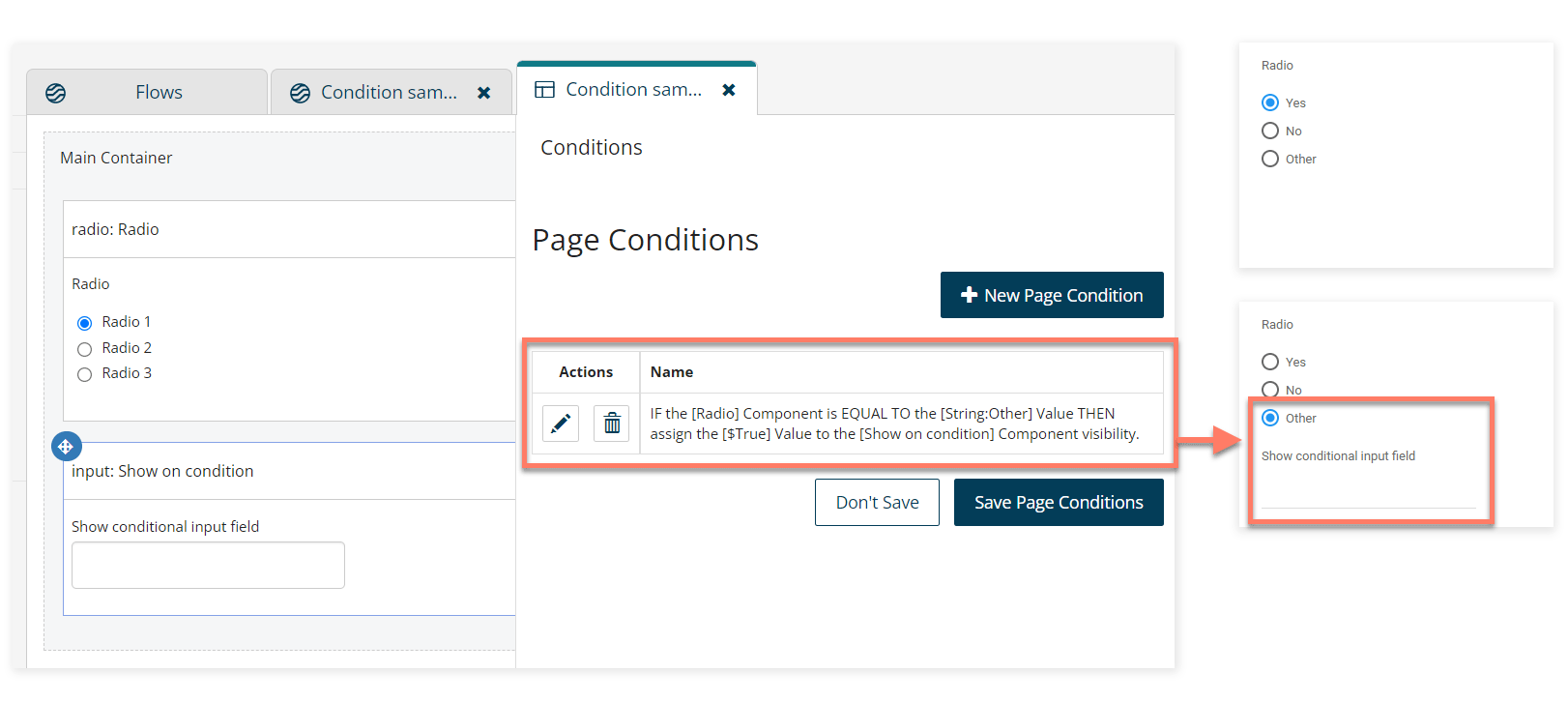
A basic page condition is added to the page layout and configured as follows:
-
When the value of [Radio component]
-
[is equal to] [Other string value]
-
then make [Show on condition component] [Visible]
Running the flow
When the flow is run, a simple radio component is displayed on the page.
As a page condition always applies the opposite rule to a component until the condition is met, the input component is automatically hidden [Visible=$False] to begin with.
If a user selects either the Yes or No radio component option, the page condition is not met, so the input component remains hidden [Visible=$False].

However, when a user selects the Other radio component option, the page condition is met, and the input component visibility changes to show the page component [Visible=$True].

