Presentation component
Add rich text and media content to a page.
The presentation component provides a rich text editor that allows you to add content into a page. When a Flow is run/published, the content is rendered as HTML in the web application page.
Configuring a presentation component
The following options and settings can be configured.
| Setting | Description |
|---|---|
| Name | Enter a name for the component. |
| Label | Enter a label to show on the page. |
| Content | Add and format rich text and media content using the content editor. |
| Help information about this component | Display help text directly below the component, for example to provide further information on how to use the component. |
Styles
Apply additional CSS styling to the component.
-
Enter space-delimited CSS classes/selectors into the CSS Classes field.
When you run the Flow, these classes are appended to the main component class.
Inserting content
Insert content into the page from the Insert menu, right-clicking in the editor, or clicking on the relevant toolbar button. Content is inserted where the cursor is positioned in the editor.
| Content type | Description |
|---|---|
| Anchor | Insert an anchor hyperlink into the content, allowing direct linking to the specific content. |
| Date/Time | Insert the current date/time, from a selection of formats. |
| Image | Insert an image into the content. Detailed properties: 1. Source: URI or browse via Asset Manager. 2. Image description: Text for the image <alt> tag.3. Dimensions: Width and height in pixels. De-select Constrain proportions to alter the ratio. Images have .img-responsive class by default. |
| Horizontal Line | Insert a horizontal line. |
| Link | Insert a hyperlink into the content. Define standard link attributes like title, target, and display text. |
| Media | Insert video and audio content. Features: 1. General | Source: URI source or browse via Asset Manager. 2. General | Dimensions: Width and height in pixels. Modify video size ratio if needed. 3. Embed: Video embed code, e.g., Iframe or HTML5 video. 4. Advanced | Alternative source: URI for alternative media file. 5. Poster: Image display while media is downloading. |
| Special Character | Insert a special character, e.g., non-breaking space, copyright symbol. |
| Table | Insert a table. Use Table menu for properties and modifications. |
| Value | Insert a value. For example: {![My Value]}, or {![My Object].[Property Name]}. |
Formatting content - Alignment
| Alignment type | Description |
|---|---|
| Left, Center, Right, Justify | Align content left, right, centered or justified. |
Formatting content - Blocks
Format content using a pre-defined block element.

| Block type | Description |
|---|---|
| Blockquote | Format content that is quoted from another source. |
| Div | Place content inside an HTML <div> tag, to divide or create a content section that can then be targeted and styled separately using CSS. |
| Paragraph | Place content inside a paragraph <p> tag, to define a paragraph. |
| Pre | Format content in a pre-formatted fixed-width font, preserving both spaces and line breaks. |
Formatting content - Headings
Format content using a standard HTML heading element.
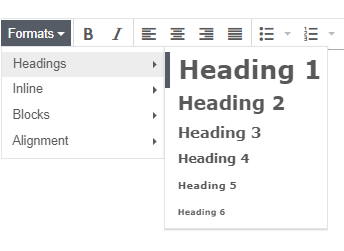
| Heading type | Description |
|---|---|
| Heading 1 - Heading 6 | There are six heading styles available in the content editor. |
Formatting content - Inline
Format content inline using standard HTML formatting tags.
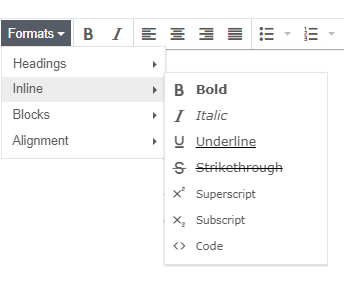
| Format type | Description |
|---|---|
| Bold | Embolden and emphasize text. |
| Code | Format text as computer code. |
| Italic | Format text in italics. |
| Strikethrough | Format text as incorrect. |
| Subscript | Format text as subscript, i.e. text is displayed smaller and below the line. |
| Superscript | Format text as superscript, i.e. text is displayed smaller and above the line. |
| Underline | Format text as underlined. |
Viewing and editing HTML source code
- Click View | Source code to view the HTML source code for the component.
- Edit/customize the HTML as required.
- Click OK to save your changes.
