Importing and exporting flows
The Import and Export tools allow you to import flows from a different user or tenant into your current tenant, and export flows from your current tenant so that they can then be imported into a different tenant. Flows can be imported and exported as either a shared package file or a shared package token.
The Export tool
Select the Export Flow button on the main Flows list screen.
-
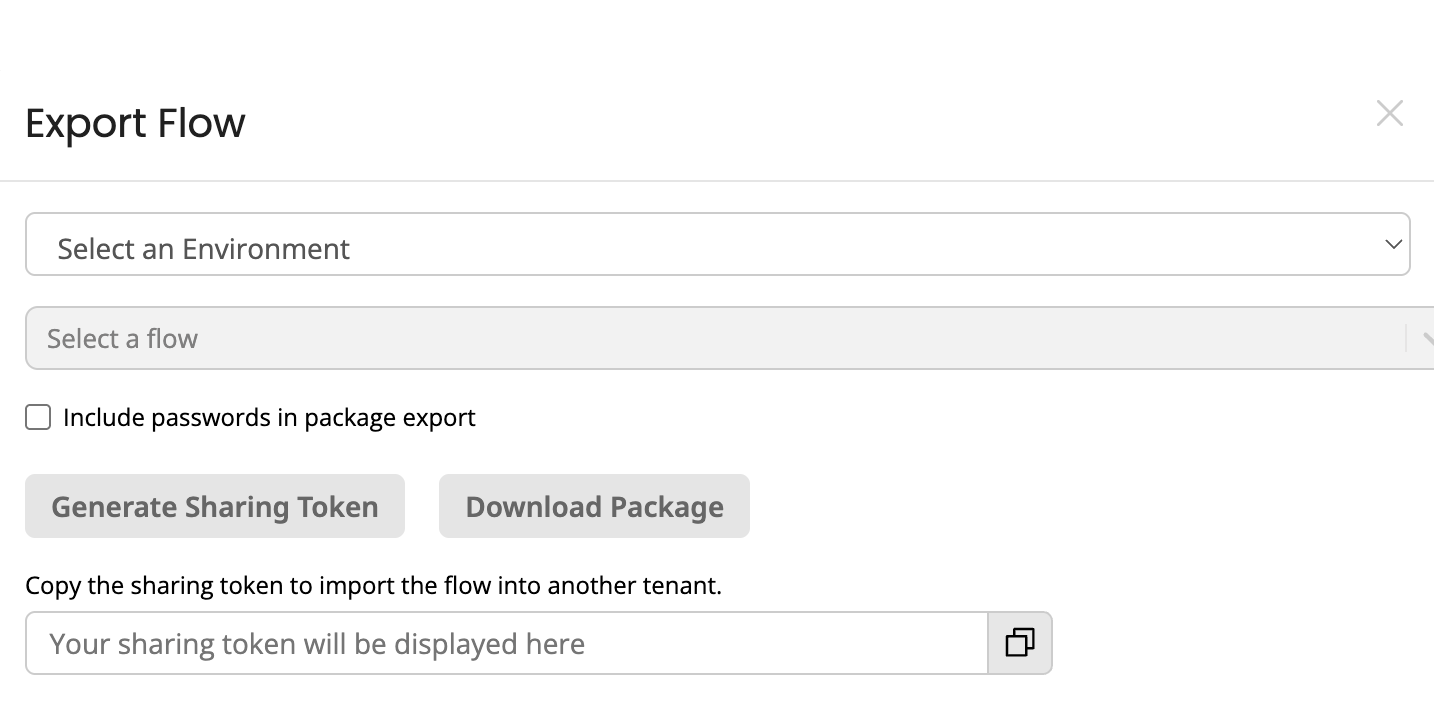
The Select an Environment drop-down allows you to select the environment into which you want to export your Flow.
- Development
- Test
- Production
-
The Select a Flow drop-down menu allows you select the Flow you wish to export.
-
The Include passwords in package export checkbox allows you to define whether passwords are included in an exported Flow. By default, passwords are not included in an exported Flow, and this means that any connector passwords will need to be set again once a Flow has been imported, as connectors may not work as expected until these passwords have been set. If you require passwords to be included when exporting a Flow, select this checkbox.
-
The Generate Sharing Token button allows you to generate a shared package token for the selected Flow.
-
The Download Package button allows you to generate a shared package file (.package) for the selected Flow.
-
If you have generated a shared package token, the token is displayed in the Sharing token field. Click the field to select the full token and copy it.
The Import tool
Select the Import Flow button on the main Flows list screen.
-
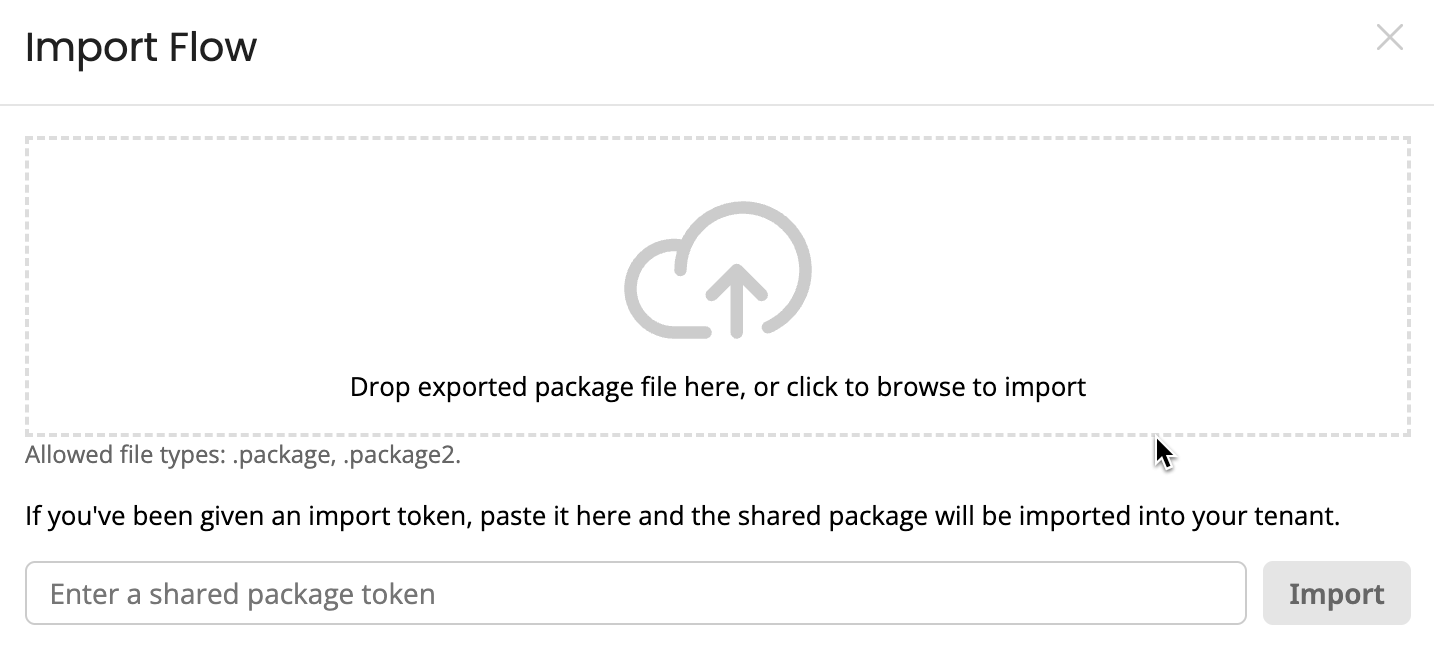
The Import Package field allows you to import a shared package file, by either dragging and dropping the .package file onto the field, or by clicking the field and browsing to the package file.
-
The Import Shared Package Token field allows you to enter/paste a shared package token.
-
The Import button allows you to begin importing your shared package file or token.
Importing a Flow
The Import tool allows you to import previously exported flows into your current tenant.
Prerequisites
-
You will need either a Flow shared package file or a shared package token to import. These are generated using the Export tool. Refer to Exporting a Flow.
-
When a Flow is imported into a tenant, any Connector used in the Flow will also be imported. Best practice recommends updating these once you have imported the Flow, so that the types are also updated. This ensures that the Connector can be used in other flows in the tenant. If you do not update the Connector, any types not included in the imported Flow will not be recognised by the Connector.
Importing a Flow shared package file
If you have a shared package file package. Flow can import .package and .package2 files.
-
On the main Flows list screen, select Import Flow button.
-
On the Import page, either:
-
Drag and drop the package file onto the Import Package field.
-
Click the Import Package field, browse to the file and click Open.
-
-
The Confirm Import dialog is displayed informing you of which tenant you are importing the Flow into.
-
Click Confirm to import the file into the tenant.
-
Click Cancel to stop the import process and return to the Import/Export page.
-
-
A message is displayed to inform you that the 'Flow imported successfully'. As noted in best practice above, it is recommended that you update any connectors used in the imported Flow.
Importing a Flow shared package token
If you have a shared package token:
-
On the main Flows list screen, select Import Flow button.
-
On the Import page, enter/paste the shared package token into the Import Shared Package Token field.
-
Click Import.
-
The Confirm Import dialog is displayed informing you of which tenant you are importing the Flow into.
-
Click Confirm to import the file into the tenant.
-
Click Cancel to stop the import process and return to the Import/Export page.
-
-
A message is displayed to inform you that the 'Flow imported successfully'. As noted in best practice above, it is recommended that you update any connectors used in the imported Flow.
Exporting a Flow
The Export tool allows you to export a Flow from your current tenant so that it can be imported into a different tenant.
Prerequisites
-
Flows can be exported as either a Flow shared package file or as a generated shared package token.
-
Flows are only made available for export once they have been published; if a Flow has not been published it will not be available from the Export Flow drop-down menu.
-
By default, passwords are not included in an exported Flow, and this means that any passwords will need to be set again once a Flow has been imported, as connectors may not work as expected until these passwords have been set.
-
If you require passwords to be included when exporting a Flow, select the Include passwords in package export checkbox.
Exporting a Flow shared package file
To export a Flow as a shared package file .package2:
-
On the main Flows list screen, select Export Flow button.
-
On the Export page, select the environment to which you want to export your Flow: Development, Test or Production.
-
Select the Flow you wish to export from the Export Flow drop-down menu.
-
Select/de-select the Include passwords in package export checkbox as required (refer to the details above).
-
Click Download Package to generate a shared package file
.package2. -
Save the generated shared package file
.package2to your preferred location. -
Import the Flow using this shared package file into a different tenant via the Import tool. Refer to Importing a Flow shared package file.
Generating a Flow shared package token
To export a Flow using a generated shared package token:
- On the main Flows list screen, select Export Flow button.
- On the Export page, select the environment to which you want to export your Flow: Development, Test or Production.
- Select the Flow you wish to export from the Export Flow drop-down menu.
- Select/de-select the Include passwords in package export checkbox as required (refer to the details above).
- Click Generate Sharing Token to generate a shared package token.
- The token is displayed in the Sharing token field. Click the field to select the full token and copy it.
- Import the Flow using this shared package token into a different tenant via the Import tool. Refer to Importing a Flow shared package token.
