Creating a PDF from HTML
This worked example shows how the PDF connector can be used to create a PDF from HTML, which can then be downloaded by users in a Flow.
Before you begin
Before using this worked example, ensure that you are familiar with the following concepts and procedures:
-
Installing the PDF connector. Refer to PDF connector.
-
Creating new flows. Refer to Creating a new Flow.
-
Setting up flows using steps on the Flow canvas, and running/publishing flows. Refer to Building and publishing flows.
-
Setting up message actions. Refer to PDF connector message actions and Adding Message Actions to a step.
In addition, you should ensure that you are familiar with:
- Creating HTML content, including correct formatting and use of CSS styling.
About this worked example
This worked example is provided for illustration purposes only, to demonstrate the example steps and settings involved in using the PDF connector to create a PDF from HTML, and then provide the download link for Flow users.
Installing the PDF connector
The PDF connector is first installed to allow a PDF to be generated from HTML and referenced as an object value. In this example, a PDF is created to show the user responses recorded in a simple Flow form.
Setting up the Flow
Once the PDF connector is installed, a new Flow is created and named "PDF Example".
To use the PDF connector in the new Flow, it is imported into the Flow as a shared step. Shared steps are 'global' tenant steps that can be shared and re-used across multiple flows within a tenant. Refer to Shared Steps.
In this example, the simple Flow consists of 3 steps:
-
A User Input page step presenting a simple input form that requires the user to enter their name.

-
A Generate PDF message step that connects to the PDF connector and generates a PDF using the user input.

-
A Download PDF page step that shows the user response and provides a link to download the PDF.


User Input: On this page a single input component stores the user name in an Employee_Name string value. This value can then be included in the PDF HTML.
Generate PDF: This message step has the "Convert html to pdf" message action set up to generate a PDF using the following message action inputs/outputs:
| Input/Output | Content |
|---|---|
| Filename | Form responses for {![Employee_Name]} |
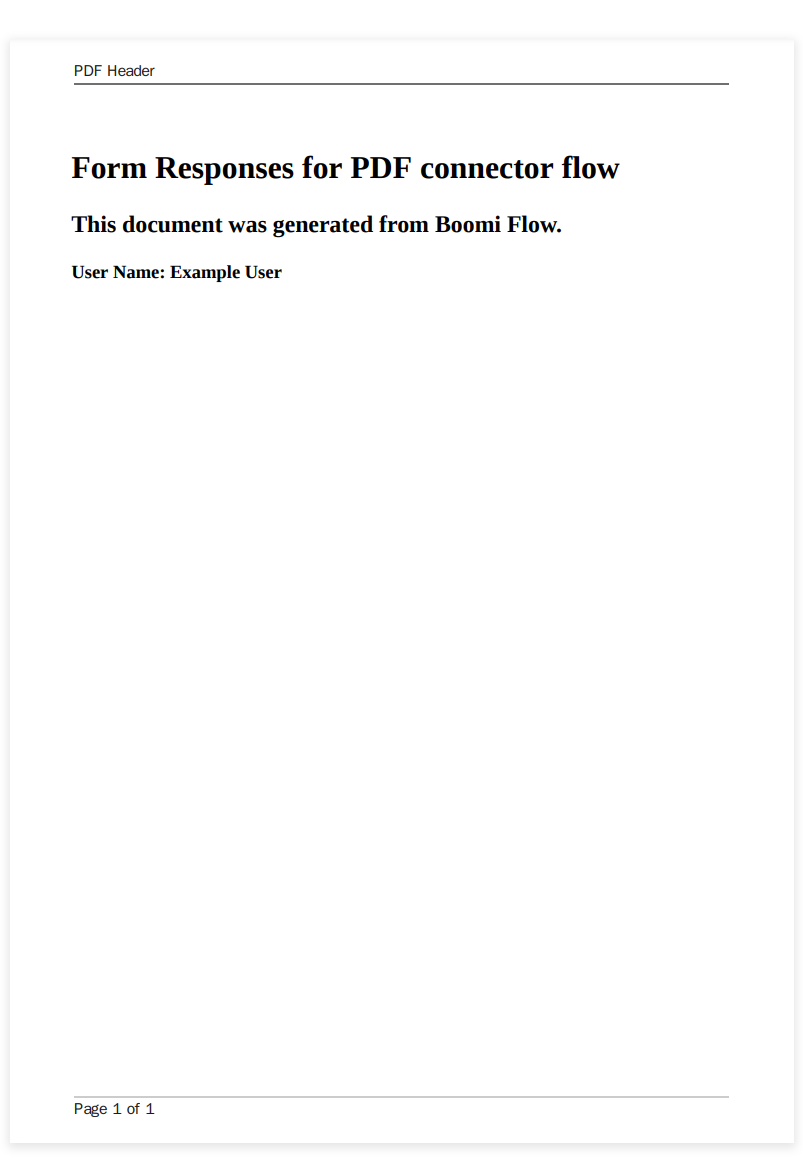
| Html | <html> <head> <style> body { padding-top: 50px; font: 12pt Georgia, "Times New Roman", Times, serif; line-height: 1.3;} @page { /* set page margins */ margin: 1.5cm; } </style> </head> <body> <h1>Form Responses for PDF connector flow</h1> <h2>This document was generated from Boomi Flow.</h2> <h3>User Name: {![Employee_Name]}</h3> </body> </html> |
| Header | <div style="font-size:9pt;font:Georgia;margin: 5px 50px 10px 50px;width:100%;border-bottom:1px solid #707070"> PDF Header</div> |
| Footer | <div style="font-size:9pt;font:Georgia;color:#707070;margin: 10px 50px 5px 50px;width:100%;border-top:1px solid #cccccc"> Page <span class="pageNumber"></span> of <span class="totalPages"></span> </div> |
| Pdf file | A "PDF" $file object value is created to reference the generated PDF file. |
You must change the type of the HTML Value to String as it defaults to the Content type which will convert any code to text.
Download PDF: On this page a PDF component is configured to provide a download link to the "PDF" $file object value.
Running the Flow and generating the PDF
When the Flow is run:
-
The user is presented with a page that allows them to enter their user name, and then click a button to generate the PDF.

-
Once the user has clicked the button, the Flow progresses to the message step which then generates the "Form responses for Example User.pdf" file. After this, the Flow presents the user with a page that allows them to view their form response and click a link to download the PDF.

-
When the user clicks the link, the PDF is downloaded and displayed.