Configuring Gmail with the Email connector
You can configure the Email connector to use a Google Gmail email account.
Using the Email connector to send emails from a Gmail account requires additional configuration of the Google/Gmail account set up with the Email connector. These additional steps should be performed for the Gmail account and email address that is specified in the Username configuration value. Refer to Email connector configuration values.
You will need to:
- Enable Internet Message Access Protocol (IMAP) for your Gmail account
- Create a Google App password for the Email connector
- Configure the Email connector for Gmail
Enable IMAP for your Gmail account
Enable IMAP on your Gmail account. For example:
- Sign in to your Gmail account.
- Click the Settings icon in the top right and click See all settings.
- Click the Forwarding and POP/IMAP tab.
- Select Enable IMAP in the IMAP access section.
- Click Save changes.
The Check Gmail through other email platforms Google documentation provides full details and instructions on setting up IMAP in your Gmail account.
Create a Google app password for the Email connector
As the Email connector does not support using 2-Step Verification, a Google App password must be created to allow you to integrate your Gmail Account with the connector. Refer to Sign in with app passwords for more details.
For example:
-
Sign in to your Google account.
-
Click the Google Account icon and select Manage your Google Account.
-
Click Security in the left-hand menu.
-
Click App passwords in the Signing in to Google section.
-
Sign in to your Google account.
-
Select 'Other (Custom Name)' from the Select App drop-down menu and enter a name for the app password (such as 'Flow Email Connector' for example).
-
Click Generate.
-
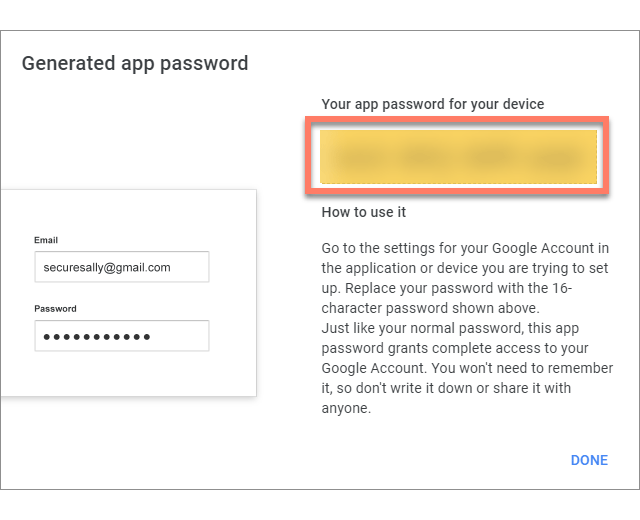
Copy the app password; this is needed for configuring the Email connector.
Configure the Email connector for Gmail
The Email connector can now be configured to use the Gmail account.
-
Install the Email connector into your tenant, using the following values.
-
Host: smtp.gmail.com
-
Port: 587
-
Transport: tls
-
Password: The Google app password that was generated for the Email connector.
-
Username: The Gmail account email address to use for sending emails with the connector.
-
-
Save the Email connector and import it into any flows that you wish to send emails from.
