Anomaly detection page overview
Anomaly Detection analyzes your flows and reports anomalies when unexpected actions or behaviors occur. This can assist you in identifying and diagnosing faults in your Flow that are not easily identifiable.
Navigation
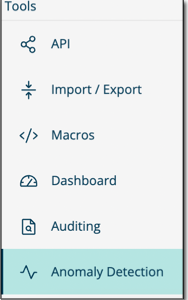
Select Anomaly Detection from the left-hand menu.
Page overview
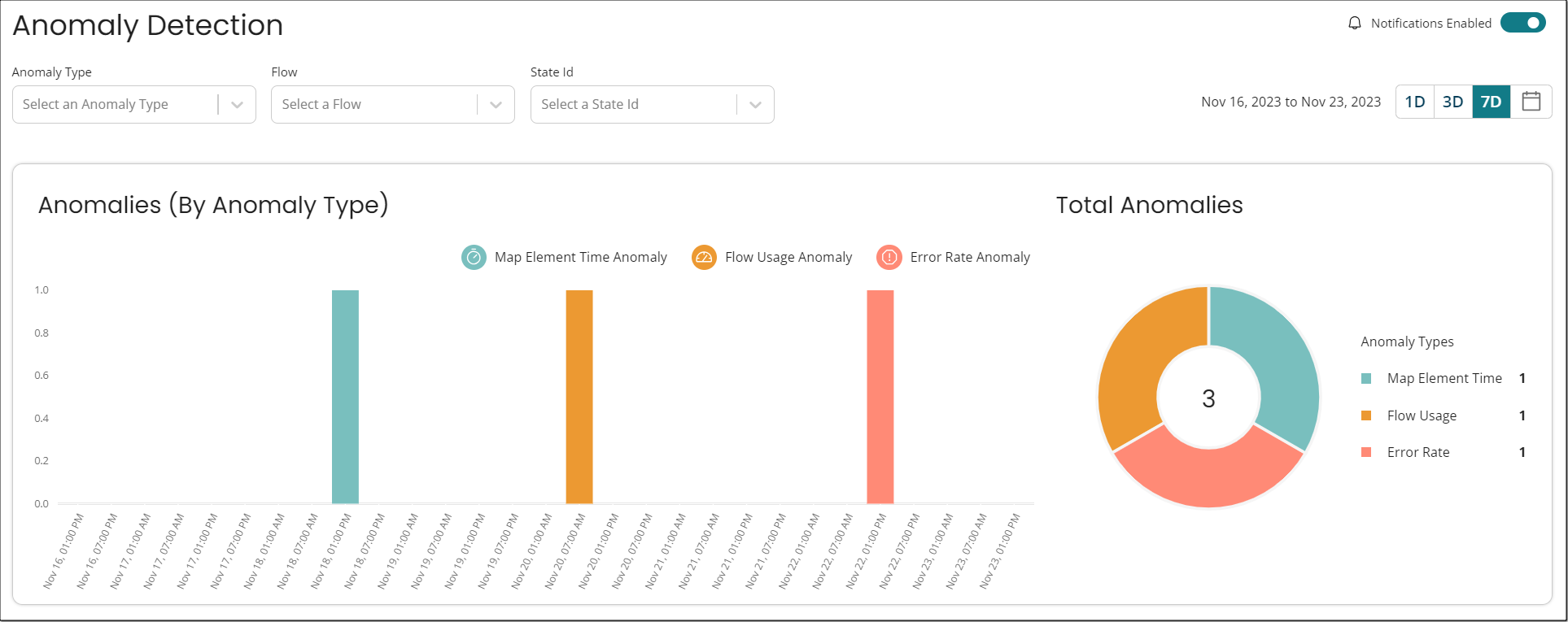
- You can filter the detection selecting options from the drop-down, Anomaly Type, Flow, and State Id.
- The detected anomalies can be also viewed using filters that helps you monitoring day(s) wise:
- 1D: Filter to last day
- 3D: Filter to last three days
- 7D: Filter to last seven days
Following are the anomalies that are being detected:
- Step Time Anomaly - Identifies spikes in the time it takes a user to move on from a step in a Flow. The time of each step is taken into consideration independently. For example, 20s on Step 1 may be normal, whereas 20s on Step 2 may be abnormal.
- Error Rate Anomaly - Identifies spikes in error rates of a Flow. (Not every error is necessarily an anomaly, only new spikes are anomalous)
- Flow Usage Anomaly - Identifies spikes in Flow utilization as a whole. Usage might be one starting a new Flow or progressing through an existing one.
Notifications
- You will receive in-platform badge notifications for anomalies. This badge will appear on the Anomaly Detection sidebar item.
- You may disable this by selecting the option on the Anomaly Detection screen.
Additional Notes
- Anomalies are only stored for 1 week (7 day sliding window).
- While the Flow is being reviewed for typical usage, no anomalies can be raised during the first week that a Flow or step is created.
- Only usage for production flows is monitored.
- When the environments feature is turned ON, then only the flows run in the production environment.
- When the environments feature is turned OFF, then only the flows run without a specified Flow version ID.
