File Resource Operations and Flow types
Unlike Flow Service Message Actions and Data Actions, File Resource Operations do not automatically generate your types when the connector is installed/updated in Flow. Because of this, you will need to manually create any type required for mapping to the profile you have created.
This can be done by:
-
Adding a new type and properties on the Types page. Refer to Types.
-
Using the API tool to execute a
POSTrequest to theapi/draw/1/element/typeendpoint. An example JSON is available at Boomi Flow Github Community.
For example:
-
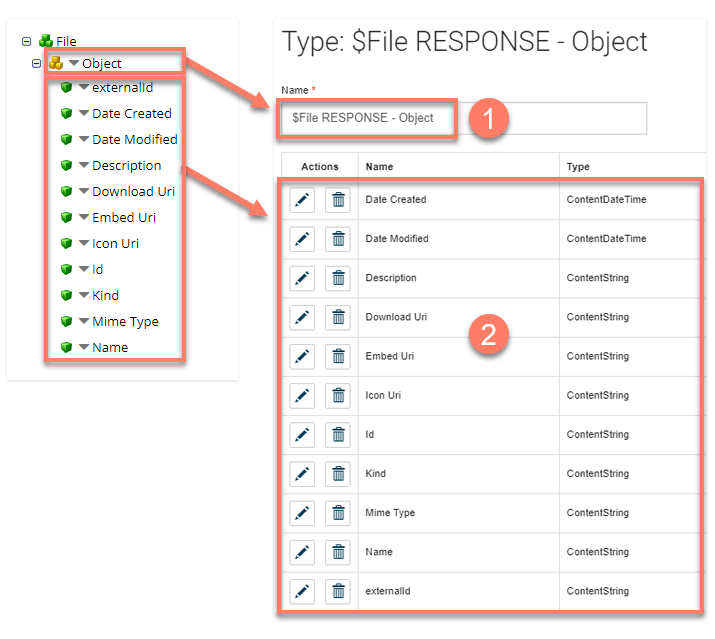
A type has been created in Flow to map to the Flow Service profile. The type is named using the format:
$File RESPONSE - [Object Name]The
[Object Name]is replaced to match the top-level Object name in the profile.
-
A matching property has been created for each of the profile entries. The data types align between the profile entries and the type properties, for example, Character profile entries align with a string property, and datetime profile entries align to date/time properties. Refer to Type Properties.

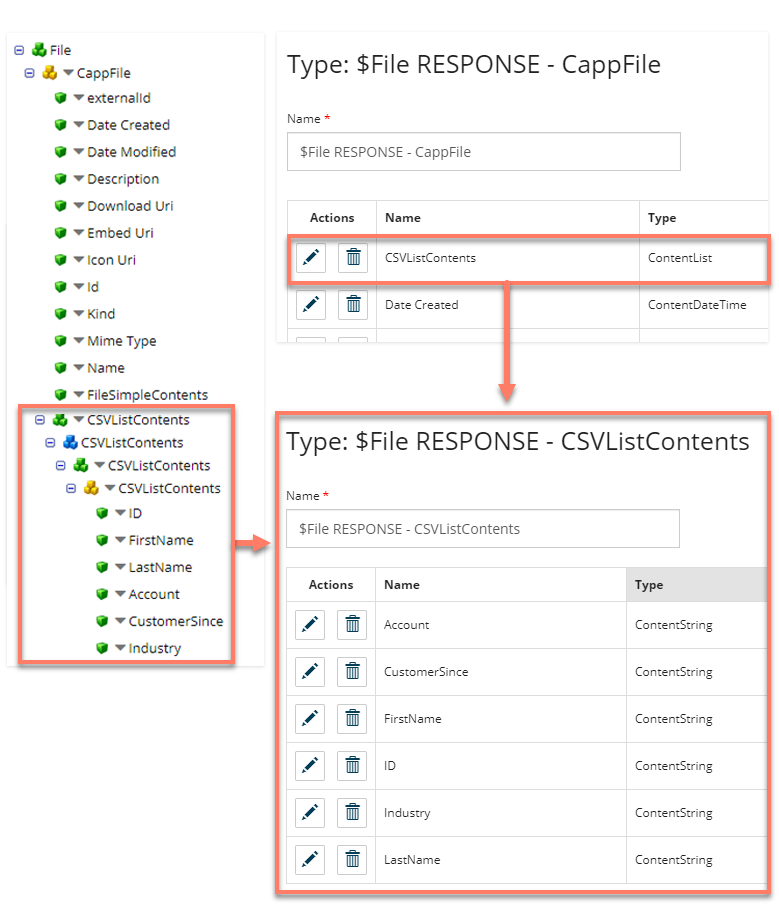
Adding nested Array(Repeating) or Object entries into your profile will require separate types to be created to match these entries, with these types linked to a property of the base type, as with the profile nesting.
For example:
-
A nested Array(Repeating) entry has been added inside the 'base level' file response profile. As this is a complex value, this requires a separate type to be created as a property of the base type.
-
A new type is created and named according to the standard naming format as '$File RESPONSE - CSVListContents'. Properties are added to this type to match the profile entries.
-
A new 'CSVListContents' List property is added to the base type for the profile, with the new '$File RESPONSE - CSVListContents' type selected as the type of value.
