The Flow Canvas
Use the Flow canvas visual drag-and-drop interface to build your flows.
-
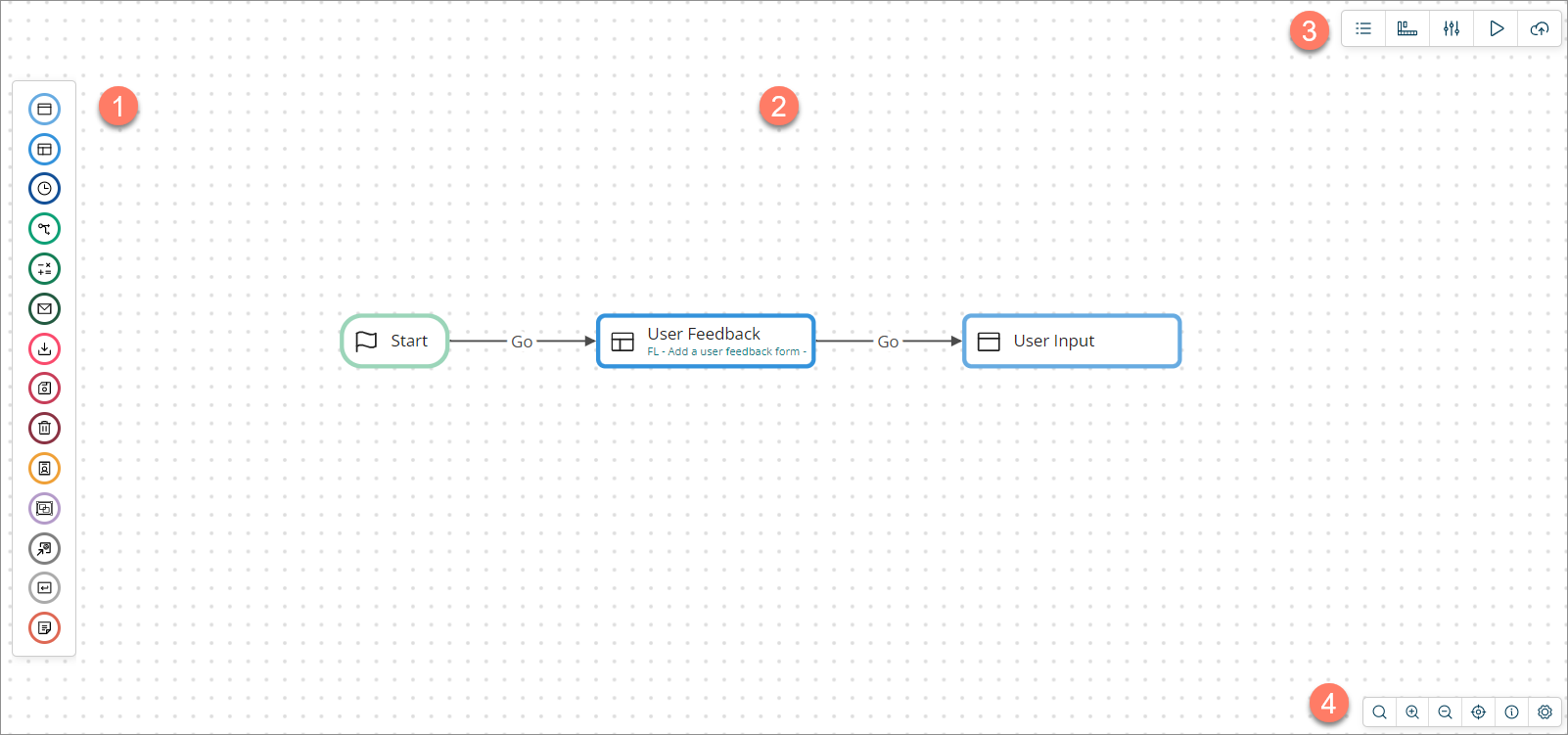
The left-hand steps menu contains all the steps that you can add to the Flow canvas.
 Refer to Steps.
 -
The main area of the Flow canvas is where you build your Flow.
 Refer to Using the Flow canvas.
 -
The top-right-menu provides access to additional features used for building your Flow.

-
Shared steps: Import shared steps into the Flow. These are steps that can be re-used across multiple flows within the tenant, such as common values, pages, types, connectors, and macros. Refer to Shared steps.
-
Navigation: Add navigation to the Flow to allow a user to navigate to different points within the Flow at any time, rather than following the sequential path defined by the workflow. Refer to Navigation.
-
Properties: Edit the main properties of the Flow. Refer to Flow Properties.
-
Run: Build and run the Flow. Refer to Running a Flow.
-
Publish: Build and publish the Flow. Refer to Publishing a Flow.
-
-
The bottom-right canvas toolbar allows you to access the canvas search feature, zoom in/out, fit the Flow to the canvas view, and access the canvas help.
 Refer to Canvas toolbar.
