Adding Feedback to a step
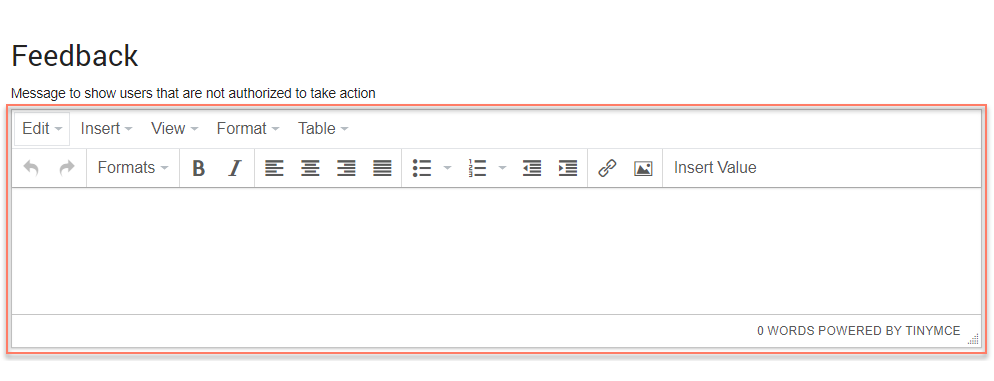
This configuration option allows an optional customized message to be shown to users who are not authorized to perform an action when using the published flow.
The nature of the feedback depends on which step it is being defined against. For example, if this is defined on a presentation step, the feedback will take the form of a message shown to users who are not authorized to access the step, whereas the message step allows you to show feedback to a user not authorized to access the step as well as provide a feedback message to users waiting for the message step to complete loading.
Adding feedback to a step
To add feedback to a step:
-
Open the configuration panel for the step you wish to add feedback to. See Editing steps on the flow canvas.
-
Enter and format the feedback message in the Message to show users that are not authorized to take action field (and/or the Message to show users that are waiting for this Message to complete field if configuring a message step).
-
Click Save to save any changes you have made to the step, including your feedback.
Steps this configuration option is available for
This configuration option can be defined for the following steps:
-
Step steps: Configure a message to be shown to users who are not authorized to access the step.
-
Page steps: Configure a message to be shown to users who are not authorized to access the step.
-
Message steps: Configure a message to be shown to users who are not authorized to access the step, and also define a feedback message to show to users waiting for the message step to complete loading.
