Knowledge Hub as a target
The Knowledge Hub connector is available as an Early Access feature.
Knowledge Hub is a supported target in Data Integration. You can extract data from supported source systems and load it directly into a Knowledge Base in Knowledge Hub, where it is chunked, embedded, and made available for retrieval by AI agents.
Prerequisites
- An active Knowledge Hub license.
- An existing Knowledge Base in Draft or Enabled state. Refer to [] for more information.
- Permission to add sources to the target Knowledge Base.
- Valid credentials for the source system you intend to connect.
How the flow works across services
Configuring Knowledge Hub as a target involves two services. You configure and activate the flow in Data Integration. Knowledge Hub then chunks, embeds, and loads the data into your Knowledge Base. You can also start this flow directly from Knowledge Hub, which pre-fills the Repository and Knowledge Base.
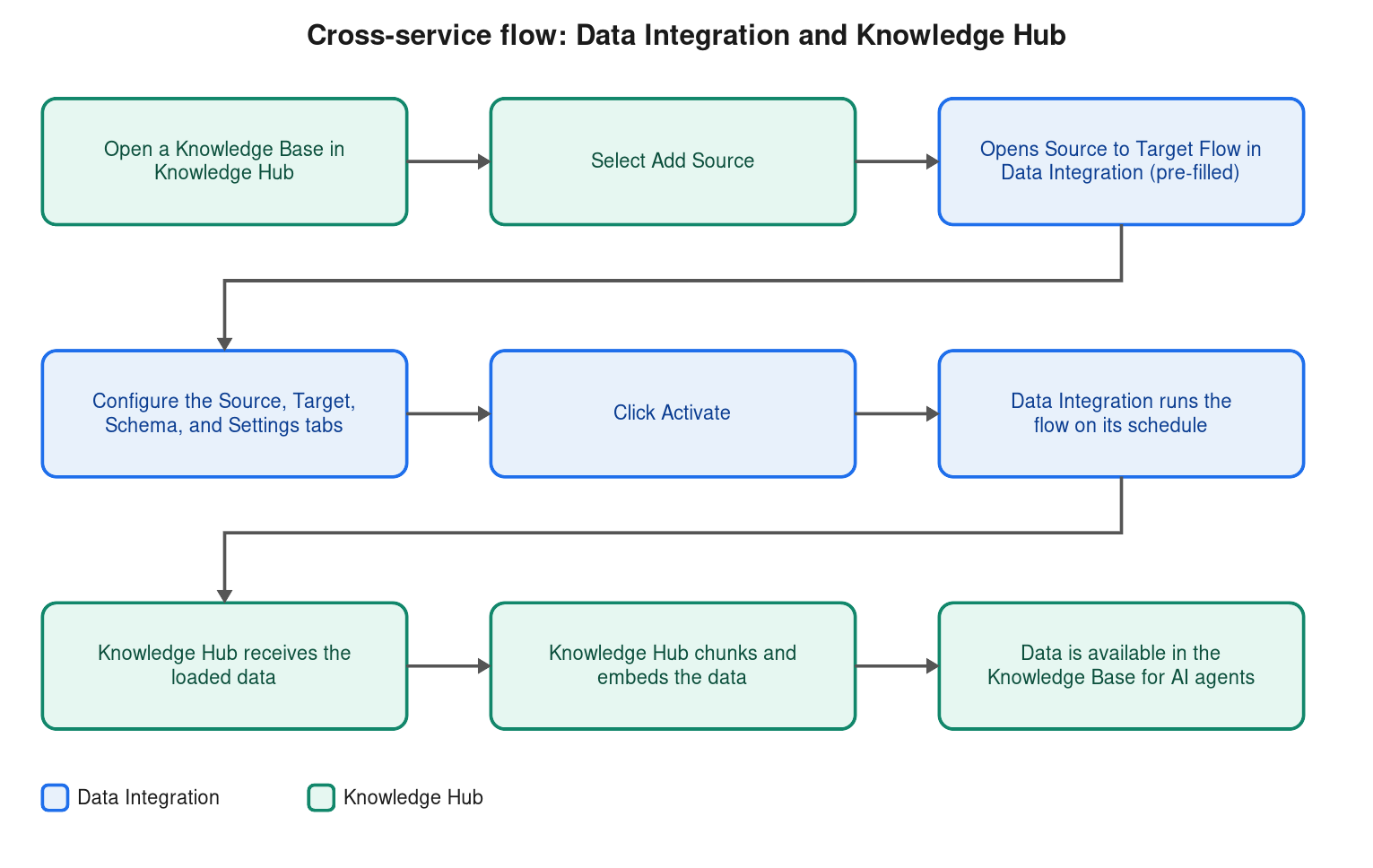
Refer to Knowledge Hub for more information on managing Knowledge Bases.
Supported source connectors
Knowledge Hub ingestion supports the following connectors:
| Category | Connectors |
|---|---|
| File storage | Amazon S3, Azure Blob Storage, Google Cloud Storage, SFTP |
| Application data | Confluence, Jira, Salesforce (SFDC), SAP |
Configuring Knowledge Hub as a target
The Source to Target Flow is organized into four tabs: Source, Target, Schema, and Settings.
- Target
- Schema
- Settings
-
Navigate to the Target tab and select Knowledge Hub.
-
Under Target Connection, select an existing connection from the dropdown, or click New Connection to create one. Refer to Knowledge Hub as a target connection for the connection fields. Click Test Connection to verify connectivity.
-
Under Load Into, select a Repository, then select a Knowledge Base.
Only Knowledge Bases in Draft or Enabled state are available. If you started this flow from Knowledge Hub, these fields are already populated.
-
Under Loading Mode, select how data is written to the Knowledge Base:
Loading mode Behavior Upsert - Merge Updates matched rows and inserts new rows. Append Only Inserts all source rows without modifying existing data. Overwrite Replaces all existing data on each run. noteThe match key used for Upsert - Merge is defined in Knowledge Hub, not in Data Integration.
-
Click Save.
The Schema tab shows the Columns Mapping view for the Knowledge Hub target.
-
Click Auto Mapping to automatically map source fields to Knowledge Hub target fields.
To add mappings manually, click + Add Field and configure each row:
Field Description Source Field The field name from the source system. Target Field The corresponding field name in the Knowledge Hub target. Type The data type for the field (for example, STRING). Mode Whether the field is required or optional: NULLABLE or REQUIRED. Expression An optional transformation applied to the source field value before loading.
Knowledge Hub does not currently support schema drift.
- Click Save.
-
Click click here to view schedule for v2 data flows to configure the ingestion schedule.
-
Under Notifications, enable alerts for the events you want to monitor:
Setting When it fires On Failure The flow run fails. On Warnings The flow run completes with warnings. On Run Time Threshold The flow run exceeds a configured time limit. -
Click Save.
Activating the flow
Once all tabs are complete, click Activate. Data Integration sends the configuration to Knowledge Hub and the flow runs on your configured schedule.
