Amazon Athena as a target
Amazon Athena as a target is currently in Beta stage.
Amazon Athena is an interactive query service that enables analysis of data directly in Amazon S3 using standard SQL. With a few actions in the AWS Management console, you can point Athena at your data stored in Amazon S3 and start using standard SQL to run ad-hoc queries and get results.
Prerequisites
Creating buckets
A bucket is an object container. To store data in Amazon Athena, you must create a bucket and specify a bucket name and an AWS Region. Then, you upload your data as objects to that bucket in Amazon Athena. Each object has a key (or key name) that serves as the object's unique identifier within the bucket.
Amazon Athena requires you to create two buckets by applying the policy.
Start by logging into AWS and searching for buckets.
Adding a policy
A bucket policy is a resource-based policy that lets you grant access permissions to your bucket and the objects contained within it. After creating a bucket, you can add a policy to grant the necessary permissions.
Policy code:
{
 "Version": "2012-10-17",
 "Statement": [
 {
 "Sid": "RiveryManageFZBucket",
 "Effect": "Allow",
 "Action": [
 "s3:GetBucketCORS",
 "s3:ListBucket",
 "s3:DeleteObject",
 "s3:GetBucketLocation"
 ],
 "Resource": "arn:aws:s3:::*"
 },
 {
 "Sid":"RiveryManageFZObjects",
 "Effect":"Allow",
 "Action":[
 "s3:ReplicateObject",
 "s3:PutObject",
 "s3:GetObjectAcl",
 "s3:GetObject",
 "s3:PutObjectVersionAcl",
 "s3:PutObjectAcl",
 "s3:ListMultipartUploadParts"],
 "Resource":["arn:aws:s3:::`<athena_query_results_bucket_name>`/*","arn:aws:s3:::`<athena_query_results_bucket_name>`","arn:aws:s3:::`<athena_data_bucket_name>`/*","arn:aws:s3:::`<athena_data_bucket_name>`"]
 },
 {
 "Sid": "AthenaAccess",
 "Effect": "Allow",
 "Action": [
 "athena:*",
 "glue:CreateDatabase",
 "glue:DeleteDatabase",
 "glue:GetDatabase",
 "glue:GetDatabases",
 "glue:UpdateDatabase",
 "glue:CreateTable",
 "glue:DeleteTable",
 "glue:BatchDeleteTable",
 "glue:UpdateTable",
 "glue:GetTable",
 "glue:GetTables",
 "glue:BatchCreatePartition",
 "glue:CreatePartition",
 "glue:DeletePartition",
 "glue:BatchDeletePartition",
 "glue:UpdatePartition",
 "glue:GetPartition",
 "glue:GetPartitions",
 "glue:BatchGetPartition"
 ],
 "Resource": [
 "*"
 ]
 },
 {
 "Sid": "RiveryHeadBucketsAndGetLists",
 "Effect": "Allow",
 "Action": "s3:ListAllMyBuckets",
 "Resource": "*"
 }
 ]
}
Understanding the need for two S3 buckets
When using Athena as a target, you require two Amazon S3 buckets for different but complementary purposes:
-
Query Results Bucket: The primary bucket stores the results of the queries you run in Athena. When you execute a query, Athena writes the results to this bucket. This setup is essential because Athena is a serverless query service and does not store data or query results itself. Storing query results in an S3 bucket lets you access, analyze, and download these results. The Query Results Bucket is about output management and captures the outcomes of your analyses for later use or further processing.
-
Data Storage Bucket: The second bucket stores the data you want to query with Athena. This bucket holds the actual datasets in formats that Athena can query, such as CSV or JSON. Athena lets you run SQL queries directly on this data without needing to load it into a traditional database. The Data Storage Bucket stores your data, making it easy to query and organized.
Data Integration user in AWS
To connect to the Amazon Athena in Data Integration console, you must first create an AWS Data Integration user.
Creating a workgroup in Amazon Athena
Refer to the Amazon Athena to create a Workgroup.
Ensure the Override client-side settings checkbox is not selected.
Establishing a connection
Navigate the Data Integration console and select Connection from the main menu, and find Athena.
AWS keys
- Enter the Connection Name.
- From the drop-down menu, choose your Region.
- Enter Workgroup (mandatory).
- Select AWS Keys credentials type.
- Enter Your AWS Access key id and Secret access key.
- Click Test Connection to verify your connection. If the connection succeeds, you can use this connection in Data Integration.
IAM role - automatic
- Enter the Connection Name.
- From the drop-down menu, choose your Region.
- Enter Workgroup (mandatory).
- Select IAM Role - Automatic credentials type.
- To start the AWS CloudFormation Stack, click the Launch Stack.
- Replace the External ID in the Parameters section with the ID provided in the Data Integration console.
- Check I acknowledge that AWS CloudFormation may create IAM resources in the Review tab, then click Create.
- Copy the value of AssumeRoleArn from the Output tab in the stack.
- Paste the Role ARN Key.
- Click Test Connection to verify your connection. If the connection succeeds, you can use this connection in Data Integration.
IAM role - manual
-
Enter the Connection Name.
-
From the drop-down menu, choose your Region.
-
Enter Workgroup (mandatory).
-
Select IAM Role - Automatic credentials type.
-
Start the AWS IAM console.
-
Click Policies on the menu, and select Create Policy.
a. Navigate to the JSON tab.b. Copy the following policy:
{
"Version": "2012-10-17",
"Statement": [
{
"Sid": "RiveryManageFZBucket",
"Effect": "Allow",
"Action": [
"s3:GetBucketCORS",
"s3:ListBucket",
"s3:GetBucketLocation"
],
"Resource": "arn:aws:s3:::*"
},
{
"Sid":"RiveryManageFZObjects",
"Effect":"Allow",
"Action":[
"s3:ReplicateObject",
"s3:PutObject",
"s3:GetObjectAcl",
"s3:GetObject",
"s3:PutObjectVersionAcl",
"s3:PutObjectAcl",
"s3:ListMultipartUploadParts"],
"Resource":["arn:aws:s3:::`<athena_query_results_bucket_name>`/*","arn:aws:s3:::`<athena_query_results_bucket_name>`","arn:aws:s3:::`<athena_data_bucket_name>`/*","arn:aws:s3:::`<athena_data_bucket_name>`"]
},
{
"Sid": "AthenaAccess",
"Effect": "Allow",
"Action": [
"athena:*",
"glue:CreateDatabase",
"glue:DeleteDatabase",
"glue:GetDatabase",
"glue:GetDatabases",
"glue:UpdateDatabase",
"glue:CreateTable",
"glue:DeleteTable",
"glue:BatchDeleteTable",
"glue:UpdateTable",
"glue:GetTable",
"glue:GetTables",
"glue:BatchCreatePartition",
"glue:CreatePartition",
"glue:DeletePartition",
"glue:BatchDeletePartition",
"glue:UpdatePartition",
"glue:GetPartition",
"glue:GetPartitions",
"glue:BatchGetPartition"
],
"Resource": [
"*"
]
},
{
"Sid": "RiveryHeadBucketsAndGetLists",
"Effect": "Allow",
"Action": "s3:ListAllMyBuckets",
"Resource": "*"
}
]
}
c. Paste the Policy into the description, then click Review Policy.
-
Enter the policy name - 'Data Integration-Athena-Policy' and click Create Policy.
-
Click Roles on the menu, and select Create Role.
-
Select Another AWS Account and change the Account ID to the one provided in the Data Integration console.
-
Check Require External ID, and set External ID to the one provided in the Data Integration console.
-
Click Next.
-
Attach the 'Data Integration-Athena-Policy' to the Attach Policy form.
-
Set 'Data Integration-Athena-Role' as the role name.
-
Copy the Role ARN from the Role's pop-up and paste it into the field.
-
Click Test Connection to verify your connection. If the connection succeeds, you can use this connection in Data Integration.
Configuration processes
-
After establishing a Connection, enter your Connection Name.
-
Select your Target Connection from the drop-down list.
-
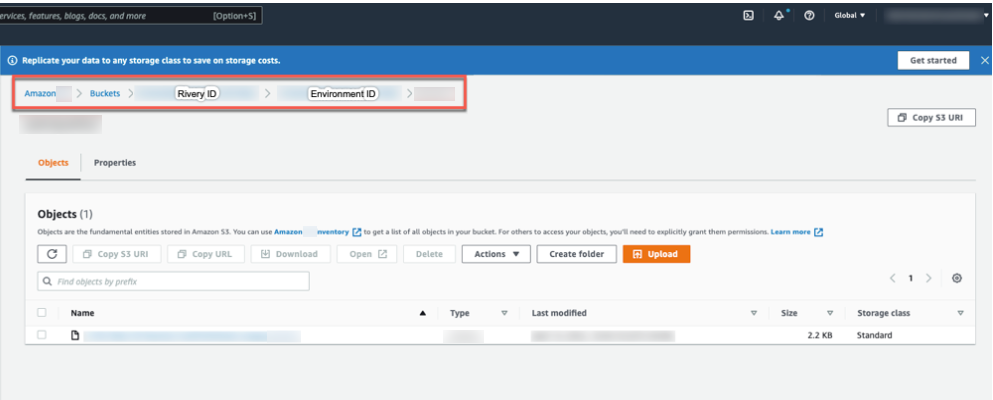
Input the File Name and the FileZone path from your S3 storage.
-
Enter the Bucket Name. The bucket serves as the Query Results Bucket for storing the Athena Parquet table.
-
Click the curved arrow next to Schema on the right side of the row. After the refresh, click the row and choose the Schema to store your data.
-
Enter the Table Name.
-
Set the Loading Mode.
Loading Modes:
-
Upsert Merge - Based on the selected key columns, the system matches rows to decide whether to replace matches, keep non-matching rows, or insert new ones. This mode suits continuous merge runs because it avoids duplication and creates an index for better performance. Upsert Merge includes two merge techniques:
-
Append Only - This appends any new records while keeping all the current records using INSERT INTO the Target table (matching on columns).
-
Overwrite - This TRUNCATES the old records and INSERTS the new records in the Target table.
-
-
-
Set the period partition time frame.
-
Choose the file type.
- CSV - Ensure to choose the SerDe based on the types of values your data contain.
- JSON - To de-serialize JSON data, you can use SerDe libraries.
-
Provide the name of the second bucket and the path within the File Zone. This is the Data Storage Bucket where files remain in their native CSV/JSON format before transferred to Athena. The File zone bucket preserves data in its original CSV/JSON structure.
-
Set the period partition time frame for a FileZone folder.
You can enable Data Integration to divide the data according to the data insertion day, the Day/Hour, or the Day/Hour/Minute. Data Integration produces data files from your sources under folders that correspond to the correct partition you selected.
- After establishing a connection, enter your Connection Name.
- In the Source section, type your SQL query or SQL script.
- The SQL script is not encrypted in any way, and avoid using credentials in the script.
- The SQL script runs according to user configurations. You are responsible for any changes to the table, schema, or data that occur as a result of the script.
-
In the Target section, select Table or Variable.
- If you selected Variable, select the variable's type and then, from the drop-down list, choose the variable you want to use as a target.
- If you select Table, move on to step 5.
-
Click the Bucket Name section and select the bucket you want to load from the drop-down list.
-
Enter the FileZone path from your S3 storage.
-
Click the Schema section and select the schema you want from the drop-down list.
-
Enter your Table Name.
-
Set the Loading mode.
Loading modes: Append Only - This appends any new records while keeping all the current records using INSERT INTO the Target Table (matching on columns).
Upsert Merge - Based on the key columns you selected, the system matches rows and decides whether to replace matching rows, keep unmatched rows, or add new ones.Choose this mode for continuous merge runs because it avoids duplication and creates an index for better performance. Upsert Merge includes two merge techniques:
-
Append Only - This appends any new records while keeping all the current records using INSERT INTO the Target table (matching on columns).
-
Overwrite - This TRUNCATES the old records and INSERTS the new records in the target table.
-
-
Set the period Partition Type and Granularity for a bucket.
The platform adds a new column with the selected granularity value to the target table in Athena. For example, consider you want to partition data in our mapping with a granularity of one day based on the order_date column. This column is of type DATE. After a successful Data Flow run on the selected target table, you can view a new column in the Athena console with the name order_date_day and the value of the day from order_date. The granularity of this partitioned column is day.
- Click the Column Mapping.
- Configure the Columns to your preferences as they appear in your Target.
- To add a new field to your Target, select +Add Field.
- If you select Bucket next to a particular field, specify the number of buckets to target that field by clicking Save. Enter the buckets in a newly created section in the target form. The range of defined buckets is 2 to 100.
- Select the partition checkbox where you can only partition the Date and Timestamp fields.
- Click Save.
- Select Run to run your Data Flow.
Type mapping
The system matches Amazon Athena data types to Data Integration data types while extracting your data. If a data type is not supported, the system maps it as a String type.
The following table shows the mapping of Amazon Athena data types to Data Integration-compatible types:
| Amazon Athena Type | Data Integration Type |
|---|---|
| STRING | string |
| TIMESTAMP | timestamp |
| DATETIME | date |
| BOOLEAN | boolean |
| BIT | int |
| FLOAT | float |
| INTEGER | int |
| INT | int |
| BIGINT | bigint |
| SMALLINT | smallint |
| DATE | date |
| TIME | timestamp |
| RECORD | string |
| ARRAY | string |
| VARCHAR | string |
| TEXT | string |
| VARIANT | string |
| NVARCHAR(MAX) | string |
| NVARCHAR | string |
| TINYINT | tinyint |
| DATETIME2 | timestamp |
| DATETIMEOFFSET | timestamp |
| REAL | float |
| SMALLDATETIME | timestamp |
| UNIQUEIDENTIFIER | string |
| BINARY | binary |
| NUMERIC | float |
| CHAR | char |
| DECIMAL | decimal |
| NCHAR | string |
| VARBINARY | string |
